 NEWS
NEWS
iPhone with Damaged Battery Bursts into Flames at Repair Shop
 05/15/2018
 2853
2853
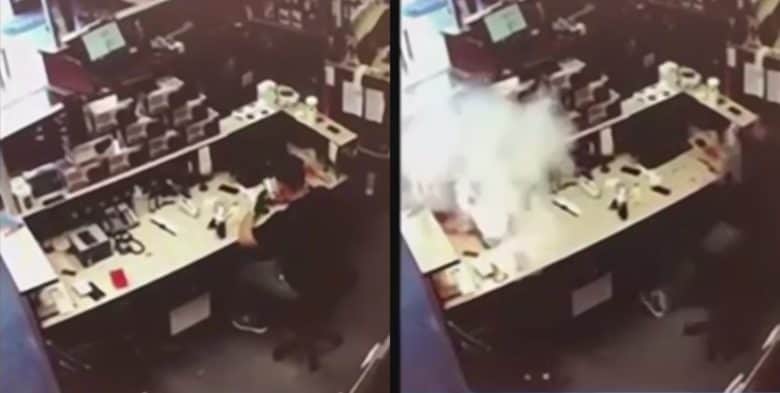
An iPhone reportedly exploded and briefly caught fire in front of a security camera.
The device was an iPhone 6 that was in the shop for repair. Its battery had supposedly begun to expand, cracking the display.
This happened in a Las Vegas shop, according ABC affiliate KTNV.
It’s rare, but the iPhone 6 does suffer from swollen battery problems, as do most computers with lithium ion batteries. This is caused by overcharging. It’s not generally the result of anything the customer has done, but because of problems within the phone. Apple designs its devices to not overcharge, but it nevertheless does occur.
Not every bulging battery is about to explode, but there are reports of it happening. Any iPhone with this problem should be repaired as soon as possible. At the very least, it shouldn’t be used.
Is this iPhone explosion video real?
While this is apparently an example of an iPhone explosion in just the right place to be captured on video, it’s also possible this is a hoax.
When the device apparently explodes, it’s sitting on a box, not directly on the desk. This could be a way to conceal incendiaries needed to make the phone appear to catch fire.
The person in the video reacts to the explosion extremely quickly. There was not even an instant of confusion. He’s well away from the flames in about a quarter of a second. He could just have very good reactions, or he could have been waiting for it.
Plus, image quality in ABC’s video is terrible. It’s taken with a phone camera recording a security video playing on an LCD. The device shows no details. It could be an iPhone 6 as the source claims, but what it looks like is a black rectangle.
This lack of detail makes it hard to see exactly what happened in the supposed iPhone explosion.
Source: cult of mac











