 NEWS
NEWS
Google Chrome for iOS Adds Support for Exporting all of your Saved Passwords
 04/18/2018
 3760
3760
Google today has updated Chrome for iOS with support for exporting passwords. The feature comes as part of version 66 of the app…
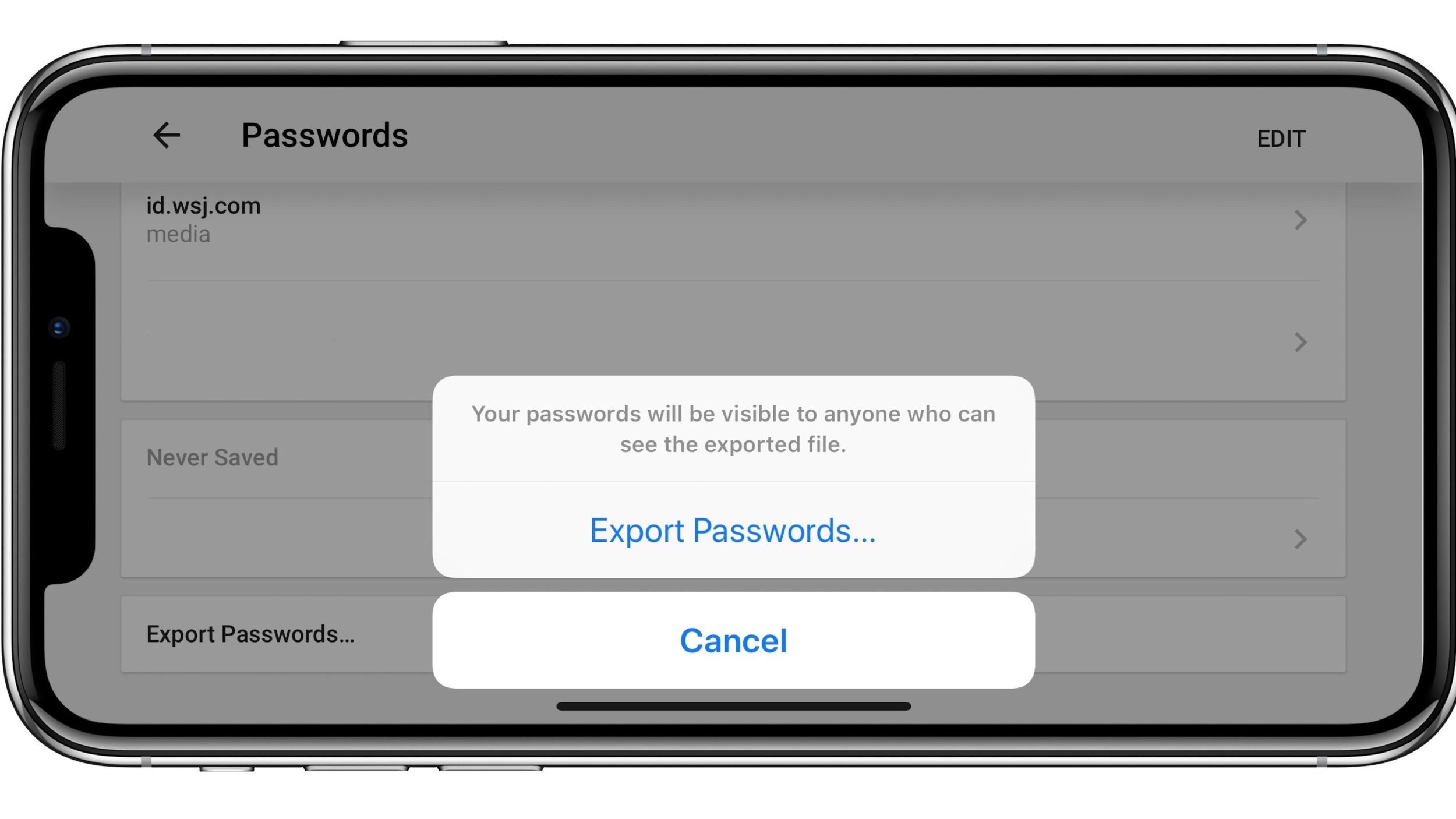
Support for exporting saved passwords in Chrome first came to Android and desktops last month. The feature was included in Chrome 65, though required enabling via an experimental flag, suggesting it was not yet ready for primetime.
Chrome 66, however, is now available for iOS with full support for password exporting. The feature works much like you’d expect it to. In Chrome, simply tap the three dots in the upper-right corner, choose the Settings option, and then tap Passwords.
From there, you’ll see a list of all of your saved passwords. Scroll all the way down and look for the new Export Passwords option. Chrome will then authenticate you via either Face ID or Touch ID and subsequently bring a share sheet. You can share your saved passwords as a .csv file via Messages, Mail, or other applications.
Google is sure to point out that exporting your passwords means that anyone with access to that .csv therefore has access to your passwords. Thus, it’s important to make sure you keep that file somewhere safe and password protected.
You can now export passwords saved in Chrome and use them in another app. We’ve also included stability and performance improvements.
Your passwords will be visible to anyone who can see the exported file.
It’s unclear when support for exporting passwords will launch in non-experimental form on other platforms, but for now it is available for iOS. Google Chrome is available as a free download from the App Store.
Source: 9to5mac









