 NEWS
NEWS
Apple to move Chinese iCloud Keys to China servers, Opens Door to Government Data Requests
 02/26/2018
 3438
3438
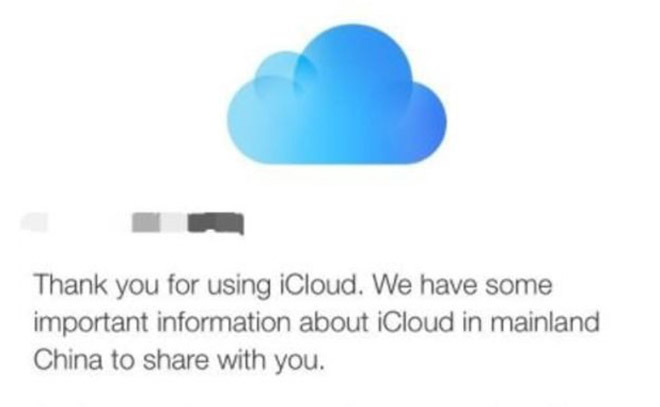
Apple notified users of the data transfer in January, saying stored information would be moved to servers operated by its in-country partner Guizhou-Cloud Big Data Industry Co. Ltd. At the time, Apple failed to detail what information would be included in the move.
On Friday, Reuters confirmed customer iCloud keys are part of the mass transfer, potentially making it easier for Chinese government agencies to obtain user texts, emails and other information.
Under Apple's security protocol, data stored in the cloud is encrypted, as are data transfers to and from user devices. Like other systems, cryptographic keys are required to access iCloud data. Currently, all iCloud keys — even those for Chinese accounts — are located on U.S. servers, meaning governmental requests for access fall under the purview of U.S. law.
Those protections will disappear as soon as Apple migrates the keys into China. Once on Chinese soil, government agencies will be able to request information through the Chinese legal system, which lacks the transparency, checks or oversight of its American counterpart.
Human rights activists have voiced concern that such change could be dangerous for users branded as political dissidents, whose communications and personal information might soon be open to surveillance.
For its part, Apple has repeatedly said the data migration is a requirement for operating iCloud and other cloud services in China, a lucrative region it cannot afford to overlook. Still, the decision to continue service in light of China's notorious record of censorship and government snooping is seemingly at odds with Apple's consumer privacy dogma.
"While we advocated against iCloud being subject to these laws, we were ultimately unsuccessful," Apple said in a statement. The company went on to argue that maintaining iCloud with its partner GCBD is better than discontinuing the service, as doing so would lead to a negative user experience and would be detrimental to user privacy, the report said.
Sensitive to the political climate, Apple last year said its Chinese servers do not include backdoors and that it would be control of iCloud keys, not GCBD. That might not matter, however, as those keys will be subject to the Chinese legal system, an entity legal experts note lacks mechanics by which warrants are reviewed by an independent court, the report said.
Apple said it will not switch Chinese customer data over to GCBD servers until they agree to new terms of service, but points out that more than 99.9 percent of iCloud users have already done so, according to the report.
In previous statements on the matter, Apple said users who do not wish to have their data transferred have until the end of February to terminate their account.
Source: appleinsider










