 NEWS
NEWS
macOS High Sierra's App Store System Preferences Can Be Unlocked With Any Password
 01/11/2018
 2593
2593
A bug report submitted on Open Radar this week has revealed a security flaw in the current version of macOS High Sierra that allows the App Store menu in System Preferences to be unlocked with any password. 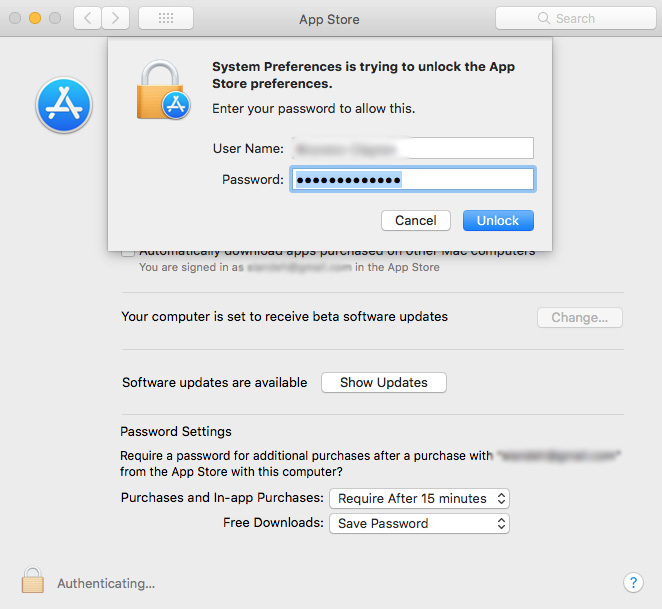
MacRumors is able to reproduce the issue on macOS High Sierra version 10.13.2, the latest public release of the operating system, on an administrator-level account by following these steps:
• Click on System Preferences.
• Click on App Store.
• Click on the padlock icon to lock it if necessary.
• Click on the padlock icon again.
• Enter your username and any password.
• Click Unlock.
As mentioned in the radar, we can confirm that the App Store preferences login prompt does not accept an incorrect password with a non-administrator account, meaning there is no behaviour change for standard user accounts.
We also weren't able to bypass any other System Preferences login prompts with an incorrect password, with any type of account, so more sensitive settings such as Users & Groups and Security & Privacy are not exposed by this bug.
Apple has fixed the bug in the latest beta of macOS 10.13.3, which currently remains in testing and will likely be released at some point this month. The bug doesn't exist in macOS Sierra version 10.2.6 or earlier.
On the current macOS 10.13.2, the bug gives anyone with physical, administrator-level access to a Mac the ability to disable settings related to automatically installing macOS software, security, and app updates.
This is the second password-related bug to affect macOS High Sierra in as many months, following a major security vulnerability that enabled access to the root superuser account with a blank password on macOS High Sierra version 10.13.1 that Apple fixed with a supplemental security update.
Following the root password vulnerability, Apple apologized in a statement and added that it was "auditing its development processes to help prevent this from happening again," so this is a rather embarrassing mishap.
We greatly regret this error and we apologize to all Mac users, both for releasing with this vulnerability and for the concern it has caused. Our customers deserve better. We are auditing our development processes to help prevent this from happening again.
It's worth noting that the App Store preferences are unlocked by default on administrator accounts, and given the settings in this menu aren't overly sensitive, this bug is not nearly as serious as the earlier root vulnerability.
Apple will likely want to fix this bug sooner rather than later, so it's possible we'll see a similar supplemental update released at some point, or perhaps it will fast track the release of macOS High Sierra version 10.13.3. Apple did not immediately respond to our request for comment on this matter.
In the meantime, if you keep your App Store preferences behind lock, you'll want to be more diligent in ensuring that you log out of your administrator account when you are away from your Mac. Alternatively, until macOS 10.13.3 is released, users can use a standard account rather than an administrator one.
While this bug isn't as dangerous as the root password vulnerability, being able to bypass a login prompt with any password is something that obviously shouldn't be possible and is an embarrassing oversight for Apple.
Source: macrumors









