
NEWS

Face ID Not Working on iPhone X After Updating to iOS 11.2?

12/04/2017

3319

Some iPhone X owners are reporting that Face ID is not working after updating to iOS 11.2, which was released this morning. The iPhone X instead shows an alert that says it is ‘unable to activate Face ID on this iPhone’. Luckily, the fix seems to be very simple – simply reboot your phone …


The Face ID problem does not affect every phone — I successfully updated from iOS 11.1.2 to iOS 11.2 and Face ID worked without issue — but the number of people impacted by this bug is meaningful, with several reports from 9to5Mac readers and countless more online.


In most cases, simply turning off the iPhone X and turning it back on again will make Face ID activate successfully. It is reassuring that this is not a persistent issue.
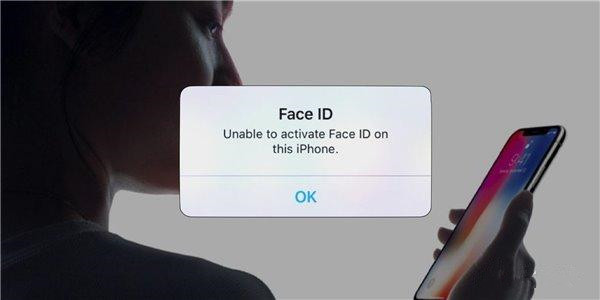

Face ID Not Working on iPhone X After Updating to iOS 11.2?


To turn off iPhone X, hold down the side button and either volume button. Then drag the ‘slide to power off’ slider to shut down the phone. Wait for the screen to go black, then hold down the side button to boot the phone up again.


If Face ID does not work after a hard restart, contact Apple Support.


Apple pushed out iOS 11.2 ahead of normal schedules, as the date crashing bug was so severe it demanded urgent attention. This resulted in Apple releasing an update at a very unusual time, at a weekend, because so many people were facing Springboard crashes after the system clock ticked over to December 2.


Source: 9to5mac

Windows
Mac OS
iOS
Linux
3uTools
Win 64-bit For this device
V9.0 2025-11-11
Download
Win 32-bit For this device
V9.0 2025-11-11
Download
3uTools
Intel Chip How to Identify Chip Type
V9.0 2025-12-02
Download
Apple Silicon
V9.0 2025-12-02
Download
How to Identify Chip Type
1.  Click the Apple icon in the top-left corner of the screen and select About This Mac.
2.  Check the Processor or Chip field to determine if it is "Intel" or "Apple".
Please use the 3uTools PC client to install the iOS client:
1、 Install either the Windows or Mac version of 3uTools on your computer
2、 Open the PC client and connect your device to the computer via USB cable
3、 After the connection is successful, wait for the computer to automatically install the mobile app for the device, or locate “Install Mobile App” on the computer and manually click to install.
3uTools
deb file
V3.01 2025-11-20
Download
rpm file
V3.01 2025-11-20
Download
Windows
Windows
iOS
iOS
Android
Android
TV
TV
3uAirPlayer
Win 64-bit For this device
V6.0.2 2025-11-19
Download
Win 32-bit For this device
V6.0.2 2025-11-19
Download
iOS Device Mirroring (No App Required)
1、 Install 3uAirPlayer on the Windows PC
2、 Open Control Center and select Screen Mirroring
3、 From the list, choose your PC to start mirroring
4、 Or connect your iOS device to the PC via USB to begin mirroring
Scan to get "3uAirPlayer" App
3uAirPlayer TV V1.0.18
2025-11-28
TV System Requirements: Android 7.0 or later
Download the TV installation package, copy it to a USB drive, insert it into your TV or set-top box, then select the file from the home screen to install.




