 NEWS
NEWS
Hundreds of iPhone Users Complain About the Word 'It' Autocorrecting to 'I.T' on iOS 11 and Later
 11/28/2017
 4740
4740
At least a few hundred iPhone users and counting have complained about the word "it" autocorrecting to "I.T" on iOS 11 and later. 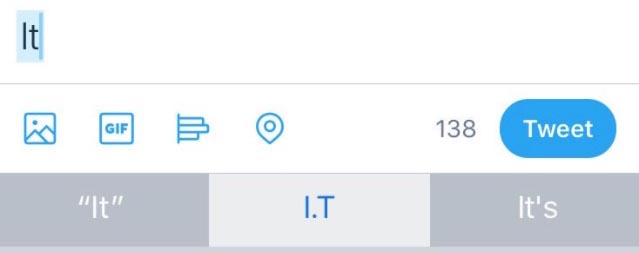
When affected users type the word "it" into a text field, the keyboard first shows "I.T" as a QuickType suggestion. After tapping the space key, the word "it" automatically changes to "I.T" without actually tapping the predictive suggestion.
A growing number of iPhone users have voiced their frustrations about the issue on the MacRumors discussion forums, Twitter, and other discussion platforms on the web since shortly after iOS 11 was released in late September.
MacRumors reader Tim shared a video that appears to indicate the issue can cause the word "is" to be autocorrected to "I.S" as well.
Many users claim the apparent autocorrect bug persists even after rebooting the device and performing other basic troubleshooting.
A temporary workaround is to tap Settings > General > Keyboard > Text Replacement and enter "it" as both the phrase and shortcut, but some users insist this solution does not solve the problem.
A less ideal workaround is to toggle off auto-correction and/or predictive suggestions completely under Settings > General > Keyboard.
The issue is notable given Apple just recently addressed a similar bug that caused the letter "i" to autocorrect to "A[?]" on iOS 11 and later. The fix was included in iOS 11.1.1, publicly released in early November.
This similar "it" to "I.T" issue does not appear to be fixed in iOS 11.1.1 and later. It's unclear if a future software update will be required to address the problem, which MacRumors hasn't been able to reproduce. Apple did not respond to multiple requests for comment about this particular issue.
Source: macrumors










