 NEWS
NEWS
iPhone 7 Plus Can Not Take Photos with Portrait Lighting Mode
 11/22/2017
 3216
3216
If you stay informed about the latest Apple products, you will know that the iPhone 8 Plus and the iPhone X incorporate a new photo mode called Portrait Lighting or Portrait Lighting Mode. This tool allows real-time study effects, using facial detection techniques and depth maps to create unique images.
Recently the news has spread that the portrait lighting mode does not really require the technology of the iPhone 8 Plus and iPhone X, but could also be carried out on the iPhone 7 Plus. According to this theory, it is Apple that is artificially restricting the function to favor sales of their new smartphones.
What happens is that the iPhone 7 Plus can not take photos with portrait lighting mode in real time, something that the iPhone 8 Plus and iPhone X can do. Capturing images in portrait mode is already slow with the A10 Fusion processor , and although the iPhone 7 Plus could try to take pictures in Portrait Lighting mode, the process would be even slower.
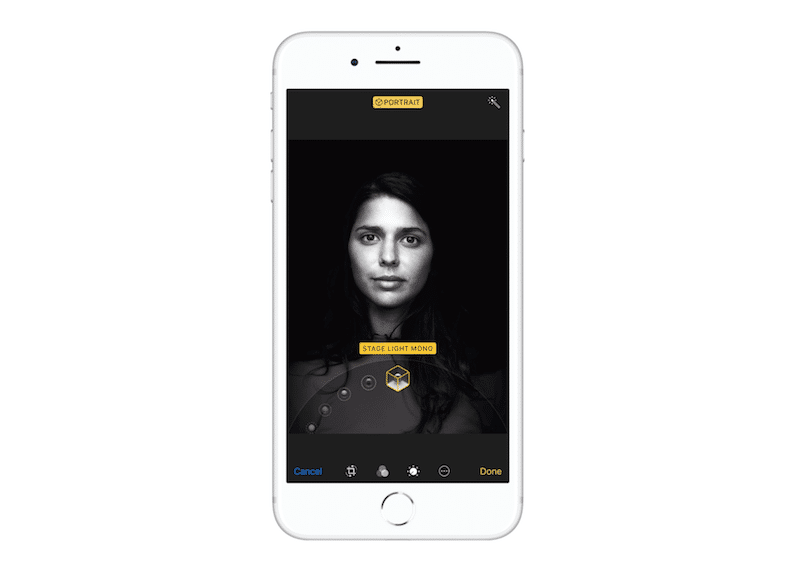
The A11 Bionic chip, on the other hand, offers optimal performance for getting snapshots in portrait mode as well as portrait mode lighting in real time in a fast way.
What Troughton-Smith refers to in his tweet is that the iPhone 7 Plus can apply the effect in postproduction. To do this, you have to take a photo in portrait mode, change to Photos, click on Edit and then add the Portrait Lighting mode. In addition, it is also possible to change or eliminate the effect in an image captured by an iPhone 8 Plus or iPhone X. However, this system can not include some advantages of the A11 Bionic, including facial detection.
The question, therefore, is why Apple has not wanted to include portrait lighting mode as an editing feature on the iPhone 7 Plus. Although the Cupertino company has not ruled on the matter, it is possible that it made this determination because it did not want to introduce a limited version in this way that does not offer the user the same possibilities as in the new devices.










