
NEWS

Apple Plans Software Update to Fix iPhone X Screen Responsiveness in Cold Weather

11/10/2017

3603

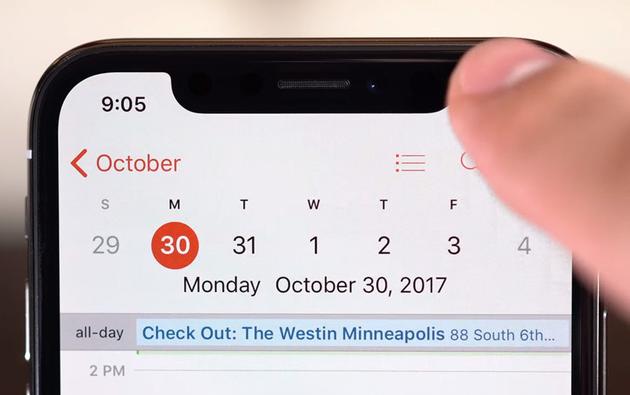
Apple today confirmed an issue causing the iPhone X’s screen to become unresponsive in cold weather, saying that it’s planning a software update to address the issue. Reports of the problem began popping up on the iPhone subreddit community this week, with some users saying it takes only just a few seconds for the phone to freeze up in temperatures around 0 degrees Celsius / 32 degrees Fahrenheit.


“We are aware of instances where the iPhone X screen will become temporarily unresponsive to touch after a rapid change to a cold environment,” the company told Apple blog The Loop. “After several seconds the screen will become fully responsive again. This will be addressed in an upcoming software update.”

Apple Plans Software Update to Fix iPhone X Screen Responsiveness in Cold Weather


Some users have speculated that the changes in light from indoors to outdoors could be the culprit, due to the iPhone X’s use of a front-facing infrared camera and ambient light sensor for Face ID authentication and TrueDepth photography features. Others have floated the idea that perhaps many iOS device screens could become unresponsive outside Apple’s recommended temperature range of between 32 and 95 degrees Fahrenheit, and that it’s just more pronounced on a device with a physical home button.


Yet it’s unclear exactly what the issue is. It is, however, rare for Apple to acknowledge a problem so quickly, suggesting that cold weather is definitively rendering a subset of iPhone X devices unresponsive.


Source: theverge

Windows
Mac OS
iOS
Linux
3uTools
Win 64-bit For this device
V9.0 2025-11-11
Download
Win 32-bit For this device
V9.0 2025-11-11
Download
3uTools
Intel Chip How to Identify Chip Type
V9.0 2025-12-02
Download
Apple Chip
V9.0 2025-12-02
Download
How to Identify Chip Type
1.  Click the Apple icon in the top-left corner of the screen and select About This Mac.
2.  Check the Processor or Chip field to determine if it is "Intel" or "Apple".
Please use the 3uTools PC client to install the iOS client:
1、 Install either the Windows or Mac version of 3uTools on your computer
2、 Open the PC client and connect your device to the computer via USB cable
3、 After the connection is successful, wait for the computer to automatically install the mobile app for the device, or locate “Install Mobile App” on the computer and manually click to install.
3uTools
deb file
V3.01 2025-11-20
Download
rpm file
V3.01 2025-11-20
Download
Windows
Windows
iOS
iOS
Android
Android
TV
TV
3uAirPlayer
Win 64-bit For this device
V6.0.2 2025-11-19
Download
Win 32-bit For this device
V6.0.2 2025-11-19
Download
iOS Device Mirroring (No App Required)
1、 Install 3uAirPlayer on the Windows PC
2、 Open Control Center and select Screen Mirroring
3、 From the list, choose your PC to start mirroring
4、 Or connect your iOS device to the PC via USB to begin mirroring
Scan to get "3uAirPlayer" App
3uAirPlayer TV V1.0.18
2025-11-28
TV System Requirements: Android 7.0 or later
Download the TV installation package, copy it to a USB drive, insert it into your TV or set-top box, then select the file from the home screen to install.




