 NEWS
NEWS
Apple Offers Temporary Fix for iOS 11 'i' Bug
 11/07/2017
 3047
3047
A new support page published on November 4 advises users of how to temporarily solve the error using iOS' own Text Replacement feature. It is also noted on the page that the instructions are only a work around "until it's fixed in a future software update," though no timeframe for the fix is offered.
The page advises users to go to Settings on the affected device, then to go to General and then the Keyboard section, followed by Text Replacement. After tapping the plus symbol, it is advised to enter an uppercase "I" in the Phrase field, with a lowercase "i" in the Shortcut section, before saving.
Aside from Apple's own workaround, users can also avoid the issue by turning off predictive text. Though some users have suggested a phone restore could clean up whatever is causing the issue to occur, the Apple Community Support Forums advise this isn't likely to permanently fix it.
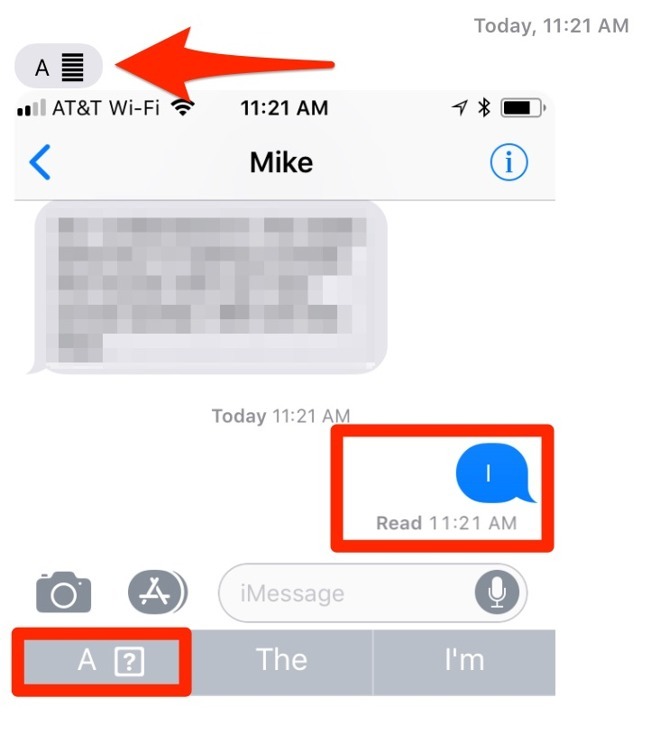
The autocorrect bug, which affects a number of iPhone users who updated their devices to iOS 11, changes instances of the letter "i" to a two-character combination: the letter "A" and the unicode symbol FE0F, known as "variation selector-16." Variation selectors are typically used to specify variants of a Unicode character, such as to display a certain glyph within a language like Chinese or Japanese, as well as mathematical symbols and some emoji.
It is unknown why the autocorrect mishap is taking place, and it is also unclear why the problem is occurring to some users, and not others. AppleInsider's testing of the bug, which involved sending a message from a device with the problem to other Apple hardware using iMessage, discovered it was visible in the message through certain combinations of hardware and software, but not in others.
The symbol was visible when the message was sent from one iPhone SE to another running iOS 11.1, as well as an iPhone 7 Plus in the iOS 11.2 beta. When sent to a 2012 Mac mini running macOS 10.13.1, the symbol was visible, but it was absent when sent to a 2016 15-inch MacBook Pro running macOS 10.13.2 beta 1 and to a 2015 15-inch MacBook Pro running macOS 10.13.1.
Source: appleinsider










