
NEWS

Apple Says iPhone X With Face ID Was Intended For 2018 Release

11/02/2017

3011

The idea of an iPhone using an OLED display isn’t new and it has been one that has been floating about the rumor mill for the past few years, and prior to the iPhone X’s launch, there were reports that the earliest we could expect an OLED iPhone would be in 2018. As it turns out, the rumors were almost right on the money.


They interviewed Apple’s SVP of Hardware Engineering Dan Riccio who revealed that Apple had originally intended for the iPhone X to be released in 2018. However according to Riccio, “but with a lot of hard work, talent, grit, and determination we were able to deliver them this year.”
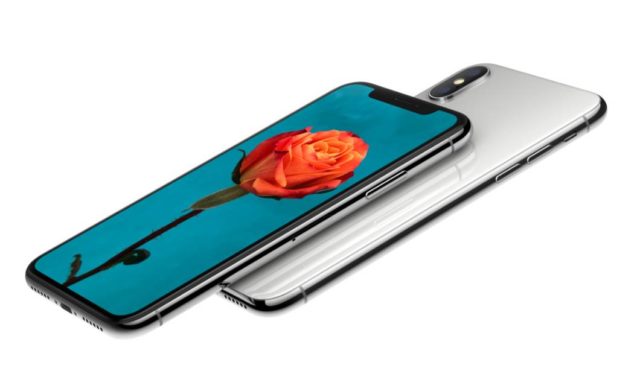

Apple Says iPhone X With Face ID Was Intended For 2018 Release


The iPhone X represents a huge change in terms of design and features for the iPhone lineup, which ever since its inception had offered users a physical home button. However with the iPhone X, Apple decided to ditch the home button and Touch ID in the process, replacing it with a facial recognition system dubbed Face ID.


A recent interview also with Riccio confirmed that Apple always had the intention of equipping the iPhone X with Face ID. In fact Riccio revealed (maybe too much) that Apple had to lock in the design very early, which was last November, shortly after the iPhone 7 and 7 Plus were launched. So far early reviews of the iPhone X and Face ID have proven to be largely positive, but we suppose we’ll get a better idea of how it fares in general once it has been released on the 3rd of November.


Source: ubergizo

Windows
Mac OS
iOS
Linux
3uTools
Win 64-bit For this device
V9.0 2025-11-11
Download
Win 32-bit For this device
V9.0 2025-11-11
Download
3uTools
Intel Chip How to Identify Chip Type
V9.0 2025-12-02
Download
Apple Silicon
V9.0 2025-12-02
Download
How to Identify Chip Type
1.  Click the Apple icon in the top-left corner of the screen and select About This Mac.
2.  Check the Processor or Chip field to determine if it is "Intel" or "Apple".
Please use the 3uTools PC client to install the iOS client:
1、 Install either the Windows or Mac version of 3uTools on your computer
2、 Open the PC client and connect your device to the computer via USB cable
3、 After the connection is successful, wait for the computer to automatically install the mobile app for the device, or locate “Install Mobile App” on the computer and manually click to install.
3uTools
deb file
V3.01 2025-11-20
Download
rpm file
V3.01 2025-11-20
Download
Windows
Windows
iOS
iOS
Android
Android
TV
TV
3uAirPlayer
Win 64-bit For this device
V6.0.2 2025-11-19
Download
Win 32-bit For this device
V6.0.2 2025-11-19
Download
iOS Device Mirroring (No App Required)
1、 Install 3uAirPlayer on the Windows PC
2、 Open Control Center and select Screen Mirroring
3、 From the list, choose your PC to start mirroring
4、 Or connect your iOS device to the PC via USB to begin mirroring
Scan to get "3uAirPlayer" App
3uAirPlayer TV V1.0.18
2025-11-28
TV System Requirements: Android 7.0 or later
Download the TV installation package, copy it to a USB drive, insert it into your TV or set-top box, then select the file from the home screen to install.




