
NEWS

Are You Having Signing Issues With the iTunes Store, App Store, iCloud ?

11/09/2016

6168

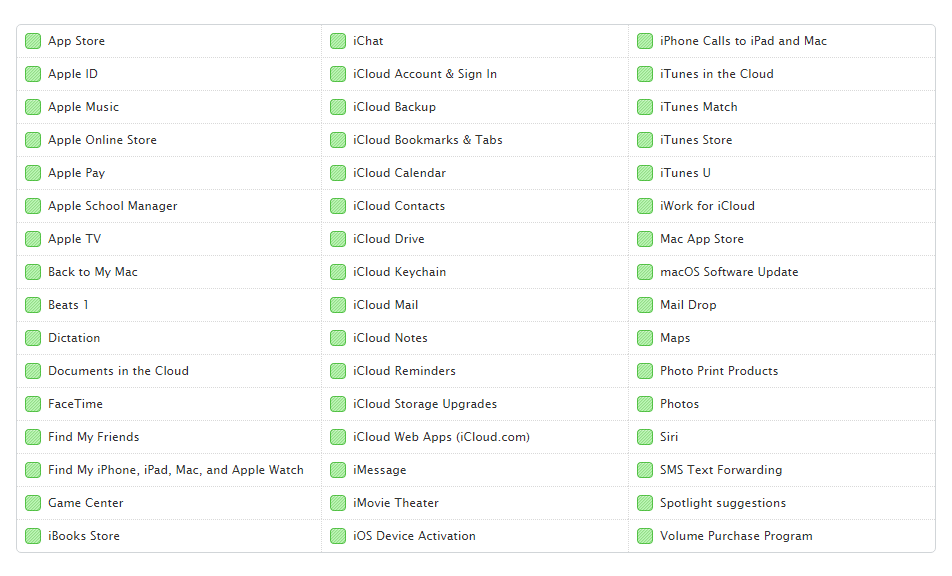
Apple has just recently updated its System Status webpage to reflect on ongoing issues with its cloud services. According to the webpage, users are unable to sign in to a variety of services, including iCloud, the App Store, the iTunes Store, and iTunes U.


Apple’s System Status webpage says the issues began just before 4PM ET and have yet to be resolved. It’s unclear how widespread the connectivity issues are, though Apple’s timeline depicts the outage in red for the iTunes Store, App Store, and iCloud. Though, the iTunes U outage is in yellow.

Are You Having Signing Issues With the iTunes Store, App Store, iCloud ?


The problems stem from signing into Apple’s cloud services. Users are still able to access the iTunes Store and App Store, but if at any point they’re asked to sign in, they won’t be able to.Apple also notes that the set up of a new iCloud account is also affected by this outage, as is signing into a service with your Apple ID (such as setting up a new device).Users may incorrectly receive an authentication error when attempting to use iCloud. Setting up a new iCloud account from an eligible device may be temporarily unavailable.


Are you having issues with the iTunes Store, App Store, iCloud, or iTunes U? Let us know on Facebook/Twitter using 3uTools can help you solve some problems with iOS devices. 


Source: 9to5mac

Windows
Mac OS
iOS
Linux
3uTools
Win 64-bit For this device
V9.0 2025-11-11
Download
Win 32-bit For this device
V9.0 2025-11-11
Download
3uTools
Intel Chip How to Identify Chip Type
V9.0 2025-12-02
Download
Apple Silicon
V9.0 2025-12-02
Download
How to Identify Chip Type
1.  Click the Apple icon in the top-left corner of the screen and select About This Mac.
2.  Check the Processor or Chip field to determine if it is "Intel" or "Apple".
Please use the 3uTools PC client to install the iOS client:
1、 Install either the Windows or Mac version of 3uTools on your computer
2、 Open the PC client and connect your device to the computer via USB cable
3、 After the connection is successful, wait for the computer to automatically install the mobile app for the device, or locate “Install Mobile App” on the computer and manually click to install.
3uTools
deb file
V3.01 2025-11-20
Download
rpm file
V3.01 2025-11-20
Download
Windows
Windows
iOS
iOS
Android
Android
TV
TV
3uAirPlayer
Win 64-bit For this device
V6.0.2 2025-11-19
Download
Win 32-bit For this device
V6.0.2 2025-11-19
Download
iOS Device Mirroring (No App Required)
1、 Install 3uAirPlayer on the Windows PC
2、 Open Control Center and select Screen Mirroring
3、 From the list, choose your PC to start mirroring
4、 Or connect your iOS device to the PC via USB to begin mirroring
Scan to get "3uAirPlayer" App
3uAirPlayer TV V1.0.18
2025-11-28
TV System Requirements: Android 7.0 or later
Download the TV installation package, copy it to a USB drive, insert it into your TV or set-top box, then select the file from the home screen to install.




