
NEWS

​Uber Nearly Got Caught Breaking Apple's iOS App Store Rules

04/24/2017

2794

In 2014, Uber was discovered to be blocking authorities from seeing its cars in order to evade regulations or bans in a series of locations including Paris, Las Vegas, China and South Korea. The next year, Apple found out Uber was also flouting its iOS developer rules to identify users' devices by hardware ID--and nearly got kicked out of the App Store over it. 
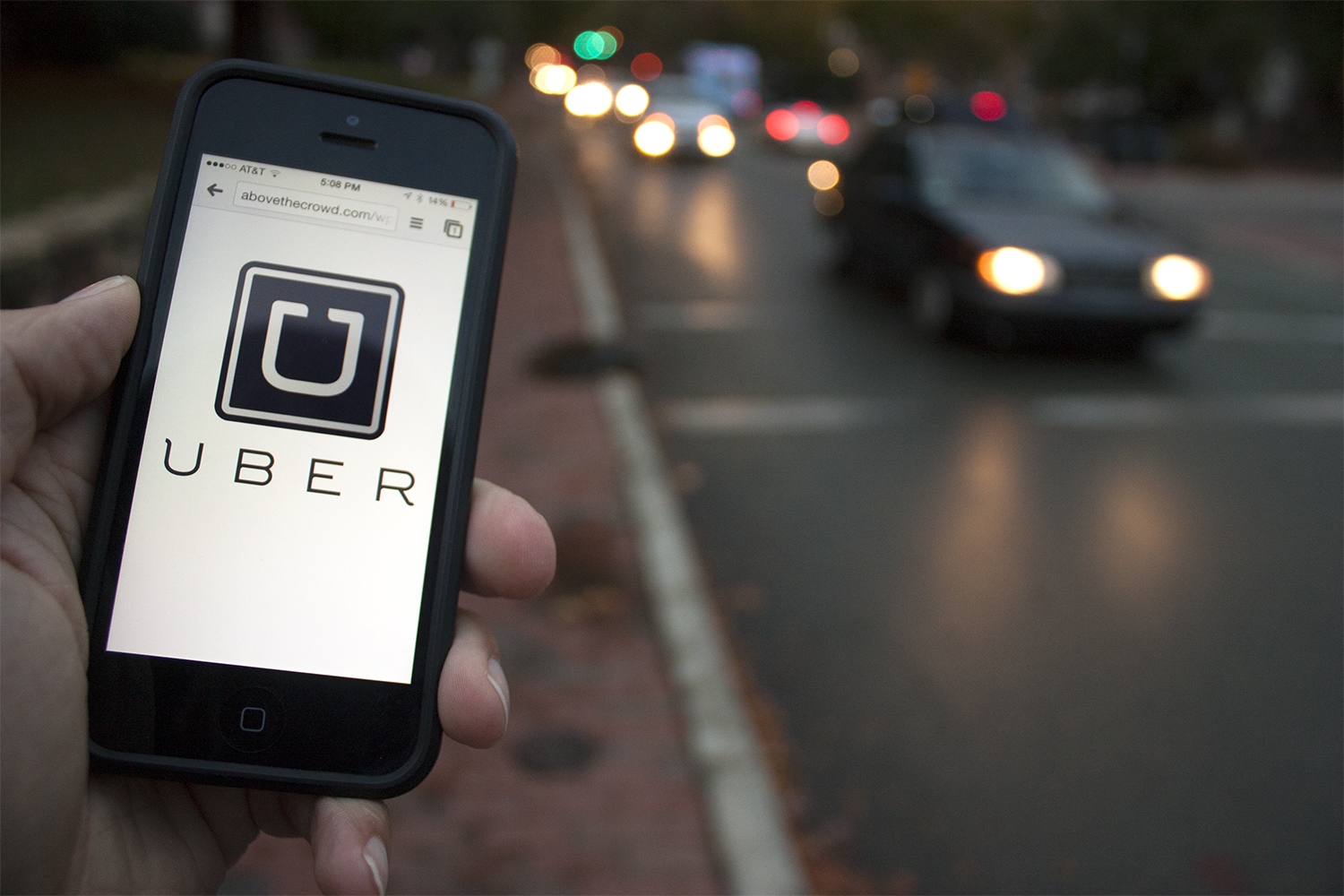

​Uber Nearly Got Caught Breaking Apple's iOS App Store Rules


A new report by Mike Issac for New York Times profiled various high-risk gambles taken by Uber's chief executive Travis Kalanick, following up on an earlier article from March that specifically detailed the "Greyball" evasion software it created to fool authorities. 


Issac noted that in early 2015, Uber was summoned to Apple's offices for violating Apple's privacy guidelines. Uber's goal had been to block fraudsters from creating multiple fake accounts on the same iPhones in order to collect new account bonuses. 


However, Uber attempted to do this by collecting the UUIDs (essentially a unique hardware serial number) of iOS devices that had installed the Uber app. Apple has worked to prevent its app developers from accessing this information or collecting it. 


It is not illegal to do this on Android, where there are far fewer restrictions on collecting data from or about users. In fact, Google itself facilitates device tracking on Android, and advertisers from Amazon to Facebook work to exploit the easy access Android openly offers to developers, malware writers and governments.


Source: appleinsider


Windows
Mac OS
iOS
Linux
3uTools
Win 64-bit For this device
V9.0 2025-11-11
Download
Win 32-bit For this device
V9.0 2025-11-11
Download
3uTools
Intel Chip How to Identify Chip Type
V9.0 2025-12-02
Download
Apple Chip
V9.0 2025-12-02
Download
How to Identify Chip Type
1.  Click the Apple icon in the top-left corner of the screen and select About This Mac.
2.  Check the Processor or Chip field to determine if it is "Intel" or "Apple".
Please use the 3uTools PC client to install the iOS client:
1、 Install either the Windows or Mac version of 3uTools on your computer
2、 Open the PC client and connect your device to the computer via USB cable
3、 After the connection is successful, wait for the computer to automatically install the mobile app for the device, or locate “Install Mobile App” on the computer and manually click to install.
3uTools
deb file
V3.01 2025-11-20
Download
rpm file
V3.01 2025-11-20
Download
Windows
Windows
iOS
iOS
Android
Android
TV
TV
3uAirPlayer
Win 64-bit For this device
V6.0.2 2025-11-19
Download
Win 32-bit For this device
V6.0.2 2025-11-19
Download
iOS Device Mirroring (No App Required)
1、 Install 3uAirPlayer on the Windows PC
2、 Open Control Center and select Screen Mirroring
3、 From the list, choose your PC to start mirroring
4、 Or connect your iOS device to the PC via USB to begin mirroring
Scan to get "3uAirPlayer" App
3uAirPlayer TV V1.0.18
2025-11-28
TV System Requirements: Android 7.0 or later
Download the TV installation package, copy it to a USB drive, insert it into your TV or set-top box, then select the file from the home screen to install.




