NEWS

iOS 19 to Upgrade iPhone's Music Haptics Feature in Two Ways

05/14/2025

1156

iOS 19 to Upgrade iPhone's Music Haptics Feature in Two Ways


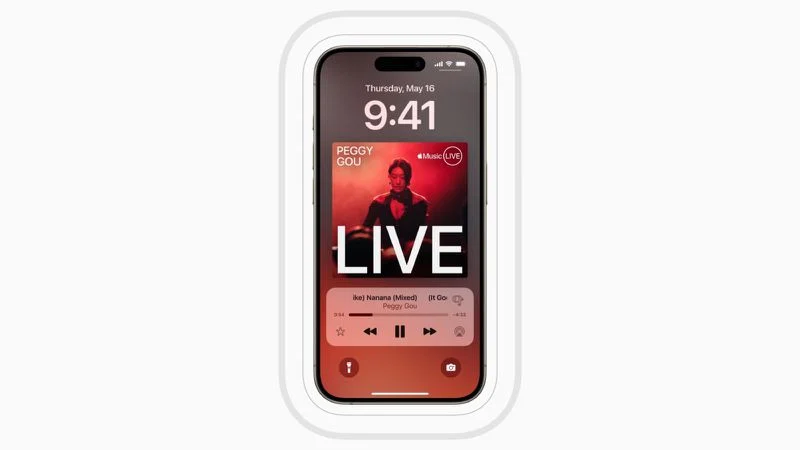
iOS 18 introduced an accessibility feature called Music Haptics that has value for everyone. When the feature is turned on, the iPhone's Taptic Engine taps and vibrates to match the audio of a song playing in Apple Music, Shazam, and supported third-party apps, so long as the device is connected to a Wi-Fi or cellular network.


With iOS 19, Music Haptics will get better in two ways.


Apple today announced that Music Haptics will be even more customizable starting later this year. First, users will have the option to receive haptic feedback for vocals only. Second, users will be able to adjust the overall intensity of taps, textures, and vibrations. These enhancements are expected to roll out with iOS 19, which will be unveiled during the WWDC 2025 keynote on June 9 and released to the general public in September.


Music Haptics is supported on the iPhone 12 and newer, excluding the latest iPhone SE.


Source: Macrumors

Windows
Mac OS
iOS
Linux
3uTools
Win 64-bit For this device
V9.0 2025-11-11
Download
Win 32-bit For this device
V9.0 2025-11-11
Download
3uTools
Intel Chip How to Identify Chip Type
V9.0 2025-12-02
Download
Apple Silicon
V9.0 2025-12-02
Download
How to Identify Chip Type
1.  Click the Apple icon in the top-left corner of the screen and select About This Mac.
2.  Check the Processor or Chip field to determine if it is "Intel" or "Apple".
Please use the 3uTools PC client to install the iOS client:
1、 Install either the Windows or Mac version of 3uTools on your computer
2、 Open the PC client and connect your device to the computer via USB cable
3、 After the connection is successful, wait for the computer to automatically install the mobile app for the device, or locate “Install Mobile App” on the computer and manually click to install.
3uTools
deb file
V3.01 2025-11-20
Download
rpm file
V3.01 2025-11-20
Download
Windows
Windows
iOS
iOS
Android
Android
TV
TV
3uAirPlayer
Win 64-bit For this device
V6.0.2 2025-11-19
Download
Win 32-bit For this device
V6.0.2 2025-11-19
Download
iOS Device Mirroring (No App Required)
1、 Install 3uAirPlayer on the Windows PC
2、 Open Control Center and select Screen Mirroring
3、 From the list, choose your PC to start mirroring
4、 Or connect your iOS device to the PC via USB to begin mirroring
Scan to get "3uAirPlayer" App
3uAirPlayer TV V1.0.18
2025-11-28
TV System Requirements: Android 7.0 or later
Download the TV installation package, copy it to a USB drive, insert it into your TV or set-top box, then select the file from the home screen to install.