NEWS

Nintendo Music App Now Available on iPhone

10/31/2024

839

Nintendo Music App Now Available on iPhone


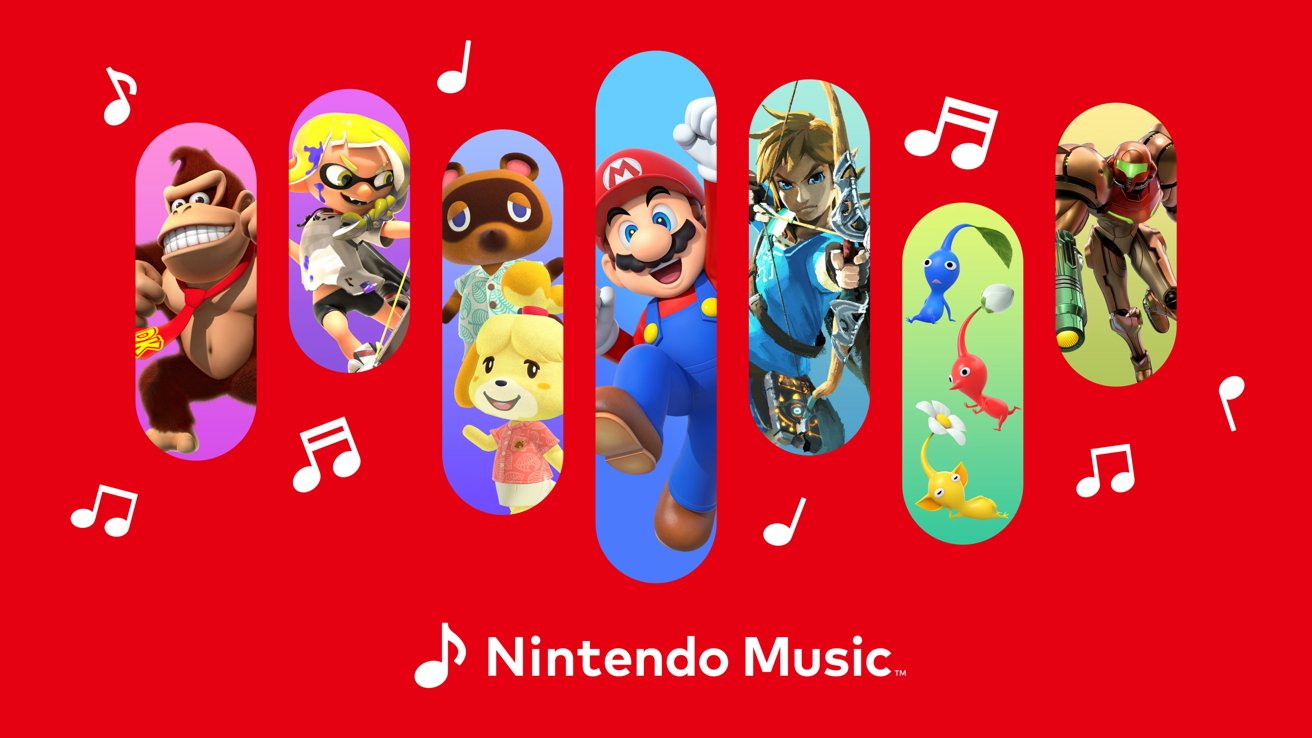
Nintendo Music is a new iPhone app that lets Nintendo Online subscribers listen to a growing collection of music from games across the catalog.


It's not difficult to find video game music on streaming services like Apple Music or websites like YouTube, but Nintendo is offering a more official solution. So, if you want to listen to video game soundtracks with a bit more curation and control from Nintendo, there's now an app for that.


Nintendo Music launched Wednesday night as a surprise from the company. It is available to download for free from the App Store.


The service features soundtracks from across all generations of Nintendo consoles from franchises including Mario, Pokemon, Zelda, and many more. There are curated playlists based on characters, games, or themes like starting off an adventure.


While much of these soundtracks are available on Apple Music, there are key advantages to having them in a separate app and service. First, you'll not have to worry about video game music clogging up your recommendation algorithm in Apple Music, for example.


There's also an important feature only Nintendo would think of — spoilers. Users can toggle off spoilers for specific games so titles, images, and music won't potentially spoil a game they haven't played or finished yet.


Nintendo Music is available to download on iPhone and iPad via the App Store. The service requires an active subscription to Nintendo Online.


Source: AppleInsider

Windows
Mac OS
iOS
Linux
3uTools
Win 64-bit For this device
V9.0 2025-11-11
Download
Win 32-bit For this device
V9.0 2025-11-11
Download
3uTools
Intel Chip How to Identify Chip Type
V9.0 2025-12-02
Download
Apple Silicon
V9.0 2025-12-02
Download
How to Identify Chip Type
1.  Click the Apple icon in the top-left corner of the screen and select About This Mac.
2.  Check the Processor or Chip field to determine if it is "Intel" or "Apple".
Please use the 3uTools PC client to install the iOS client:
1、 Install either the Windows or Mac version of 3uTools on your computer
2、 Open the PC client and connect your device to the computer via USB cable
3、 After the connection is successful, wait for the computer to automatically install the mobile app for the device, or locate “Install Mobile App” on the computer and manually click to install.
3uTools
deb file
V3.01 2025-11-20
Download
rpm file
V3.01 2025-11-20
Download
Windows
Windows
iOS
iOS
Android
Android
TV
TV
3uAirPlayer
Win 64-bit For this device
V6.0.2 2025-11-19
Download
Win 32-bit For this device
V6.0.2 2025-11-19
Download
iOS Device Mirroring (No App Required)
1、 Install 3uAirPlayer on the Windows PC
2、 Open Control Center and select Screen Mirroring
3、 From the list, choose your PC to start mirroring
4、 Or connect your iOS device to the PC via USB to begin mirroring
Scan to get "3uAirPlayer" App
3uAirPlayer TV V1.0.18
2025-11-28
TV System Requirements: Android 7.0 or later
Download the TV installation package, copy it to a USB drive, insert it into your TV or set-top box, then select the file from the home screen to install.