 NEWS
NEWS
Here’s How to Schedule Messages to Send Later in iOS 18
 10/08/2024
 2090
2090
Apple brings a range of new features to the Messages app with iOS 18. One of those is the handy capability to schedule messages to Send Later. Here’s how the feature works, where to find it, and more.
Apple launched the Send Later feature for email with iOS 16. Now with iOS 18, we have the same functionality for Messages.
Other new features include the option to use any emoji for tapbacks, new text effects, RCS coming at some point, and more.
- Here’s everything new in the Messages app on iOS 18
Follow along below for how to use Send Later with Messages on iPhone as the feature is a bit buried in the app’s settings.
How to schedule messages to Send Later in iOS 18
Note: Send Later in Messages only works with iMessages, not SMS texts
- Make sure you’re running iOS 18 on your iPhone
- Open the Apple Messages app and select an existing text or create a new one
- Write your text, but before hitting the send button, tap the + icon on the left side of the text field
- Tap More (or swipe down), now choose Send Later
- Pick a date and time to schedule the message
- Tap the send button (up arrow) to set the scheduled message
After you set a scheduled message, it will show up on your screen in the thread with a dotted-line bubble.
Tap Edit if you’d like to change the scheduled date/time, want to send it now, or delete the scheduled message.
Here’s how it looks to schedule messages to Send Later in iOS 18:
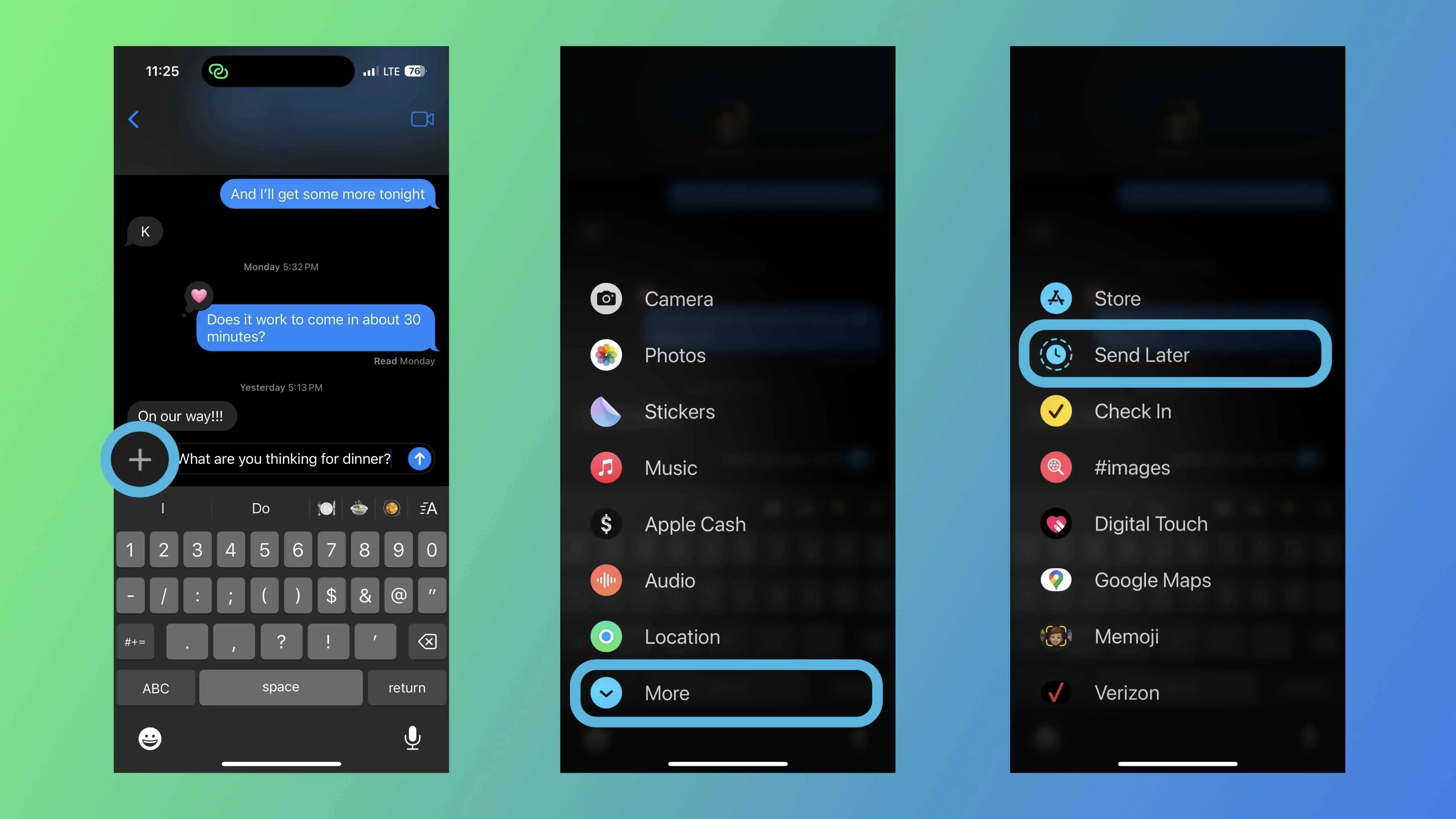
You can long-press and drag Send Later to the first page of Messages’ settings if you think you’ll use it often.
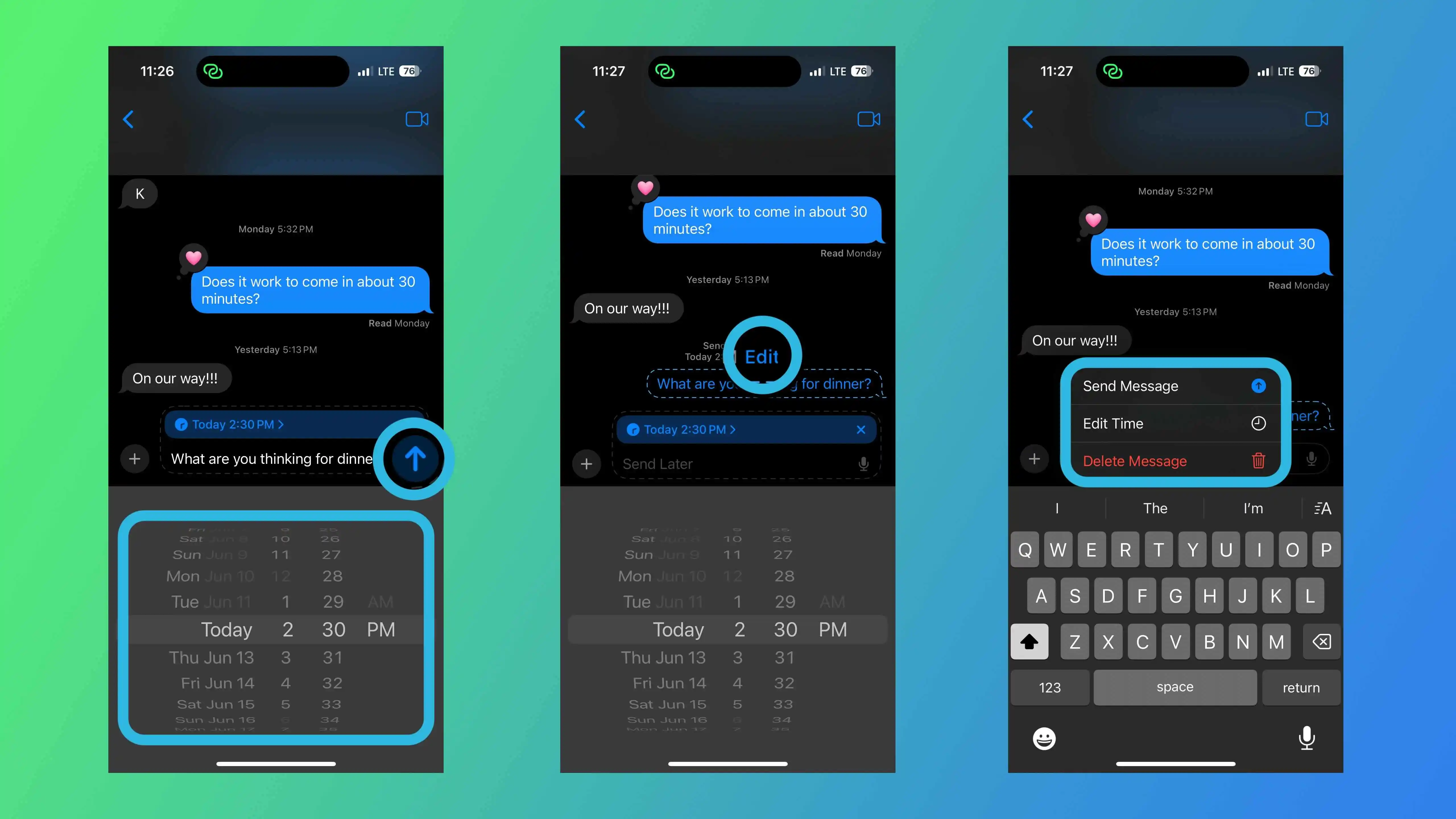
Here’s how the date/time picker looks and how scheduled messages appear with the dotted line after you’ve hit the send button.
Look for the small Edit button just above the scheduled message to make changes, delete it, or send it immediately.
Source: 9to5mac










