 NEWS
NEWS
iOS 18 Changes Just about Everything about Lock Screen Controls
 06/21/2024
 1906
1906
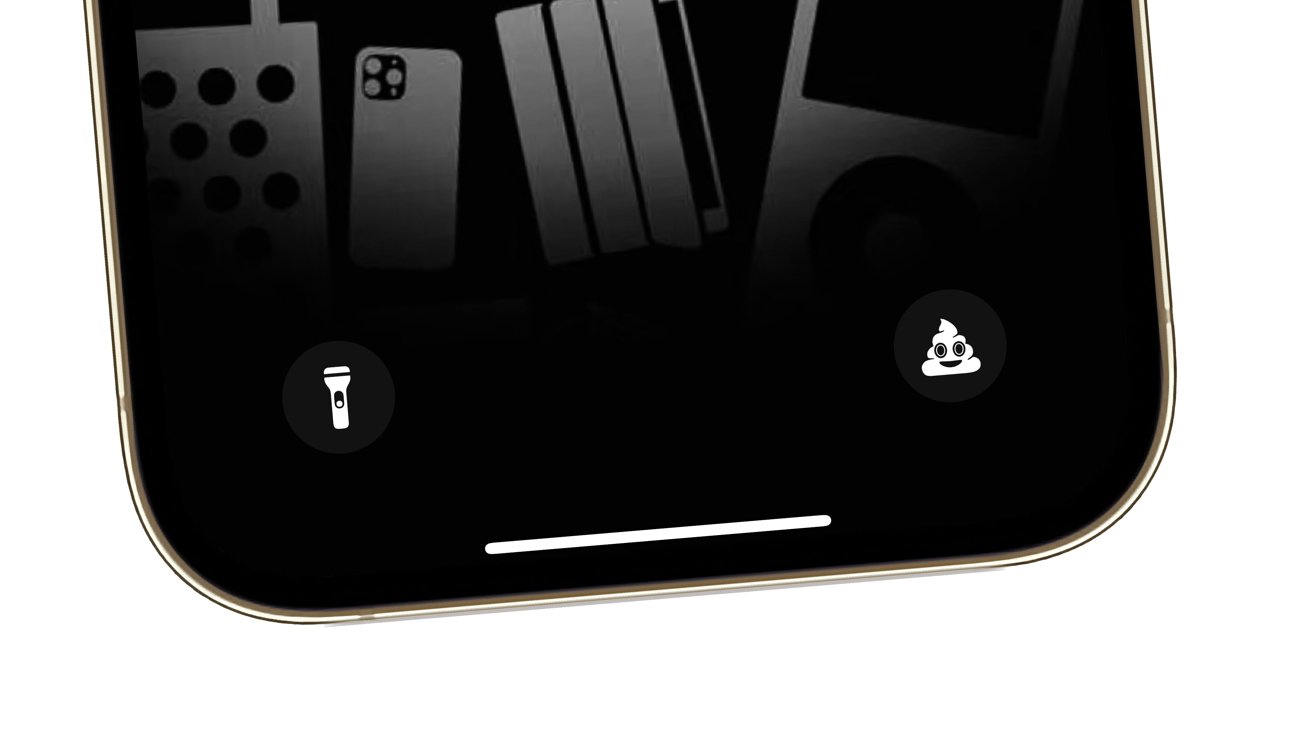
Ditch the flashlight and camera icons on the lock screen in favor of something more practical, thanks to Apple's changes in iOS 18.
For quite some time, iPhone users have been able to trigger the flashlight and camera from the lock screen, without needing to fully unlock the iPhone beforehand. In a pinch, these options can be handy, but they may not be anyone's first choice.
As part of Apple's increased customization options in iOS 18, users are finally being given the chance to change those two previously-permanent icons. Instead, users can leave the spots blank, or add actions that they may find to be a lot more useful.
How to change the lock screen buttons in iOS 18
- Long press the lock screen, once you have unlocked it with Face ID.
- On the home screen selection screen, tap Customize, then select Lock Screen.
- Tap the minus icon next to the button you want to remove.
- Tap the now-vacated space.
- In the new window, select the button you want to place there instead. If necessary, an extra prompt may appear requesting further information.
- Tap Done.
A wide selection
Unlike, say, the relatively limited selection of the Action Button, Apple provides a very long list of things you can add to those two lock screen buttons.
It's an extensive list, with dozens of options available. Thankfully there's a search box to help narrow it down to the function that you want.
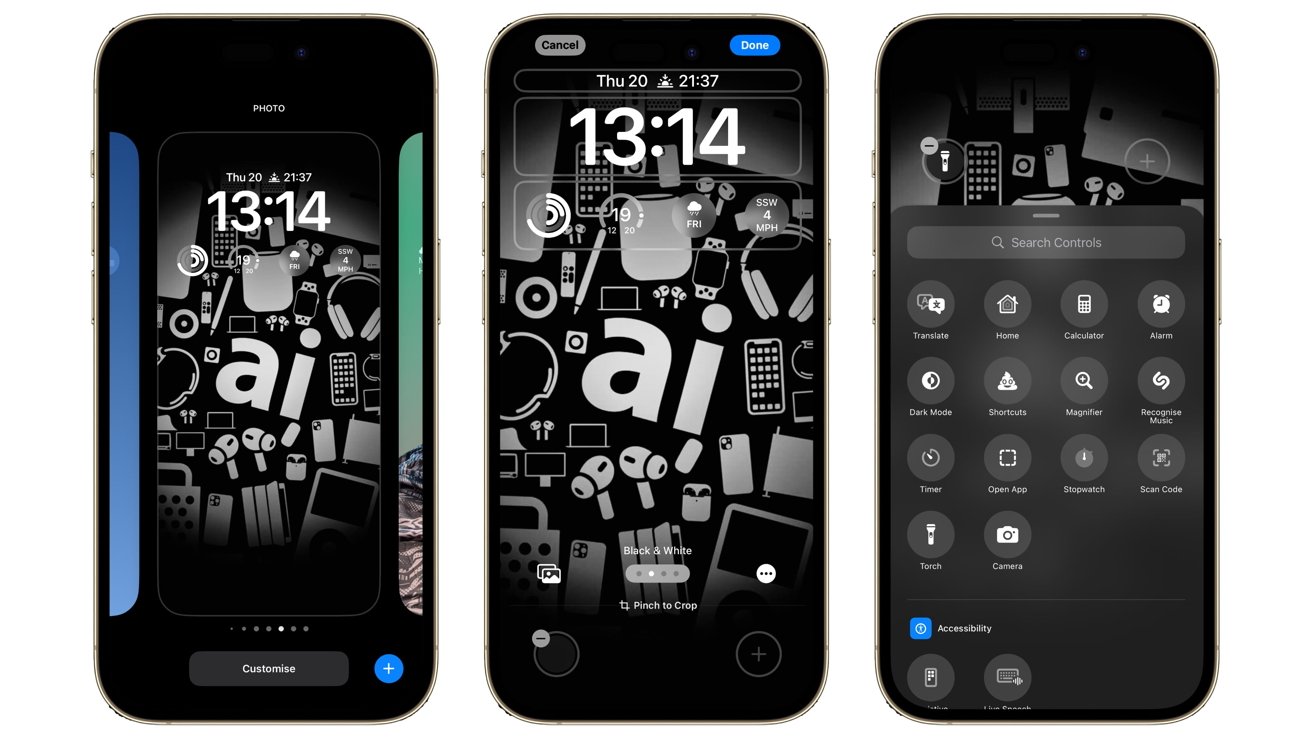
The list reads somewhat similarly to the options you can add to Control Center at first, including the flashlight and camera icons, as well as stopwatch and timer, dark mode switching, alarms, and even Shazam.
Scrolling down the list, there are options relating to camera functions, the clock, connectivity, Home, sounds, and even the option to ping an Apple Watch.
There are also many accessibility sections in the list. That will allow quick access to important functions that could help the user navigate their iPhone.
If you want something entirely custom, you can also create a feature for yourself.
Create a Shortcut, then go through the process to change the lock screen buttons, and select Shortcuts as your new button. You'll be asked which Shortcut to apply to the button.
Source: AppleInsider










