NEWS

iOS 15 Lets You Disable Night Mode on An iPhone Camera

08/18/2021

1765

iOS 15 Lets You Disable Night Mode on An iPhone Camera


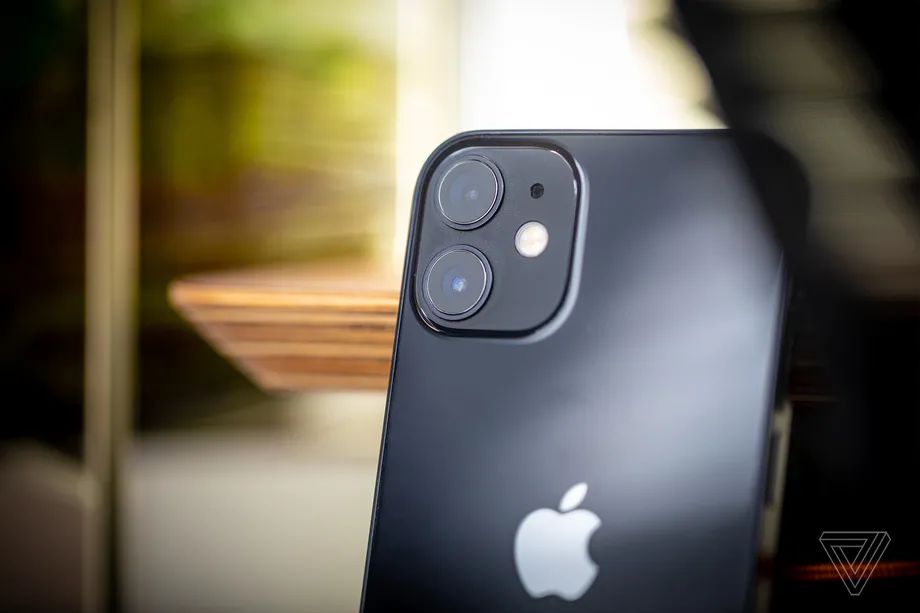
Apple is introducing an option to fully disable Night Mode on an iPhone camera in iOS 15. While you’ve always been able to turn off Night Mode for a particular shot, the iPhone camera will also re-enable it the next time it detects it needs to be used. In iOS 15, you can now toggle whether the camera remembers Night Mode has been turned off.


Night Mode is often a useful way to capture great photos in low light, but occasionally there are times when an iPhone enables this mode and you end up with a photo that’s worse with Night Mode enabled. If you’re someone who prefers to have full control over their iPhone camera, 9to5Mac notes that you can effectively disable Night Mode in iOS 15:


  • Go to settings

  • Pick camera

  • Pick preserver settings

  • Toggle the Night Mode setting to on


This will allow your iPhone camera to keep Night Mode off if you disable it for a shot. You can still toggle Night Mode back on if you need it, but it’s now you making a decision to enable it rather than the iPhone itself.


This isn’t the only improvement to the camera in iOS 15. Apple is also making subtle improvements to photos by processing out the green lens flares that can show up in outdoor photos. Both of these improvements are available in the latest public iOS 15 betas and should appear for iPhone users once iOS 15 ships (probably next month).


Source: The Verge

Windows
Mac OS
iOS
Linux
3uTools
Win 64-bit For this device
V9.0 2025-11-11
Download
Win 32-bit For this device
V9.0 2025-11-11
Download
3uTools
Intel Chip How to Identify Chip Type
V9.0 2025-12-02
Download
Apple Chip
V9.0 2025-12-02
Download
How to Identify Chip Type
1.  Click the Apple icon in the top-left corner of the screen and select About This Mac.
2.  Check the Processor or Chip field to determine if it is "Intel" or "Apple".
Please use the 3uTools PC client to install the iOS client:
1、 Install either the Windows or Mac version of 3uTools on your computer
2、 Open the PC client and connect your device to the computer via USB cable
3、 After the connection is successful, wait for the computer to automatically install the mobile app for the device, or locate “Install Mobile App” on the computer and manually click to install.
3uTools
deb file
V3.01 2025-11-20
Download
rpm file
V3.01 2025-11-20
Download
Windows
Windows
iOS
iOS
Android
Android
TV
TV
3uAirPlayer
Win 64-bit For this device
V6.0.2 2025-11-19
Download
Win 32-bit For this device
V6.0.2 2025-11-19
Download
iOS Device Mirroring (No App Required)
1、 Install 3uAirPlayer on the Windows PC
2、 Open Control Center and select Screen Mirroring
3、 From the list, choose your PC to start mirroring
4、 Or connect your iOS device to the PC via USB to begin mirroring
Scan to get "3uAirPlayer" App
3uAirPlayer TV V1.0.18
2025-11-28
TV System Requirements: Android 7.0 or later
Download the TV installation package, copy it to a USB drive, insert it into your TV or set-top box, then select the file from the home screen to install.