 NEWS
NEWS
Sony now Lets you use the DualSense pad to Play PS5 on Your Nearby Mac, iPhone, iPad, and More
 05/12/2021
 2311
2311
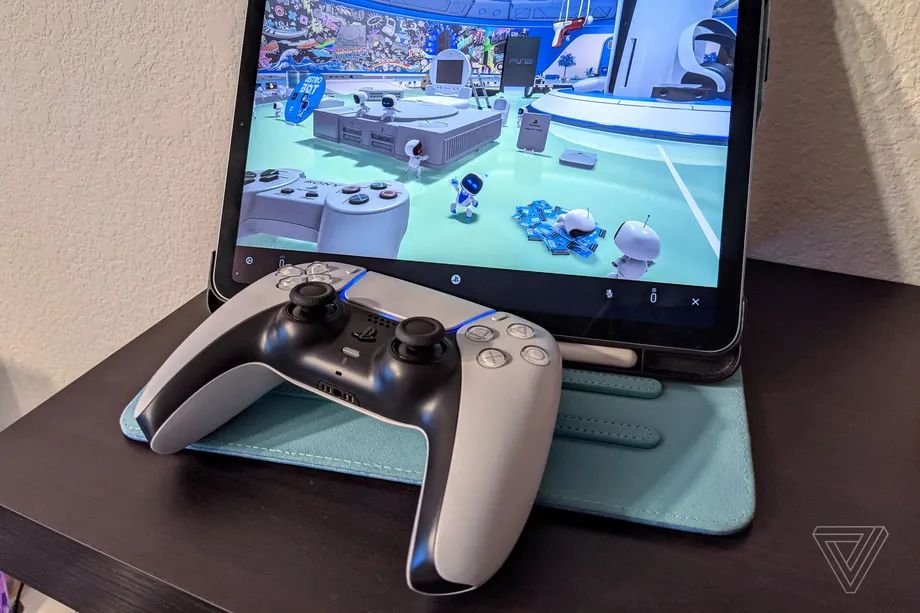
It’s a little-known fact that you can sling a PS5 or PS4 to another room of your house, streaming your games to a Mac or Windows PC, iOS or Android device, or even an old PS4 with Sony’s PS Remote Play app. But until recently, you could only remotely control your shiny new PlayStation 5 with the old DualShock 4 gamepad.
That’s now changing, as Sony has just announced the PS5’s new DualShock controller is supported across every Apple platform running the latest operating system, including iPhones, iPads, iPod touches, and Apple TVs running 14.5 and Macs running macOS Big Sur 11.3.
Remote Play is now available using the DualSense wireless controller to play compatible games on a range of Apple devices. Full details: https://t.co/4fpa77oFqx pic.twitter.com/Z2BlehDLjO
— PlayStation (@PlayStation) May 10, 2021
I just gave it a quick try myself with an iPhone 12 mini and a recent iPad Pro, and I have some thoughts!
The good news: if the only controller you own is a DualSense controller, it totally works — and your awesome adaptive triggers come along for the ride.
Here is some bad news:
There’s no haptic feedback. Absolutely zero. It feels extremely weird.
Each time you want to switch devices (to your iPhone or back to your PS5), you’ll have to manually pair your DualSense again. That was true of previous pads as well, but I was hoping they’d fix it.
The built-in microphone, headphone jack, and speaker don’t work. The speaker is a serious loss — games like Returnal use it in combination with haptic feedback to add some serious immersion.
The streaming quality, as always, will depend heavily on your home wireless network. Give it a try, though; it’s free!
You’ll have to decide whether these things defeat the purpose of pairing a DualSense with an Apple device. As far as I’m concerned, I’ll keep my DualSense hooked up to the PS5 where it can actually help me sense things, and use a DualShock 4 (or third-party pad) when I want to stream.
It’s also more ammunition for the argument that we should be able to play PS5 games on our PS5 with a PS4 pad. This is the second time Sony has shown that limitation is totally arbitrary: first when it allowed us to control PS5 games with the PS4 controller over Remote Play to start, and now again with this signal that the DualSense’s sensing abilities are optional when streaming games over a network.
Source: The Verge









