 NEWS
NEWS
Apple Clarifies That Siri Isn't Setting a Default Music Service in iOS 14.5
 03/05/2021
 2255
2255
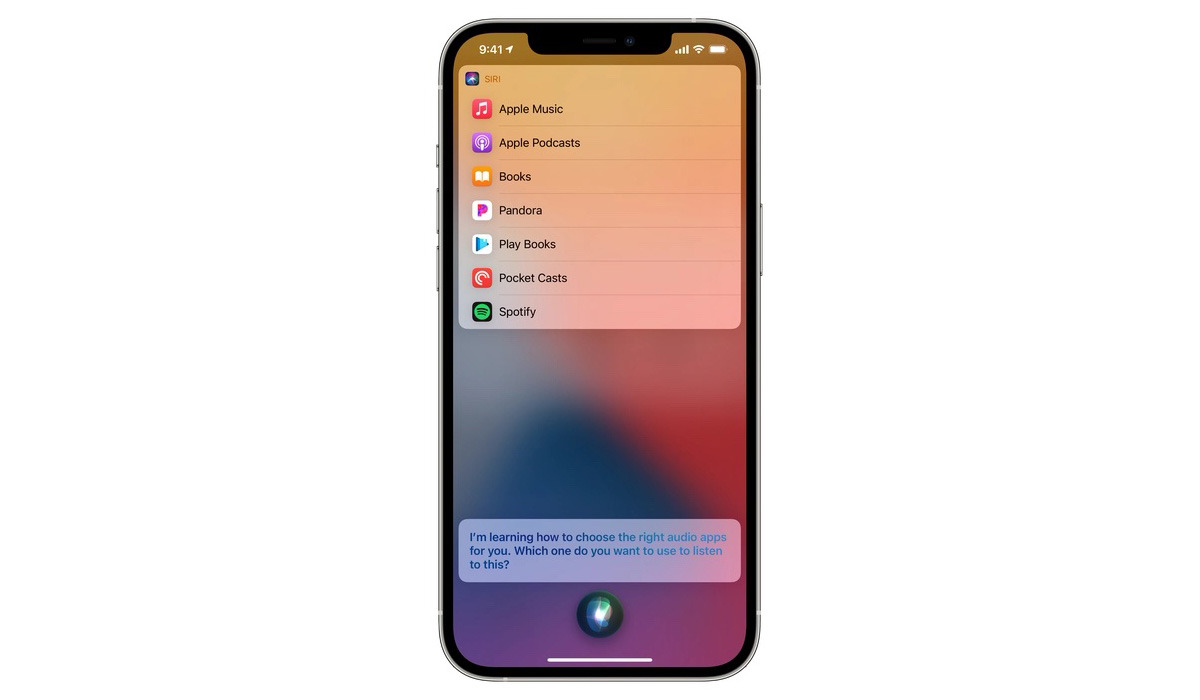
Apple has clarified that a Siri feature in iOS 14.5 asking users to select a music service isn't actually setting a default streaming platform.
The feature, first spotted in the iOS 14.5 beta testing cycle, pops up when users tell Siri to play music. The digital assistant will ask which music streaming service it should use, offering a list of providers that users can choose from.
In contrast to how the feature was reported, Apple told TechCrunch that Siri isn't actually setting any music service to be the iOS default. In fact, Apple points out there is no default music service setting in iOS like there are for browser or email apps.
Instead, the feature is actually Siri intelligence at work. The digital assistant is improving and changing over time as it learns user listening habits. Apple clarified the point because Siri may ask users about their choice of app again, potentially causing confusion for those who believed they set an app as the default.
As TechCrunch points out, the feature is primarily aimed at helping Siri learn which listening apps users gravitate toward for specific types of content. Siri will be able to learn that some users listen to music via Spotify, but will still listen to audio shows via Apple Podcasts. It'll then carry out commands based on this machine learning.
Additionally, app developers can leverage Siri intelligence by implementing Apple APIs. That could provide the digital assistant "with access to more intelligence about what people listen to in their app and why."
There's also no conflict with actually specifying a music service when making a content request. Even if a user has selected a third-party service, they could still say "Hey Siri, play music on Apple Music," for example.
The feature first appeared in the first iOS 14.5 beta, but was pulled in the second. It's now back as of iOS 14.5 beta 3, which was released on March 2.
Source: Appleinsider









