 NEWS
NEWS
‘TV Remote’ is an app That Turns Your iPhone Into a Universal Control for Your TV
 01/08/2021
 2748
2748
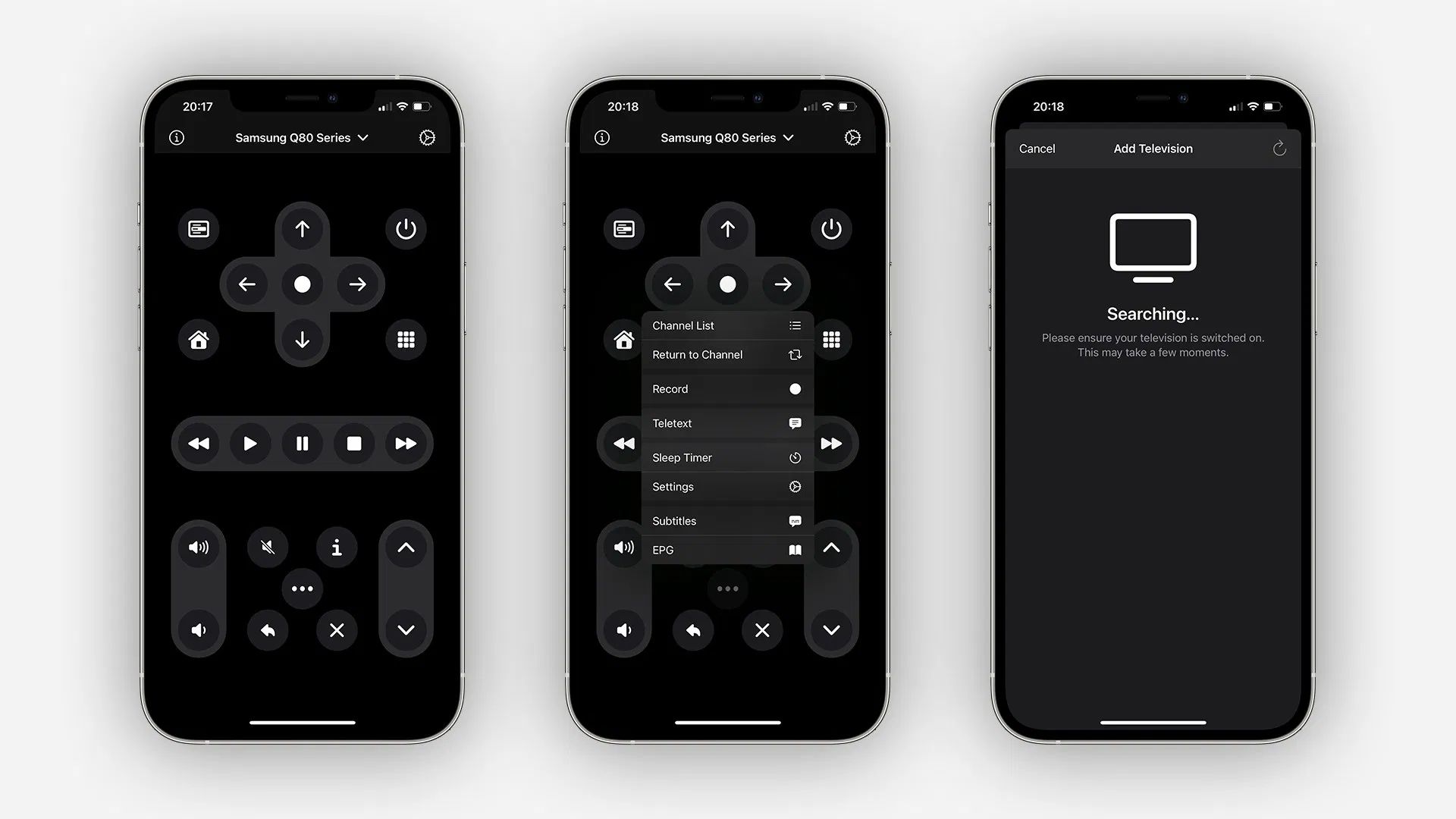
There have always been apps that let you control your TV from an iPhone or iPad, but in my experience, these apps don’t work very well or have limited features — even the official apps from TV manufacturers. Now I’ve been testing “TV Remote,” which is not a new app, but it was updated today with support for two major TV brands: LG and Samsung.
TV Remote was created by Adam Foot, the same developer of the Shift Keyboard for Apple Watch, which I reviewed on 9to5Mac last year. The app is quite intuitive, and it brings all the main buttons into one screen so you don’t have to learn how to use it.
The first time you open it, the app identifies all the connected TVs in your Wi-Fi network for quick pairing. You just have to choose your TV from the list and then authorize the app to work as a remote control. If you want to add more than one TV for use with the TV Remote app, you can do so.
With just a few seconds, your TV will be paired with the app, and you can control it from your devices. There are navigation buttons to explore the interface and menus, volume and channel controls, as well as shortcuts to media playback, mute, and access the home screen. Tapping the three-dots button reveals even more options, such as subtitles, channel list, and sleep timer.
In my experience, the app works just as I expected. I have a Samsung QLED TV, and its official remote app is pretty bad as there’s a considerable delay between tapping the buttons on the iPhone and the TV responding to the commands. With the TV Remote app, everything works nearly instantly, and I don’t have to wait a few seconds until the app identifies my TV, which happens every time with the Samsung app for some unknown reason.
In addition to LG and Samsung TVs, the app also works with other Smart TV models from Hitachi, Toshiba, Sharp, and more. TV Remote costs $3.99 on the App Store, but it doesn’t have any in-app purchases or subscriptions.
Source: 9to5mac









