NEWS

NYC Subway Now Accepts Apple Pay and Other Contactless Payment Methods Across All Stations

01/04/2021

2571

NYC Subway Now Accepts Apple Pay and Other Contactless Payment Methods Across All Stations


New York City’s subway began adding support for contactless payments in May 2019, but since then, only a few selected lines have received the technology. However, New York’s MTA announced today that everyone can now finally use Apple Pay and other contactless payment methods across all its stations.


The news was confirmed on MTA’s official Twitter account and also reported by Engadget.


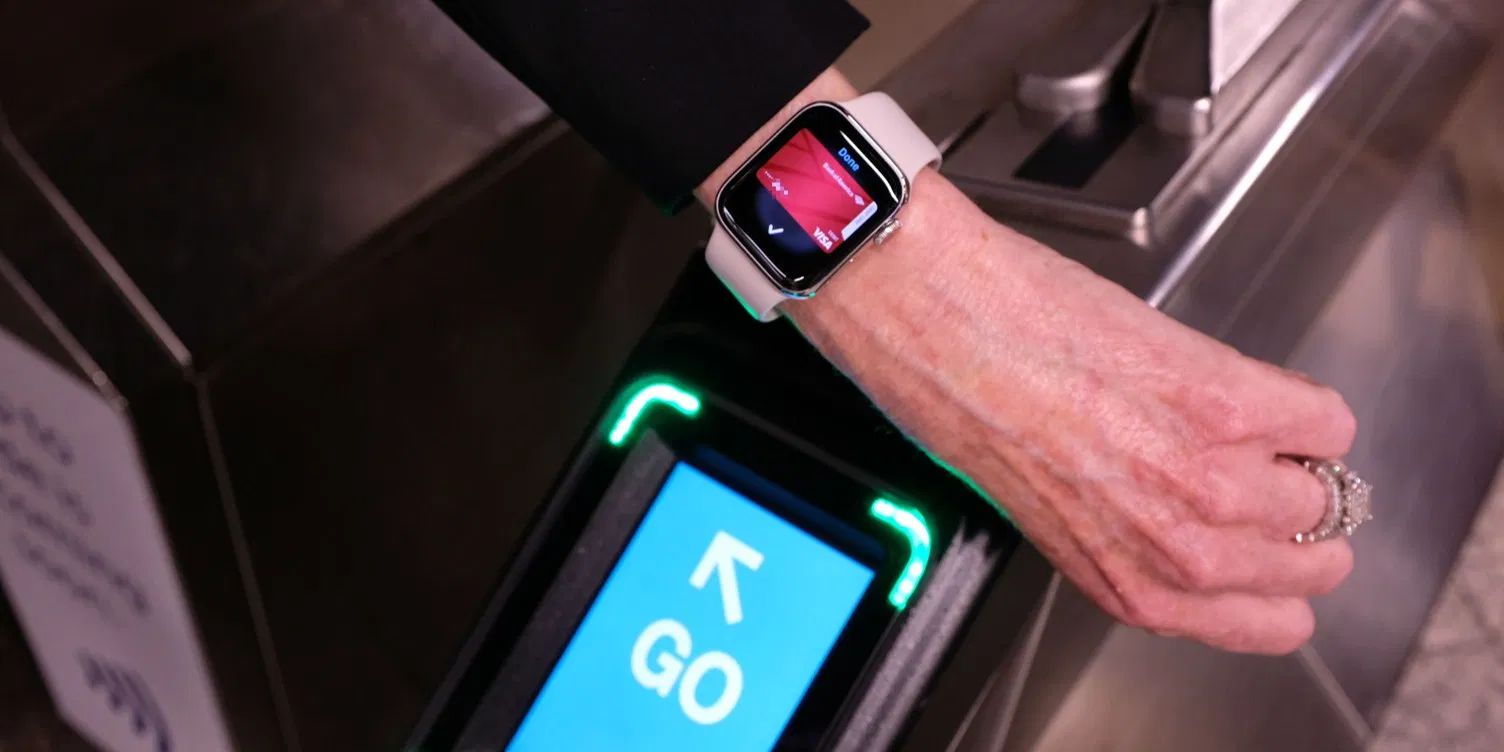
For Apple Pay users, this also means that all New York City subway lines now work with the Express Transit feature, which allows you to simply tap your iPhone or Apple Watch over a turnstile to access the subway instead of buying a regular ticket.


With Express Transit, users don’t even need to authenticate Apple Pay with Touch ID, Face ID, or double-click on Apple Watch, which makes the whole process quicker and easier.


New York’s MTA has finished rolling out contactless payments across all the subway stations and bus lines in all five boroughs. The OMNY (One Metro New York) system allows riders to tap-and-pay for fares with smartphones, smartwatches, and contactless credit and debit cards.


The new contactless terminals are all enabled in all New York stations from this Thursday, so you can start 2021 using the subway there with Apple Pay.


Source: 9to5mac

Windows
Mac OS
iOS
Linux
3uTools
Win 64-bit For this device
V9.0 2025-11-11
Download
Win 32-bit For this device
V9.0 2025-11-11
Download
3uTools
Intel Chip How to Identify Chip Type
V9.0 2025-12-02
Download
Apple Chip
V9.0 2025-12-02
Download
How to Identify Chip Type
1.  Click the Apple icon in the top-left corner of the screen and select About This Mac.
2.  Check the Processor or Chip field to determine if it is "Intel" or "Apple".
Please use the 3uTools PC client to install the iOS client:
1、 Install either the Windows or Mac version of 3uTools on your computer
2、 Open the PC client and connect your device to the computer via USB cable
3、 After the connection is successful, wait for the computer to automatically install the mobile app for the device, or locate “Install Mobile App” on the computer and manually click to install.
3uTools
deb file
V3.01 2025-11-20
Download
rpm file
V3.01 2025-11-20
Download
Windows
Windows
iOS
iOS
Android
Android
TV
TV
3uAirPlayer
Win 64-bit For this device
V6.0.2 2025-11-19
Download
Win 32-bit For this device
V6.0.2 2025-11-19
Download
iOS Device Mirroring (No App Required)
1、 Install 3uAirPlayer on the Windows PC
2、 Open Control Center and select Screen Mirroring
3、 From the list, choose your PC to start mirroring
4、 Or connect your iOS device to the PC via USB to begin mirroring
Scan to get "3uAirPlayer" App
3uAirPlayer TV V1.0.18
2025-11-28
TV System Requirements: Android 7.0 or later
Download the TV installation package, copy it to a USB drive, insert it into your TV or set-top box, then select the file from the home screen to install.