 NEWS
NEWS
iOS 10.2's New 'TV' App Doesn't Work With Some Videos Ripped From DVDs
 01/18/2017
 2946
2946
In iOS 10.2, released on December 12, Apple introduced the new "TV" app, which serves as an Apple-designed TV guide that aims to simplify the television watching experience and help users discover new TV and movie content.
In the United States, the TV app replaces the standard "Videos" app and serves as a television hub on iOS devices, but it appears the new app doesn't work well with content that's been ripped from DVDs.
According to an ongoing discussion on Apple's Support Communities that dates back to December, some customers who have videos ripped from DVDs are no longer able to view them in the TV app. The same videos previously worked fine in the now-replaced Videos app. A user who is having issues describes the problem: Prior to iOS 10.2 I was able to view video I had ripped on the Videos app in iOS. The process I used was to rip the video and then import them into iTunes. Then I synced my iPhone with iTunes and my movies were download and viewed using the Videos app. iOS 10.2 no longer includes the Video app and the new TV app will not allow me to watch these ripped videos. Does someone have a solution or am I simply missing something?
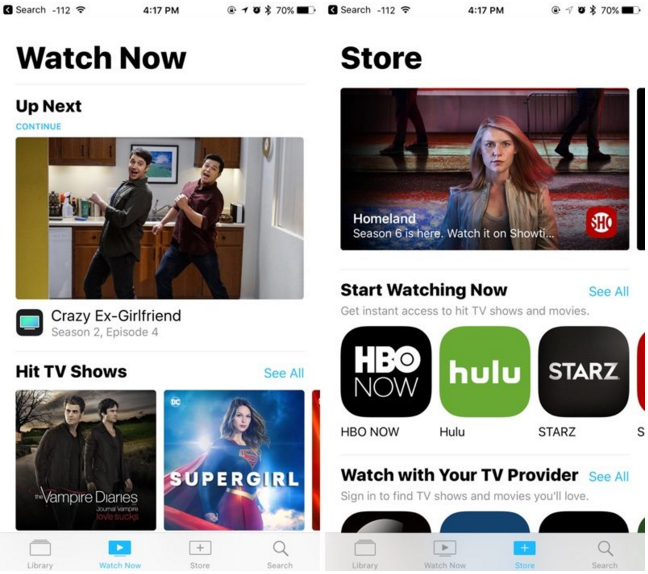
Other iPhone users have been unable to sync home videos and other content to their devices with the current version of iTunes, receiving a message that movies or TV shows can't be synced because the Videos app is not installed.
Some users have been able to get around the problem with already-transferred videos by using the TV widget on their iOS devices, which apparently causes the TV app to display the ripped videos after the widget is activated. Others can get the ripped videos to play by setting the videos to be "Home Videos."
That the widget allows some users to access their videos suggests this is perhaps a bug that will be resolved in a future update, but it is not entirely clear what's going on with the TV app and content acquired outside of the iTunes Stores.
Affected users who want to get non-Apple video content onto their iOS devices will need to use a third-party solution like Infuse or VLC.
Source: macrumors









