 NEWS
NEWS
Apple's iOS 12.5 Adds COVID-19 Exposure Notifications for Older iPhones
 12/16/2020
 2326
2326
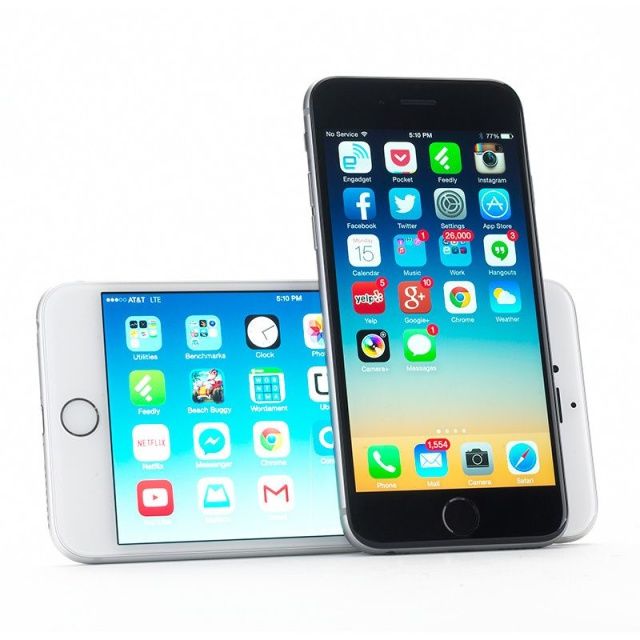
Earlier this year, Apple rolled out iOS 13.7, which added a COVID-19 exposure notification framework. This Exposure Notifications system allowed you to opt in and find out if you’ve been in contact with someone who tested positive with COVID-19. Unfortunately, that was only available for iPhones 7 and up. Now, however, Apple has released iOS 12.5, which finally adds the same COVID-19 notification to older iPhone models as well (iPhone 6 and older). Note that this is separate from iOS 14.3 that rolled out today.
According to Apple: “iOS 12.5 lets you opt-in to the COVID-19 Exposure Notifications system for your iPhone. System availability depends on support from your local public health authority.” And, depending on where you live, you won’t even need an app to sign up.
If your region supports it, you can just enroll in the program from the phone’s settings. From there, navigate to Exposure Notifications and then select your appropriate state. The framework uses Bluetooth Low Energy to exchange a private key with any nearby phones using the same software. If you do come into contact with someone who has tested positive for COVID-19 (that person will have to report to the app stating as such), the phone will notify you that you may have been exposed.
In order for the Exposure Notification system to kick in, public health authorities for your region must agree to it. So far, the list of US states and regions that support it include Alabama, Arizona, California, Colorado, Connecticut, Delaware, Maryland, Michigan, Minnesota, Nevada, New Jersey, New York, North Carolina, North Dakota, Pennsylvania, Virginia, Washington, Wyoming and Washington, DC.
Source: Engadget









