 NEWS
NEWS
Apple's Gatekeeper Issues Might Have Slowed Down Your Mac Earlier
 11/13/2020
 3599
3599
For about a half hour or so starting at 4PM ET, Mac users worldwide who tried to open up third-party apps were suddenly noticing weird issues and slow launches, with the software just bouncing in their dock for minutes or failing to launch entirely.
The problems existed whether they had updated to the new Big Sur macOS release or not, and based on some testing, it appears the issue tied back to Apple’s Gatekeeper technology that detects whether or not software is safe to use. The system arrived as a part of the Mountain Lion 10.8 release in 2012.
Mac and iOS developer Jeff Johnson confirmed the OS was having problems connecting to an Apple server, and that blocking it by editing the hosts file solved the problem. The issue appears to be resolved now, but as TechCrunch points out, it’s possible the servers were overloaded as people updated to Big Sur and suddenly flooded it with requests to reauthorize older apps.
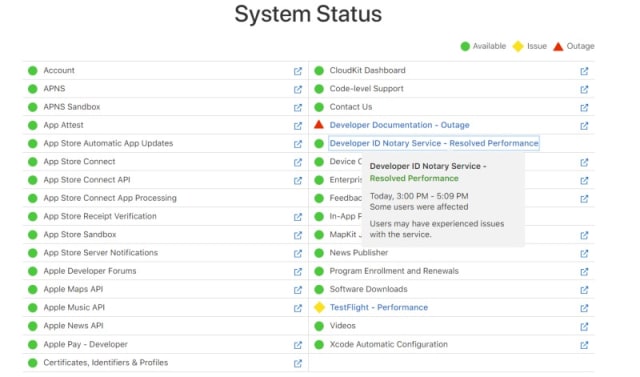
We’ve contacted Apple to see if there’s any details on exactly what happened, but have not received a response yet. On its system status page for developers, Apple confirmed that an issue with the notarization service from 3 PM to 5:09 PM ET has been resolved.
On its support page covering Gatekeeper, Apple explains how the technology works, as of the macOS Catalina update: “If you download and install apps from the internet or directly from a developer, macOS continues to protect your Mac. When you install Mac apps, plug-ins, and installer packages from outside the App Store, macOS checks the Developer ID signature to verify that the software is from an identified developer and that it has not been altered. By default, macOS Catalina also requires software to be notarized, so you can be confident that the software you run on your Mac doesn't contain known malware. Before opening downloaded software for the first time, macOS requests your approval to make sure you aren’t misled into running software you didn’t expect.”
Source: Engadget









