 NEWS
NEWS
Windows Vulnerability Enables Remote PC Access via iPhone Video File
 10/20/2020
 2551
2551
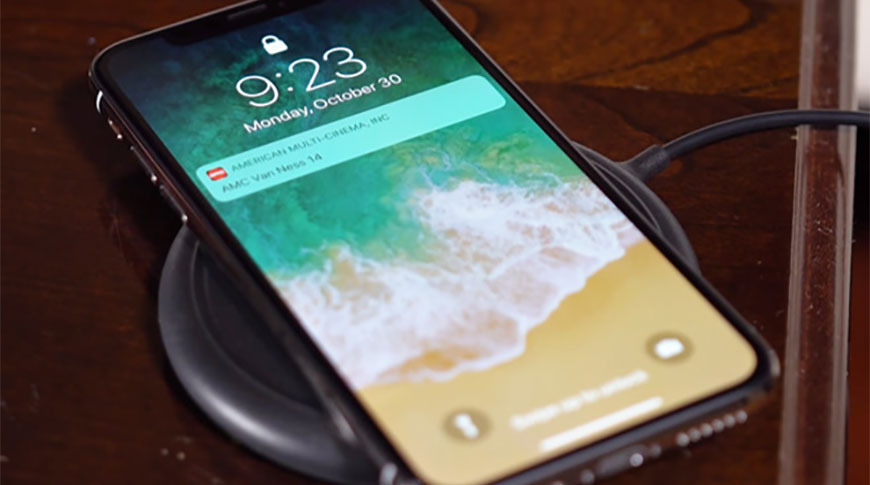
Apple iPhone owners who use Windows-based machines to view and edit video files are potentially at risk to remote hacking thanks to a vulnerability that exists in the way Microsoft's operating system handles HEVC files.
Discovered last week, the bug in Microsoft's Windows Codecs Library can be exploited to take over and execute code on an unpatched host machine. The threat was flagged by the U.S. Cybersecurity and Infrastructure Security Agency on Friday.
Like most remote attack vectors, users trigger arbitrary code execution by opening a specially designed payload, in this case an HEVC image file. Windows mishandles the codec, triggering what appears to be a memory overflow that enables system intrusion and, potentially, remote takeover.
As noted by PC World, iPhone users are particularly susceptible to hacks that take advantage of the Windows flaw, as modern iterations of the handset rely heavily on HEVC for video recording. The codec has been offered by Apple since iPhone 7 and became the standard high-resolution video file format with iOS 11. HEVC assets are required to view or edit video on a Windows PC.
Further, longtime iPhone owners might be accustomed to receiving HEVC video attachments or seeing the file format online, meaning it is unlikely to raise red flags.
Users who manually downloaded HEVC or "HEVC from Device Manufacturer" codecs from the Microsoft Store are also vulnerable to attack.
Microsoft released a patch for the flaw last week. Versions 1.0.32762.0, 1.0.32763.0, and later are deemed safe for use and can be downloaded from the company's online store.
Source: Appleinsider









