 NEWS
NEWS
Siri will Let Users Interact With Apps When Summoned on iPadOS 14
 08/27/2020
 2872
2872
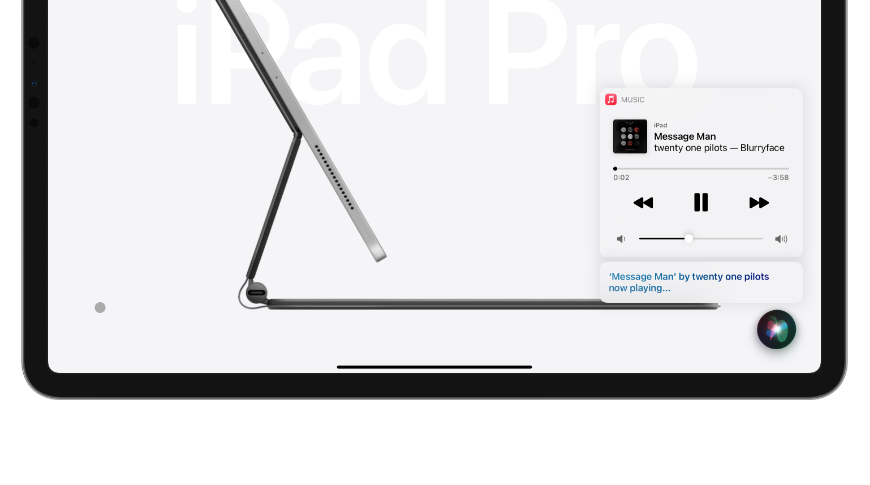
In iPadOS 14 beta 6, users can ask Siri to perform tasks while interacting with their apps in the background.
Apple introduced a new compact UI across its platforms to give users more space when interactive content shows up. In the sixth beta of iPadOS 14, Siri will let users continue to interact with content while it is on the screen.
The compact UI makes Siri appear as a small sphere in the bottom-right corner of the screen which animates and presents data as the user gives commands. Previously, Siri would take over the entire screen to respond to users, which removed the user from whatever task they were working on.
The first betas of iPadOS presented Siri in a compact UI that did not obscure content on the screen, but would not let the user interact with anything either. This solved the problem with obscuring content, but not being able to interact with the unobscured content defeated the purpose of the compact design.
Now, when a user gives Siri a command on iPad, they can continue to interact with content in the displayed app. This comes in handy as Siri can take time to process commands and now users can continue work while this happens. Switching apps or going to the home screen will dismiss Siri, so it is not completely persistent.
Devices running iOS 14 do not have the same feature. The small screeen is still taken over by Siri despite the compact UI, so continued interaction isn't as practical. The feature may still arrive on iOS, but the way Siri presents data on iPhone prevents users from having much space to work even when waiting on Siri to process data.
Apple will release iOS 14 and iPadOS 14 to the public in the fall with new compact design, widgets for the Home screen, and App Clips. The software release will occur alongside the release of the "iPhone 12" at an event near the end of September or in early October.
Source: Appleinsider









