NEWS

Apple Pay Could Be Used to Make Payments With QR Codes in the Future

07/08/2020

2341

Apple Pay Could Be Used to Make Payments With QR Codes in the Future


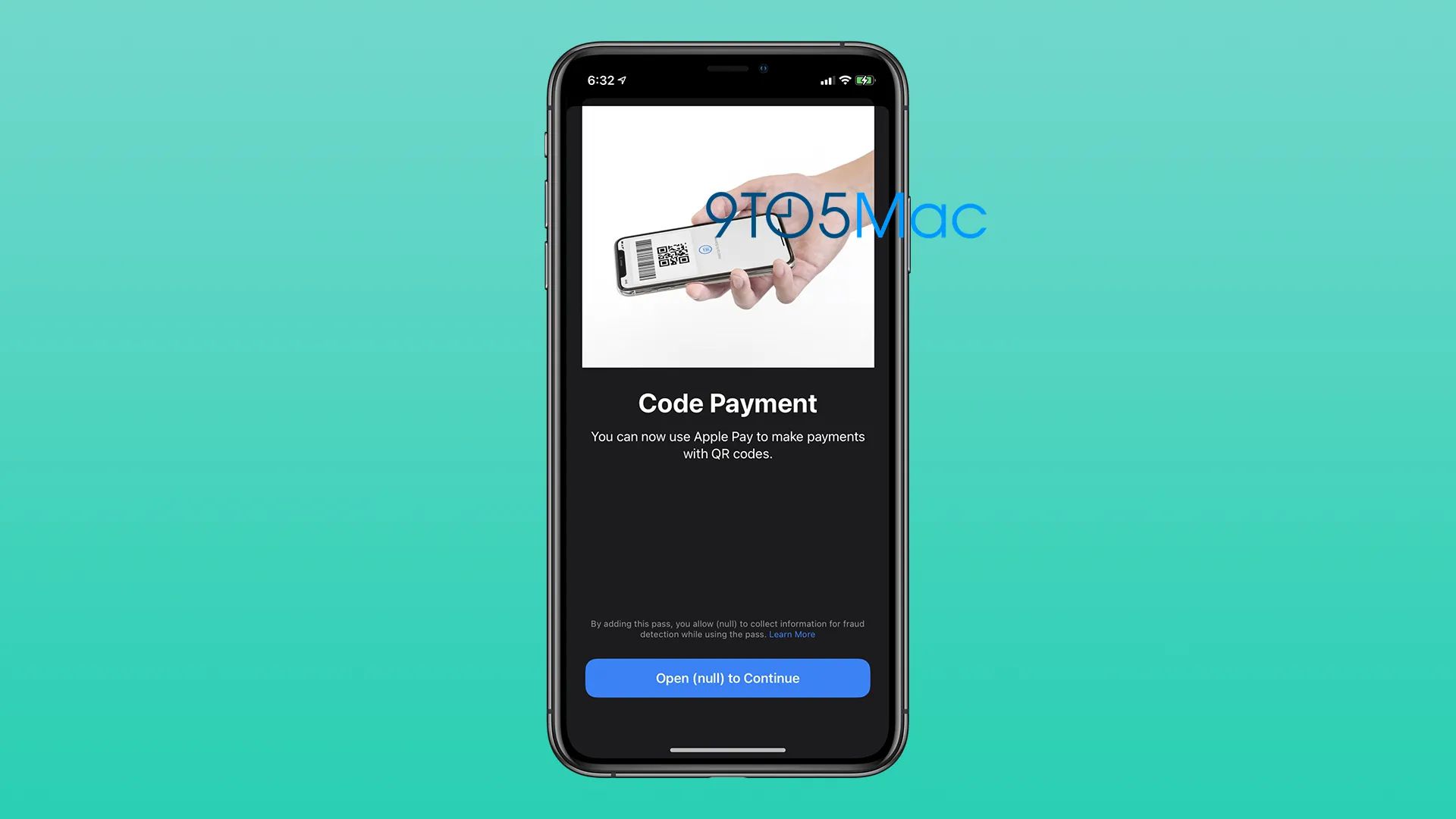
Apple today released the second developer beta of iOS 14 with some small changes across the system. And now 9to5Mac was able to find a hidden feature in the Wallet app to allow users to make payments with QR Codes using Apple Pay.


References found in the iOS 14 code reveal that Apple is working on a new method for letting users make payments with Apple Pay by scanning a QR Code or traditional barcode with the iPhone camera.


We’ve managed to access this feature hidden in iOS 14 beta 2, and although it still doesn’t work, we can clearly see an image showing how it will work. Users will point the iPhone camera at a QR Code or traditional barcode to pay bills and other things with a card registered with Apple Pay.


The opposite would also work, with users holding the iPhone in front of a scanner with a QR Code generated by the Wallet app. We can also say that there will be some kind of interaction with third-party apps, as this code was found in a public system API.


Apple hasn’t discussed this feature at WWDC 2020, and it’s not finished yet, so we don’t know when Apple will make it available to users. It’s important to note that this was not present in the first iOS 14 developer beta released last month, so it’s definitely something Apple is still working on.


iOS 14 is expected to be released to the public later this year, with a public beta version coming this month.


Source: 9to5mac

Windows
Mac OS
iOS
Linux
3uTools
Win 64-bit For this device
V9.0 2025-11-11
Download
Win 32-bit For this device
V9.0 2025-11-11
Download
3uTools
Intel Chip How to Identify Chip Type
V9.0 2025-12-02
Download
Apple Chip
V9.0 2025-12-02
Download
How to Identify Chip Type
1.  Click the Apple icon in the top-left corner of the screen and select About This Mac.
2.  Check the Processor or Chip field to determine if it is "Intel" or "Apple".
Please use the 3uTools PC client to install the iOS client:
1、 Install either the Windows or Mac version of 3uTools on your computer
2、 Open the PC client and connect your device to the computer via USB cable
3、 After the connection is successful, wait for the computer to automatically install the mobile app for the device, or locate “Install Mobile App” on the computer and manually click to install.
3uTools
deb file
V3.01 2025-11-20
Download
rpm file
V3.01 2025-11-20
Download
Windows
Windows
iOS
iOS
Android
Android
TV
TV
3uAirPlayer
Win 64-bit For this device
V6.0.2 2025-11-19
Download
Win 32-bit For this device
V6.0.2 2025-11-19
Download
iOS Device Mirroring (No App Required)
1、 Install 3uAirPlayer on the Windows PC
2、 Open Control Center and select Screen Mirroring
3、 From the list, choose your PC to start mirroring
4、 Or connect your iOS device to the PC via USB to begin mirroring
Scan to get "3uAirPlayer" App
3uAirPlayer TV V1.0.18
2025-11-28
TV System Requirements: Android 7.0 or later
Download the TV installation package, copy it to a USB drive, insert it into your TV or set-top box, then select the file from the home screen to install.