NEWS

Apple Pay Support Launches in Serbia

07/01/2020

2583

Apple Pay Support Launches in Serbia

While Apple Pay is readily available in many regions all across the globe, there are still some areas where holdouts exist. But we can now take Serbia off that particular list.


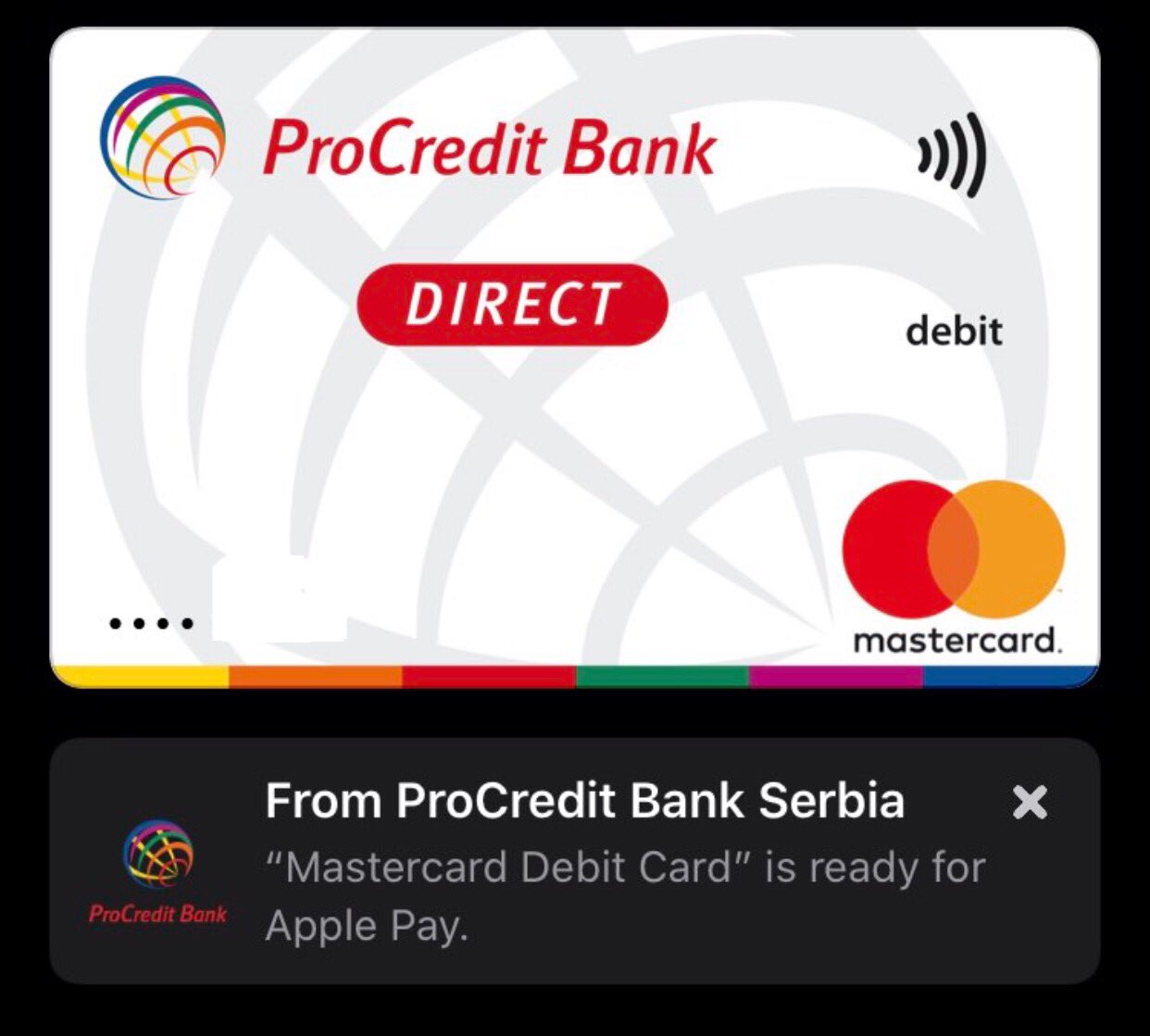
According to MacRumors, Apple Pay is support is launching today, June 30, in Serbia. It will initially be supported by ProCredit bank and the institution’s Mastercard-branded cards. The report also indicates that Raiffeisen bank in the region will be adding support for Apple Pay as well.


With Apple Pay support from these two institutions, customers with Mastercard credit and/or debit cards will be able to add them directly to the Wallet app on their iPhone, and then use Apple Pay as a mobile payment option wherever contactless payments are accepted. Paying for a product can be handled with either a supported iPhone or a supported Apple Watch.


To add your card to the Wallet app, simply open the app on your iPhone and then select the “+” symbol located in the top-right corner of the screen. Simply follow the onscreen instructions after pressing that icon to add your supported card.


In related news, Apple Pay’s last expansion happened in Australia back in April of this year, which finally brought the last major bank in Australia, Westpac, on board with support for the mobile payment option.


Source: iDB

Windows
Mac OS
iOS
Linux
3uTools
Win 64-bit For this device
V9.0 2025-11-11
Download
Win 32-bit For this device
V9.0 2025-11-11
Download
3uTools
Intel Chip How to Identify Chip Type
V9.0 2025-12-02
Download
Apple Chip
V9.0 2025-12-02
Download
How to Identify Chip Type
1.  Click the Apple icon in the top-left corner of the screen and select About This Mac.
2.  Check the Processor or Chip field to determine if it is "Intel" or "Apple".
Please use the 3uTools PC client to install the iOS client:
1、 Install either the Windows or Mac version of 3uTools on your computer
2、 Open the PC client and connect your device to the computer via USB cable
3、 After the connection is successful, wait for the computer to automatically install the mobile app for the device, or locate “Install Mobile App” on the computer and manually click to install.
3uTools
deb file
V3.01 2025-11-20
Download
rpm file
V3.01 2025-11-20
Download
Windows
Windows
iOS
iOS
Android
Android
TV
TV
3uAirPlayer
Win 64-bit For this device
V6.0.2 2025-11-19
Download
Win 32-bit For this device
V6.0.2 2025-11-19
Download
iOS Device Mirroring (No App Required)
1、 Install 3uAirPlayer on the Windows PC
2、 Open Control Center and select Screen Mirroring
3、 From the list, choose your PC to start mirroring
4、 Or connect your iOS device to the PC via USB to begin mirroring
Scan to get "3uAirPlayer" App
3uAirPlayer TV V1.0.18
2025-11-28
TV System Requirements: Android 7.0 or later
Download the TV installation package, copy it to a USB drive, insert it into your TV or set-top box, then select the file from the home screen to install.