NEWS

Apple Adds 2013 and 2014 MacBook Air, Pro models to Vintage and Obsolete List

05/13/2020

3390

Apple Adds 2013 and 2014 MacBook Air, Pro models to Vintage and Obsolete List


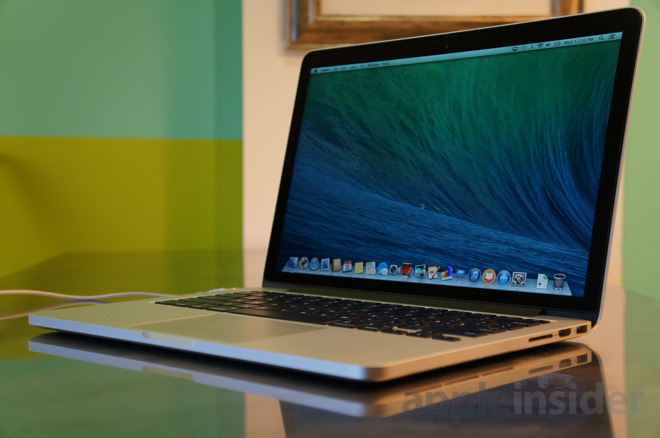
Apple on Tuesday added a few additional MacBook Air and MacBook Pro models to its vintage and obsolete products list, a bit later than previously expected.


Back in the beginning of April, internal documents suggested that a pair of MacBook Air models and a 13-inch MacBook Pro would be added to Apple's vintage list by the end of that month.


That didn't turn out to be the case, but on Tuesday, May 12, Apple added the 11- and 13-inch MacBook Air models and the MacBook Pro model to the list. The specific products include 11-inch and 13-inch MacBook Air models produced in mid-2013 and early 2014, as well as the 13-inch MacBook Pro produced in mid-2014. Apple also added the fifth-generation iPod touch to its vintage products list.


Apple defines "vintage" devices as those that have not been manufactured for more than five years but fewer than seven years. "Obsolete" products, on the other hand, are any that have been discontinued for more than seven years.


Vintage products remain eligible for repairs and service at Genius Bars and Apple Authorized Service Providers, but only if those shops have the required parts in stock. Obsolete products are not eligible for repairs at these locations.


The company keeps a rolling list of vintage and obsolete products on its website, which includes recent additions like the iPhone 5 in 2018 and the iPad 2 in May 2019.


Source: Appleinsider

Windows
Mac OS
iOS
Linux
3uTools
Win 64-bit For this device
V9.0 2025-11-11
Download
Win 32-bit For this device
V9.0 2025-11-11
Download
3uTools
Intel Chip How to Identify Chip Type
V9.0 2025-12-02
Download
Apple Chip
V9.0 2025-12-02
Download
How to Identify Chip Type
1.  Click the Apple icon in the top-left corner of the screen and select About This Mac.
2.  Check the Processor or Chip field to determine if it is "Intel" or "Apple".
Please use the 3uTools PC client to install the iOS client:
1、 Install either the Windows or Mac version of 3uTools on your computer
2、 Open the PC client and connect your device to the computer via USB cable
3、 After the connection is successful, wait for the computer to automatically install the mobile app for the device, or locate “Install Mobile App” on the computer and manually click to install.
3uTools
deb file
V3.01 2025-11-20
Download
rpm file
V3.01 2025-11-20
Download
Windows
Windows
iOS
iOS
Android
Android
TV
TV
3uAirPlayer
Win 64-bit For this device
V6.0.2 2025-11-19
Download
Win 32-bit For this device
V6.0.2 2025-11-19
Download
iOS Device Mirroring (No App Required)
1、 Install 3uAirPlayer on the Windows PC
2、 Open Control Center and select Screen Mirroring
3、 From the list, choose your PC to start mirroring
4、 Or connect your iOS device to the PC via USB to begin mirroring
Scan to get "3uAirPlayer" App
3uAirPlayer TV V1.0.18
2025-11-28
TV System Requirements: Android 7.0 or later
Download the TV installation package, copy it to a USB drive, insert it into your TV or set-top box, then select the file from the home screen to install.