
NEWS

iOS 13.5 Beta Adds Option to Share Medical ID Info During Emergency Calls

05/07/2020

2482

In addition to introducing Face ID changes for mask usage and the Exposure Notification API, iOS 13.5 adds a new feature for sharing Medical ID information.
iOS 13.5 Beta Adds Option to Share Medical ID Info During Emergency Calls
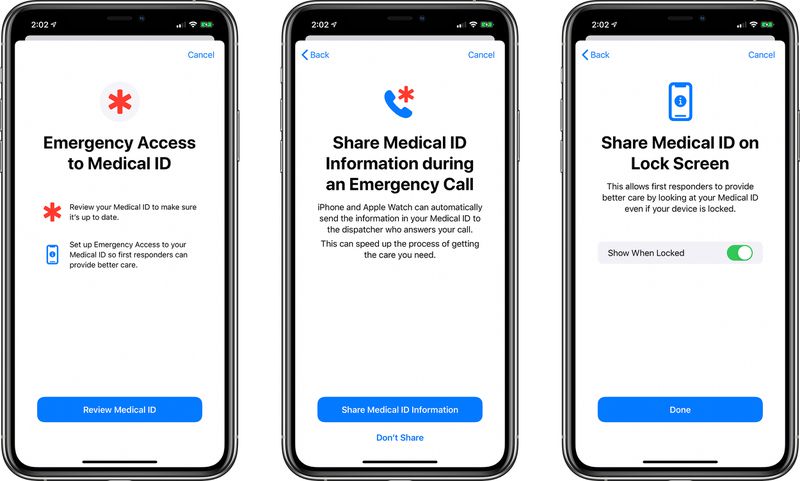
Today's iOS 13.5 beta prompts users to review their Medical ID settings when opening the Health app, introducing options to share Medical ID info during an emergency call and on the Lock screen.


Based on the text accompanying the feature, enabling the option sends Medical ID information to emergency dispatchers who answer an emergency call. Apple says it will provide emergency services personnel with key info like allergies, language, and medical conditions.


iPhone and Apple Watch can automatically send the information in your Medical ID to the dispatcher who answers your call.


This can speed up the process of getting the care you need.


This feature can be toggled on when adjusting medical settings after updating, as can the option to provide access to Medical ID even when an ‌iPhone‌ is locked.


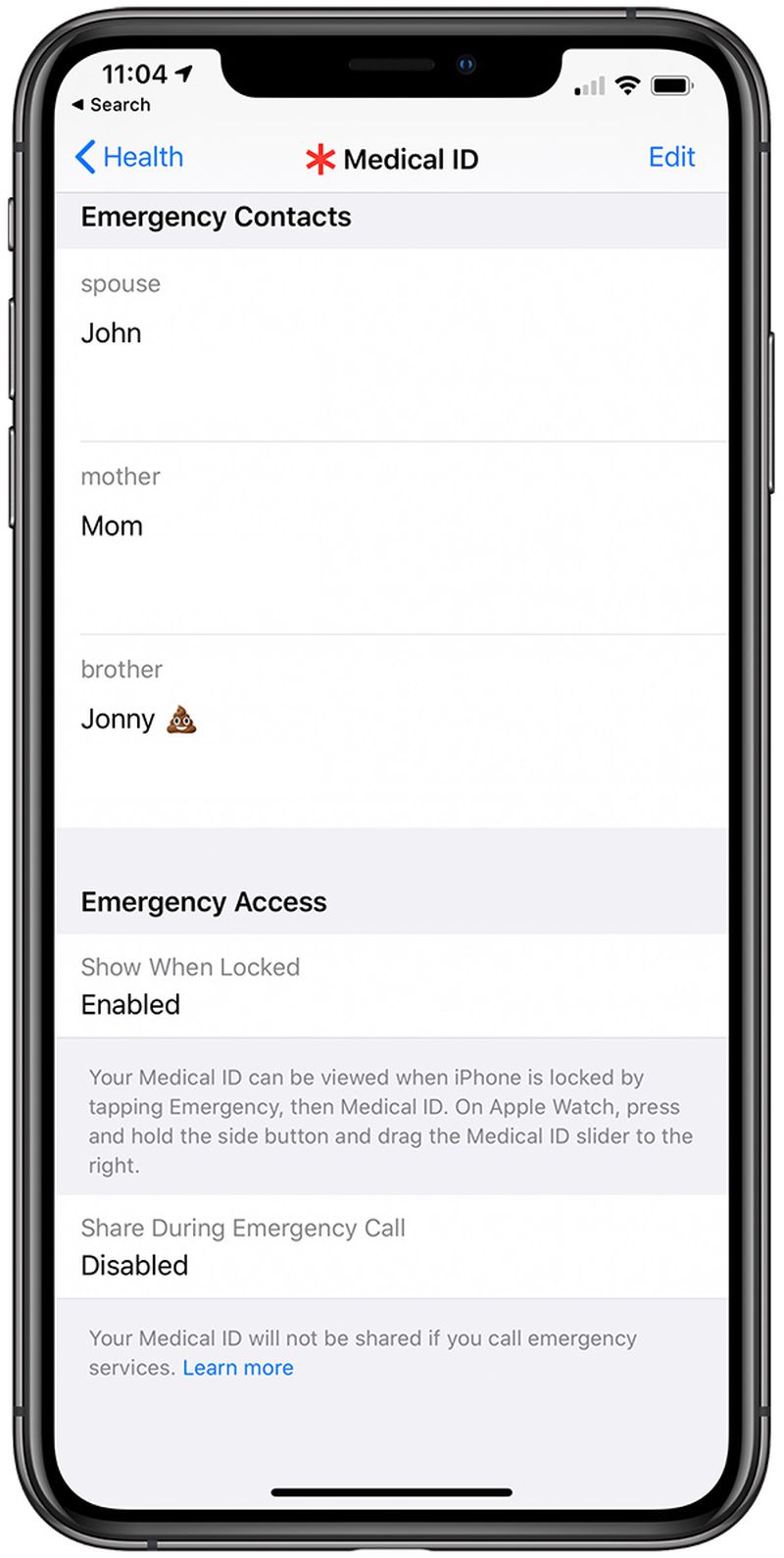
These settings can be adjusted in the Health section of the Settings app by tapping on Medical ID and then the "Edit" option.

iOS 13.5 Beta Adds Option to Share Medical ID Info During Emergency Calls
According to Apple, when the Medical ID sharing feature is enabled, a call or text to emergency services shares location and encrypted Medical ID info with Apple.


Apple uses location to determine whether Enhanced Emergency Data is supported in your area, and if so, the Medical ID info is forwarded to a partner for delivery to medical services.


If Emergency Calls & SOS in Settings > Privacy > Location Services > System Services is disabled, the feature does not work.


Source: Macrumors

Windows
Mac OS
iOS
Linux
3uTools
Win 64-bit For this device
V9.0 2025-11-11
Download
Win 32-bit For this device
V9.0 2025-11-11
Download
3uTools
Intel Chip How to Identify Chip Type
V9.0 2025-12-02
Download
Apple Chip
V9.0 2025-12-02
Download
How to Identify Chip Type
1.  Click the Apple icon in the top-left corner of the screen and select About This Mac.
2.  Check the Processor or Chip field to determine if it is "Intel" or "Apple".
Please use the 3uTools PC client to install the iOS client:
1、 Install either the Windows or Mac version of 3uTools on your computer
2、 Open the PC client and connect your device to the computer via USB cable
3、 After the connection is successful, wait for the computer to automatically install the mobile app for the device, or locate “Install Mobile App” on the computer and manually click to install.
3uTools
deb file
V3.01 2025-11-20
Download
rpm file
V3.01 2025-11-20
Download
Windows
Windows
iOS
iOS
Android
Android
TV
TV
3uAirPlayer
Win 64-bit For this device
V6.0.2 2025-11-19
Download
Win 32-bit For this device
V6.0.2 2025-11-19
Download
iOS Device Mirroring (No App Required)
1、 Install 3uAirPlayer on the Windows PC
2、 Open Control Center and select Screen Mirroring
3、 From the list, choose your PC to start mirroring
4、 Or connect your iOS device to the PC via USB to begin mirroring
Scan to get "3uAirPlayer" App
3uAirPlayer TV V1.0.18
2025-11-28
TV System Requirements: Android 7.0 or later
Download the TV installation package, copy it to a USB drive, insert it into your TV or set-top box, then select the file from the home screen to install.




