
NEWS

iFixit Details Which Parts Can Be Swapped Between the iPhone 8 and iPhone SE

04/27/2020

3109

iFixit today shared a new report detailing which parts from the new iPhone SE can be replaced with those from the ‌iPhone‌ 8. This comes just days after a teardown video shared on Thursday by a Chinese YouTuber also highlighted many of the similarities between the two devices.
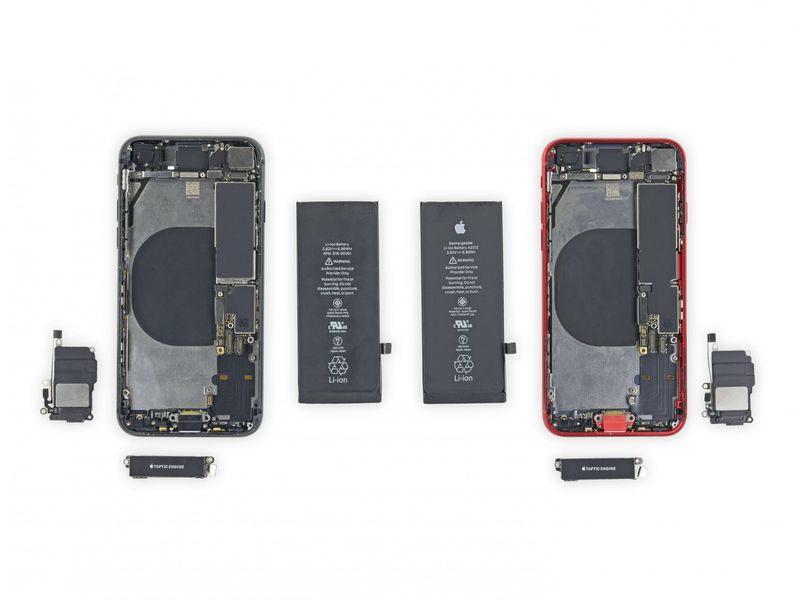

iFixit Details Which Parts Can Be Swapped Between the iPhone 8 and iPhone SE


‌iPhone‌ 8 (left) and the new ‌iPhone‌ SE (right) via iFixit


The report mentions that the 2020 ‌iPhone‌ SE's cameras, SIM tray, Taptic Engine, and the display assembly are all swappable with ‌iPhone‌ 8 parts. However, it is worth noting that True Tone functionality will be lost with any ‌iPhone‌ screen swap without access to a screen programmer.


The report also mentions that although some parts are very similar between the two devices, they aren't interchangeable. The home button is not interchangeable, so iFixit recommends substituting an aftermarket version of the home button or going directly to Apple in the event of a repair. The batteries on the ‌iPhone‌ 8 and ‌iPhone‌ SE look identical, but the report notes that the ‌iPhone‌ SE's battery logic board connector differs from that in the ‌iPhone‌ 8 and the two won't fit together.


iFixit was overall impressed with how the new ‌iPhone‌ SE uses several parts that many repair shops already have. iFixit's full teardown of the 2020 ‌iPhone‌ SE is currently in progress and is set to debut on Monday.


Source: Macrumors

Windows
Mac OS
iOS
Linux
3uTools
Win 64-bit For this device
V9.0 2025-11-11
Download
Win 32-bit For this device
V9.0 2025-11-11
Download
3uTools
Intel Chip How to Identify Chip Type
V9.0 2025-12-02
Download
Apple Chip
V9.0 2025-12-02
Download
How to Identify Chip Type
1.  Click the Apple icon in the top-left corner of the screen and select About This Mac.
2.  Check the Processor or Chip field to determine if it is "Intel" or "Apple".
Please use the 3uTools PC client to install the iOS client:
1、 Install either the Windows or Mac version of 3uTools on your computer
2、 Open the PC client and connect your device to the computer via USB cable
3、 After the connection is successful, wait for the computer to automatically install the mobile app for the device, or locate “Install Mobile App” on the computer and manually click to install.
3uTools
deb file
V3.01 2025-11-20
Download
rpm file
V3.01 2025-11-20
Download
Windows
Windows
iOS
iOS
Android
Android
TV
TV
3uAirPlayer
Win 64-bit For this device
V6.0.2 2025-11-19
Download
Win 32-bit For this device
V6.0.2 2025-11-19
Download
iOS Device Mirroring (No App Required)
1、 Install 3uAirPlayer on the Windows PC
2、 Open Control Center and select Screen Mirroring
3、 From the list, choose your PC to start mirroring
4、 Or connect your iOS device to the PC via USB to begin mirroring
Scan to get "3uAirPlayer" App
3uAirPlayer TV V1.0.18
2025-11-28
TV System Requirements: Android 7.0 or later
Download the TV installation package, copy it to a USB drive, insert it into your TV or set-top box, then select the file from the home screen to install.




