 NEWS
NEWS
iPhone SE Supports WiFi 6 and Express Cards, But No U1 Chip Included
 04/16/2020
 3521
3521
Apple's new iPhone SE is essentially an iPhone 8 with some updated hardware that brings it in line with the iPhone 11, 11 Pro and 11 Pro Max. Along with an A13 chip, the iPhone 8 has a few other notable hardware upgrades worth noting.
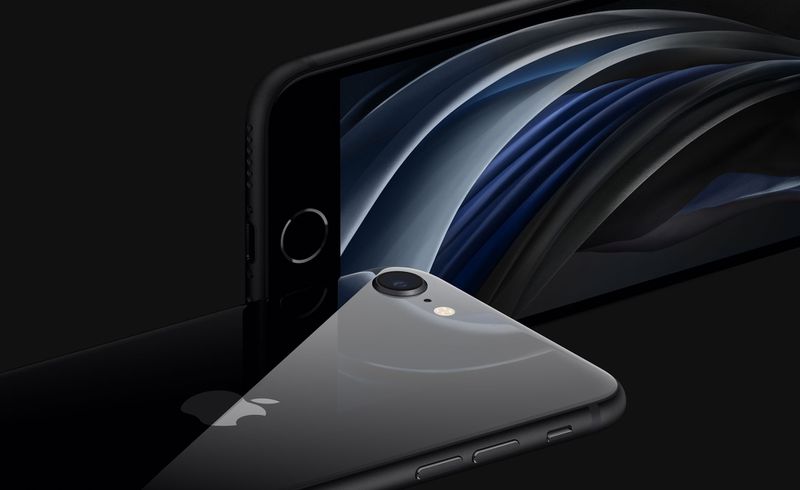
Like the iPhone 11 and 11 Pro, the iPhone SE supports 802.11ax WiFi 6, according to the technical specifications page for the device. In fact, it has the same LTE, Bluetooth, and WiFi specifications as the iPhone 11:
Gigabit-class LTE with 2x2 MIMO and LAA4
802.11ax Wi‑Fi 6 with 2x2 MIMO
Bluetooth 5.0 wireless technology
NFC with reader mode
Express Cards with power reserve
WiFi 6 is the latest WiFi protocol, and it allows for download speeds up to 38 percent faster than WiFi 5 (802.11ac). WiFi 6 has not been widely adopted as of yet, but addition of WiFi 6 will become increasingly important over the next few years as routers and modems begin implementing support.
The iPhone SE also supports NFC with reader mode as all modern iPhones do, plus Express Cards with power reserve. This feature, also included in the iPhone 11 and 11 Pro, allows for authentication of Express Transit cards even when an iPhone's battery is exhausted. It will also be a useful feature for the "CarKey" function that Apple has in the works, which will let an iPhone serve as an alternative to a traditional car key in vehicles that support the feature.
Though the iPhone SE shares many connectivity features with Apple's flagship iPhones, it does not include the U1 chip that enables Ultra Wideband technology for improved spatial awareness.
The U1 chip, which is in the iPhone 11 and 11 Pro, allows iPhones to precisely locate other U1-equipped Apple devices, making it easier to locate missing devices indoors. Ultra Wideband has been described by Apple as "GPS at the scale of the living room," and it is believed to be a key feature of the AirTags that Apple is developing.
AirTags are Bluetooth trackers much like Tile, and will attach to items like keys and wallets to allow them to be found in the Find My app on iPhone, iPad, and Mac. AirTags will be locatable through standard Bluetooth, but it is believed they will have U1 support and tracking could be more accurate with devices equipped with a U1 chip.
At this time, the U1 chip is limited to Apple's flagship iPhones, and there have been two new devices released without it - the iPad Pro and now, the iPhone SE.
Source: Macrumors









