 NEWS
NEWS
Luna Display adds new Mac-to-Mac mode as it competes with Apple’s Sidecar feature
 10/18/2019
 3312
3312
Luna Display, the popular accessory that lets you use your iPad as a secondary display to your Mac, is expanding with a new Mac-to-Mac mode. This means that you can now use a Mac as the secondary display for another Mac.
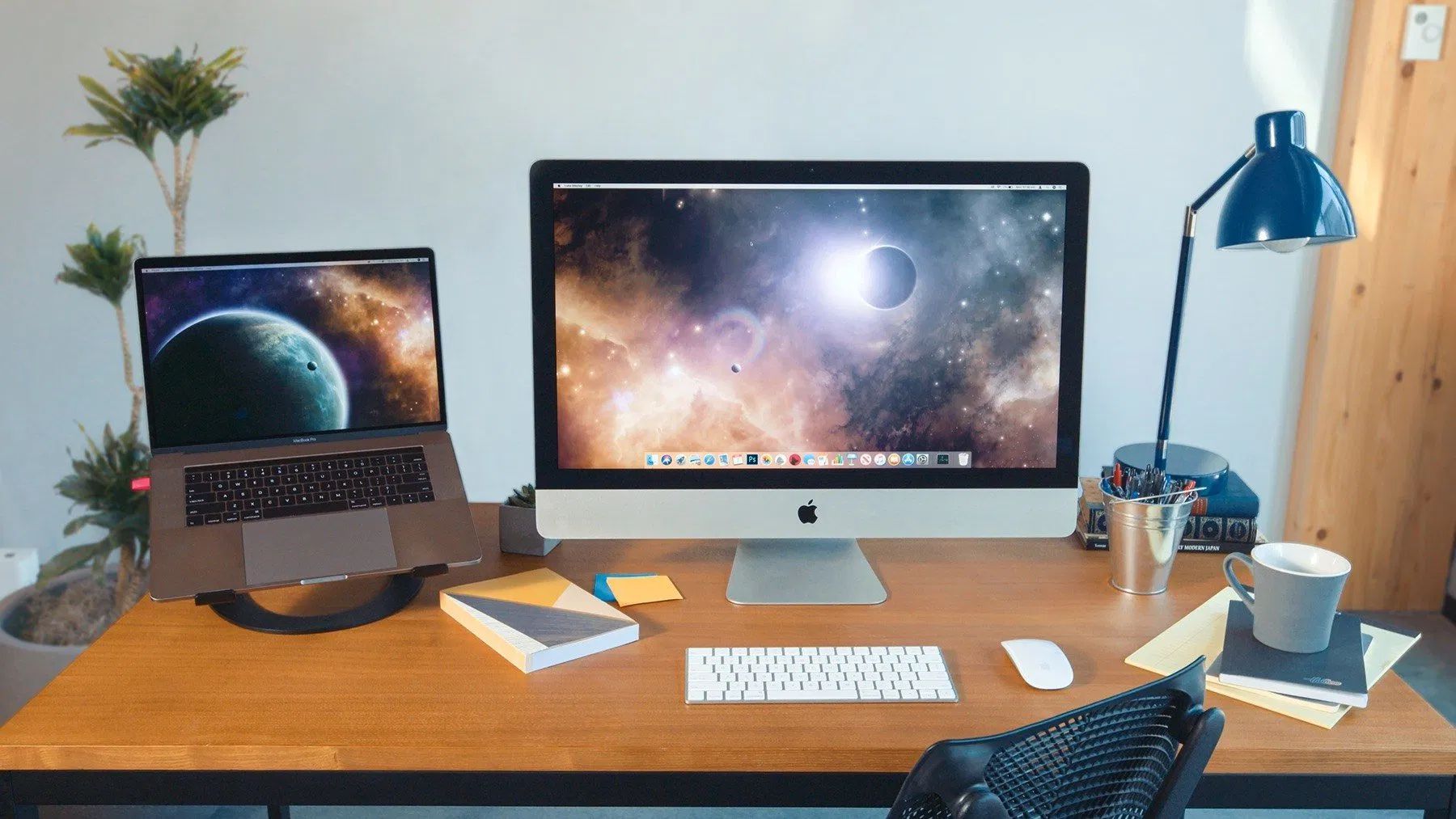
Using the Luna Display hardware dongle, your primary Mac can communicate with another Mac, and transform that secondary Mac into external display. For instance, you could use a MacBook as a secondary display for your iMac. Or, if you have a Mac mini, you could even use your MacBook as its main display.
Luna Display markets this is as a great way to repurpose an older Mac you might have in storage, but it also works well for people with dual Mac setups, such as an iMac and a portable MacBook. Here’s how Luna describes the feature:
Our all-new Mac-to-Mac Mode allows you to use any Mac as a second display. Finally, you can give purpose to your old Macs lying around! No need to have any idle devices. The combinations are nearly endless.
Luna has worked to make sure that older Mac computers are fully compatible with this new feature. This means that the secondary Mac — the one being used as the secondary display — only requires macOS 10.8 Mountain Lion or newer. The primary Mac requires macOS 10.11 El Capitan or later.
Luna Display became popular as a way to turn an iPad into a secondary display to a Mac. This feature was sherlocked by Apple with macOS Catalina, which adds a new feature called Sidecar for natively using your iPad as an external display.
With features like Mac-to-Mac mode, and support for a wider range of iPads and Macs than Sidecar, Luna Display is seemingly working to position itself as a versatile alternative to Apple’s own feature.
Source: 9to5mac










