
NEWS

Apple Begins Localizing App Store Content to Hebrew for Users in Israel

04/12/2019

3352

Apple today has made a notable change to the App Store experience for users in Israel. Apple today has started the process of localizing the App Store to Hebrew, including featured stories in the Today tab and more.
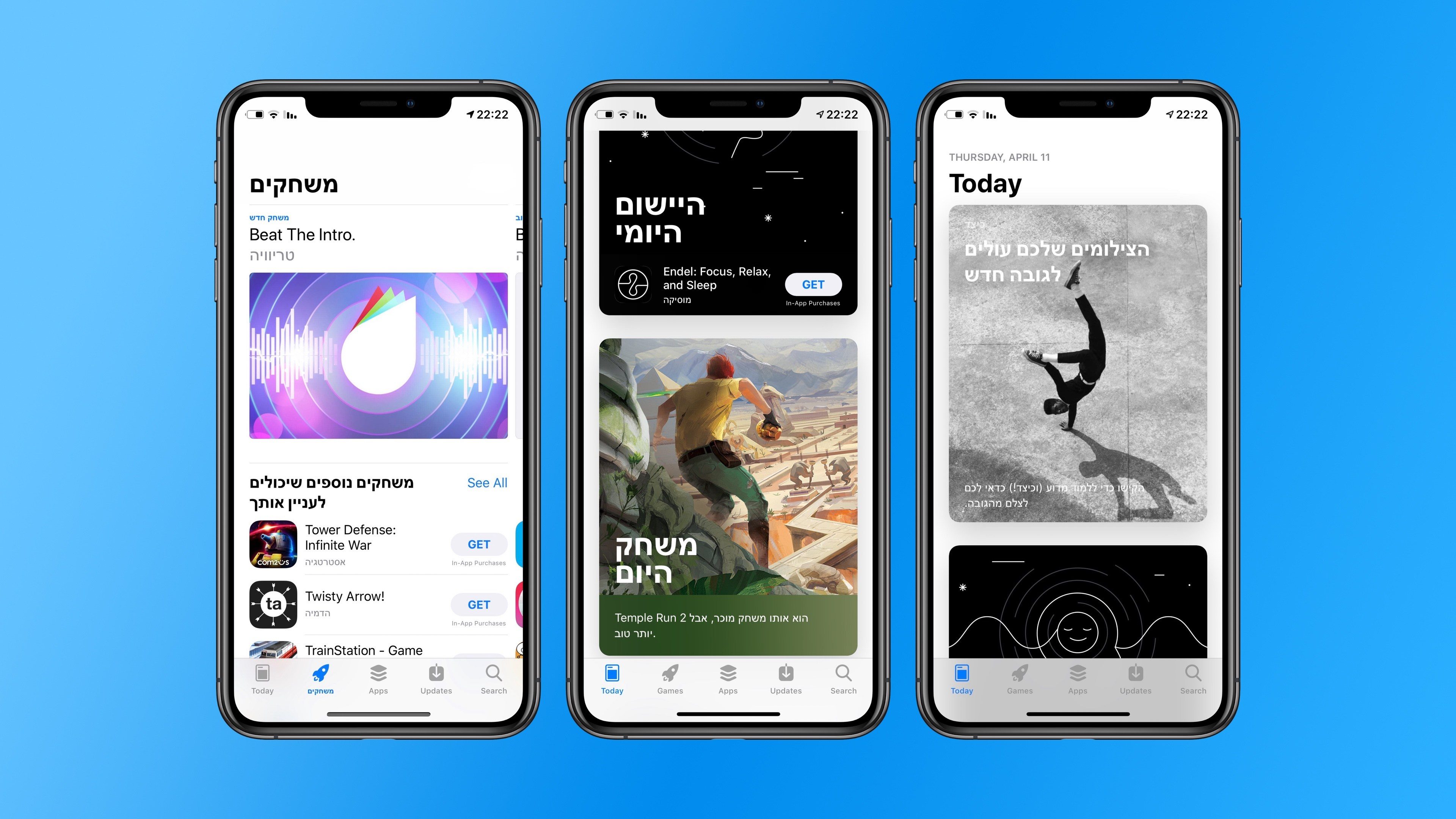

Apple Begins Localizing App Store Content to Hebrew for Users in Israel


With today’s change, featured stories in the App Store’s Today tab are now localized to Hebrew. This means the text itself is in Hebrew, while it’s also laid out right-to-left. Category names also now appear in Hebrew alongside their dedicated icons.


Despite the improvements, however, the App Store experience still isn’t perfect for users who speak Hebrew. The overall App Store app language is still in English and therefore not aligned to the right – as is custom for right-to-left languages such as Hebrew.


What this means is that the tabs along the bottom of the App Store are still primarily in English, as are app titles and various header text throughout the app.


Prior to this change, all App Store content for users who had their iOS system language set to Hebrew would be presented in English. Thus, despite today’s update not being perfect, it’s a notable improvement. It’s also likely that Apple is in the process of preparing full localization for users who speak Hebrew, with this just being the beginning step.


Source: 9to5mac

Windows
Mac OS
iOS
Linux
3uTools
Win 64-bit For this device
V9.0 2025-11-11
Download
Win 32-bit For this device
V9.0 2025-11-11
Download
3uTools
Intel Chip How to Identify Chip Type
V9.0 2025-12-02
Download
Apple Silicon
V9.0 2025-12-02
Download
How to Identify Chip Type
1.  Click the Apple icon in the top-left corner of the screen and select About This Mac.
2.  Check the Processor or Chip field to determine if it is "Intel" or "Apple".
Please use the 3uTools PC client to install the iOS client:
1、 Install either the Windows or Mac version of 3uTools on your computer
2、 Open the PC client and connect your device to the computer via USB cable
3、 After the connection is successful, wait for the computer to automatically install the mobile app for the device, or locate “Install Mobile App” on the computer and manually click to install.
3uTools
deb file
V3.01 2025-11-20
Download
rpm file
V3.01 2025-11-20
Download
Windows
Windows
iOS
iOS
Android
Android
TV
TV
3uAirPlayer
Win 64-bit For this device
V6.0.2 2025-11-19
Download
Win 32-bit For this device
V6.0.2 2025-11-19
Download
iOS Device Mirroring (No App Required)
1、 Install 3uAirPlayer on the Windows PC
2、 Open Control Center and select Screen Mirroring
3、 From the list, choose your PC to start mirroring
4、 Or connect your iOS device to the PC via USB to begin mirroring
Scan to get "3uAirPlayer" App
3uAirPlayer TV V1.0.18
2025-11-28
TV System Requirements: Android 7.0 or later
Download the TV installation package, copy it to a USB drive, insert it into your TV or set-top box, then select the file from the home screen to install.




