
NEWS

Google Releases Chrome 73 With Support for macOS Mojave Dark Mode

03/13/2019

2721

Google today released Chrome 73, the newest stable version of its Chrome browser for Mac and Windows. Chrome 73 has been in beta testing since February, with several new features included. 

On 
macOS Mojave, Chrome 73 introduces support for Dark Mode. The browser window will display the darker colored theme automatically whenever Dark Mode on Mojave is enabled. Dark Mode in Chrome looks similar to the darker toolbar available when using Chrome in Incognito Mode. 
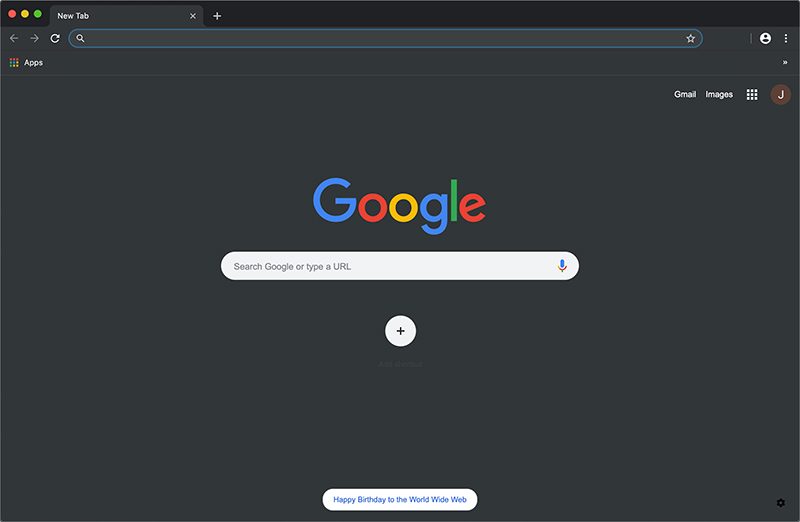
Google Releases Chrome 73 With Support for macOS Mojave Dark Mode


Other new features in Google Chrome include tab grouping for better organizing multiple tabs, support for keyboard media keys, and an automatic picture in picture option enabled when swapping away from an active video. 

There's a new Sync and Google Services section under Settings to make it easier to control data collection settings and other options, spell checking improvements, and a new badge API that will let web app icons include a visual indicator for things like unread item counts.

There are a number of 
changes for developers in Chrome 73, including signed HTTP exchanges, constructable style sheets, and support for Progressive Web Apps on Mac. 


Multiple security fixes have been addressed in Chrome 73, with Google outlining security updates in a blog post. Chrome 73 can be downloaded using the update button in Chrome if you already have it installed or through the Chrome website


Source: macrumors


Windows
Mac OS
iOS
Linux
3uTools
Win 64-bit For this device
V9.01 2025-12-27
Download
Win 32-bit For this device
V9.01 2025-12-27
Download
3uTools
Intel Chip How to Identify Chip Type
V9.01 2025-12-31
Download
Apple Silicon
V9.01 2025-12-31
Download
How to Identify Chip Type
1.  Click the Apple icon in the top-left corner of the screen and select About This Mac.
2.  Check the Processor or Chip field to determine if it is "Intel" or "Apple".
Please use the 3uTools PC client to install the iOS client:
1、 Install either the Windows or Mac version of 3uTools on your computer
2、 Open the PC client and connect your device to the computer via USB cable
3、 After the connection is successful, wait for the computer to automatically install the mobile app for the device, or locate “Install Mobile App” on the computer and manually click to install.
3uTools
deb file
V3.01 2025-11-20
Download
rpm file
V3.01 2025-11-20
Download
Windows
Windows
iOS
iOS
Android
Android
TV
TV
3uAirPlayer
Win 64-bit For this device
V6.0.2 2025-11-19
Download
Win 32-bit For this device
V6.0.2 2025-11-19
Download
iOS Device Mirroring (No App Required)
1、 Install 3uAirPlayer on the Windows PC
2、 Open Control Center and select Screen Mirroring
3、 From the list, choose your PC to start mirroring
4、 Or connect your iOS device to the PC via USB to begin mirroring
Scan to get "3uAirPlayer" App
3uAirPlayer TV V1.0.18
2025-11-28
TV System Requirements: Android 7.0 or later
Download the TV installation package, copy it to a USB drive, insert it into your TV or set-top box, then select the file from the home screen to install.





