 NEWS
NEWS
FaceTime Live Photos Returns in iOS 12.1.1, Flip Camera UI Improved
 11/01/2018
 5053
5053
In iOS 12.1.1, currently in beta, Apple has restored the FaceTime Live Photo capture feature that was removed in iOS 12.0. They have also dramatically improved the FaceTime UI, bringing mute and flip camera actions to the main view — no longer hidden in the submenu.
The Live Photos feature returns, but both devices must be updated to use it. The expanded card view in FaceTime has also been improved. More screenshots below …
With iOS 12.0, Apple buried the flip camera and mute buttons behind a swipe gesture. The expanded card would also cover up the thumbnail of your own camera, making it hard to see whether the camera flip action had taken effect. Live Photos were removed altogether.
The collapsed and expanded card interface has been significantly reworked in iOS 12.1.1, as visible in these screenshots.
The Effects button remains on the left, but has been made smaller to fit a new row of four buttons. Effects, Mute, Flip Camera, and End Call. The Live Photo shutter button sits above the collapsed card. The expanded card controls can now only be accessed with a swipe gesture.
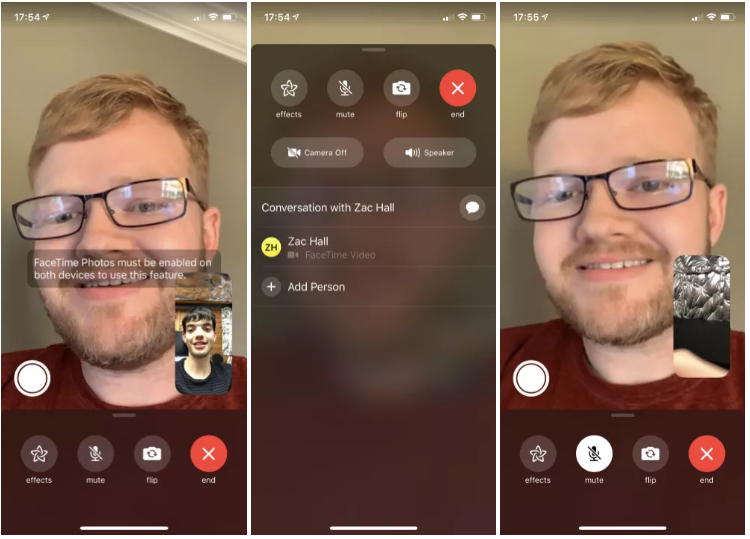
The expanded card features the row of four buttons as well as a second row of pill buttons containing Camera Off and Speaker toggles. The list of call participants below is unchanged.
The return of Live Photos is nice to see. Live Photos in FaceTime let you quickly capture a poignant moment with a hint of additional context thanks to the accompanying motion and sound, compared to a standard screenshot.
FaceTime Live Photos is optional for all FaceTime participants. The feature is enabled by default but can be turned off in Settings -> FaceTime -> Live Photos. Everyone must be updated to iOS 12.1.1 or later for the FaceTime Live Photo capture to succeed.
iOS 12.1.1 was seeded to developers today. Expect to see it released to the public before the end of the year.










