 NEWS
NEWS
Apple Self-driving Cars are Far Safer than Google’s
 10/22/2018
 3486
3486
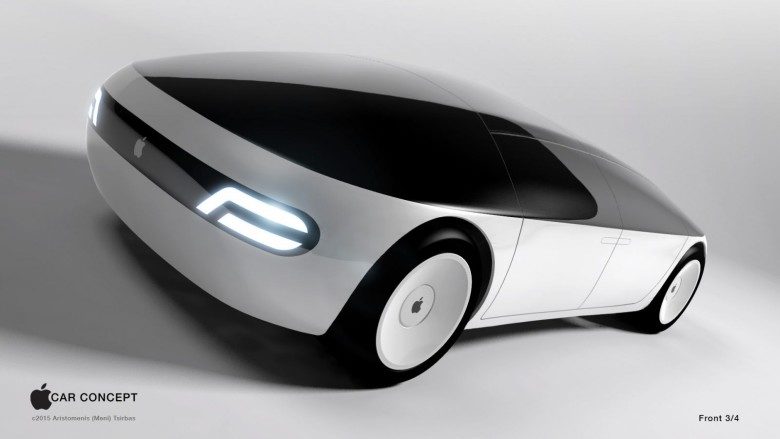
A car designed to test Apple’s autonomous driving system was involved in an accident on Monday, but a human was driving at the time. This is only the second such crash on record.
Compare that to Waymo/Google, who has had 38 traffic incidents going back to 2014.
Apple self-driving cars are quite safe
The description Apple filed on last week’s accident says:
On October 15th at 10:28 AM, an Apple test vehicle in manual mode was side swiped while preparing to turn left onto Stewart Drive from North Wolfe Road. The Apple test vehicle was traveling at approximately 5 MPH when a Toyota Camry traveling at approximately 15 MPH crossed out of its lane and contacted the
Apple test vehicle. Both vehicles sustained minor damage and no injuries were reported. The police were notified that the driver of the Toyota Camry left without exchanging information.
The first reported accident was in August when a car rear-ended an Apple vehicle in self-driving mode.
There are no known accidents in which Apple’s autonomous control system was at fault. But be aware that these cars can be tested in Arizona, California, Michigan, Nevada, and Pennsylvania, and only California requires that the public be notified of every accident.
Google/Waymo accidents are much less rare
Over the years, Google and Waymo self-driving cars have been in more than 17 times as many traffic accidents in California. Just in 2018, Waymo test vehicles have been in 11 collisions, and Apple only 2. This despite the fact that the two companies have nearly the same number of test vehicles.
Obviously, the numbers of accidents each company’s cars have been in says something about the reliability of their respective software.
And this holds true despite the fact that a majority of the incidents involving a Google/Waymo vehicle were the other driver’s fault. It’s not clear what causes so many people to rear-end its cars, but at some point the company has to realize that it must be doing something wrong. Because, so far, it’s happening to Apple’s vehicles much, much less.
Source: cult of mac










