 NEWS
NEWS
Google's iOS and Android Apps Track and Store Location Data With Location History Disabled
 08/14/2018
 2882
2882
Some Google apps on iOS and Android devices continue to store location history even with the setting disabled, according to a new AP report citing data collected by computer science researchers at Princeton.
Location History, a feature available in Google apps like Google Maps, is an option that allows the app to display the locations that you've visited in a timeline. Princeton researcher Gunnar Acar turned off the Location History option in his Google account, but his devices continued to record the locations he had visited.
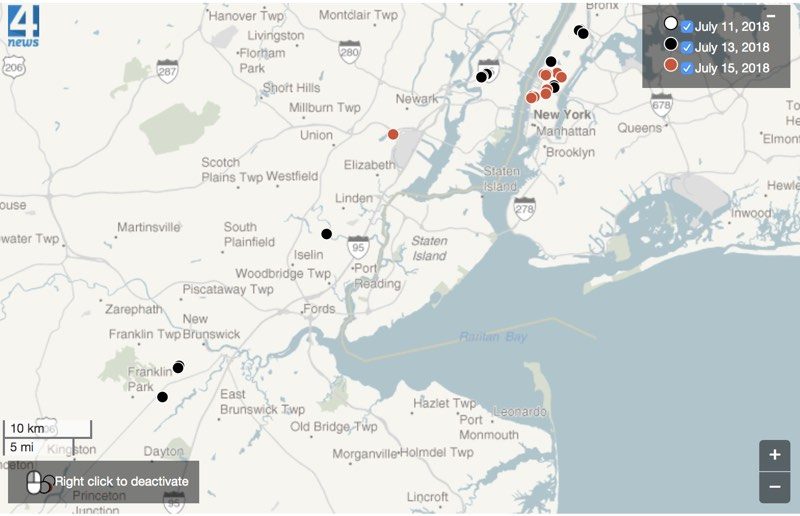
It appears that even with Location History paused, some Google apps are ignoring the setting and continue to store time-stamped location data, due to confusing data collection policies that allow other app features to also store location information.
"For example, Google stores a snapshot of where you are when you merely open its Maps app. Automatic daily weather updates on Android phones pinpoint roughly where you are. And some searches that have nothing to do with location, like "chocolate chip cookies," or "kids science kits," pinpoint your precise latitude and longitude -- accurate to the square foot -- and save it to your Google account."
While Princeton's research focused on Android devices, independent AP testing confirmed that iPhones are exhibiting the same behavior when used with Google apps.
In response to a query about the Location History tracking, Google said that it is clear about its location policies. As it turns out though, the way Google collects location data is confusing and misleading.
"There are a number of different ways that Google may use location to improve people's experience, including: Location History, Web and App Activity, and through device-level Location Services," a Google spokesperson said in a statement to the AP. "We provide clear descriptions of these tools, and robust controls so people can turn them on or off, and delete their histories at any time."
According to Google, users need to turn off "Web and App Activity," a setting enabled by default, to prevent all location data on iOS and Android devices from being saved to a Google account. Leaving "Web and App Activity" enabled while turning off "Location History" prevents Google from adding movements to the built-in timeline, but it does not stop Google from collecting other location information.
This location data collected by Google can be found under myactivity.google.com, but as the AP points out, this information is scattered under different headers often unrelated to location.
To be clear, Google is not illicitly collecting location data, but it is obfuscating its location data policies and collecting data through features that do not mention location information. Many people may not know these Google features are enabled at all, as it's a default setting.
Google's only mention that it may continue storing some location data is in a popup that appears when Location History is disabled through the Google account settings. This popup states that "some location data may be saved as part of your activity on other Google services, like Search and Maps."
On iPhone, when Location History is disabled via settings in Google apps, it says "None of your Google apps will be able to store location data in Location History." As the AP points out, this statement is true but misleading, because while location data isn't stored in Location History, it's still stored under "My Activity."
Location information stored in "My Activity" is used for ad targeting purposes.
Both "Web and App Activity" and "Location History" need to be disabled to prevent Google from collecting any location data, which can be done through the user settings of a Google account. On iOS devices, not using Google apps and disabling location services for Google apps is also an effective method for preventing Google from collecting location data.
Source: macrumors









