 NEWS
NEWS
Apple shares revised iOS Security Guide w/ details on Face ID, Apple Pay Cash
 01/12/2018
 3354
3354
Apple today has shared a revised version of its iOS Security Guide, dated January 2018. The new document, which comes in at 78 pages long includes new details on Apple Pay Cash, Face ID, and more…
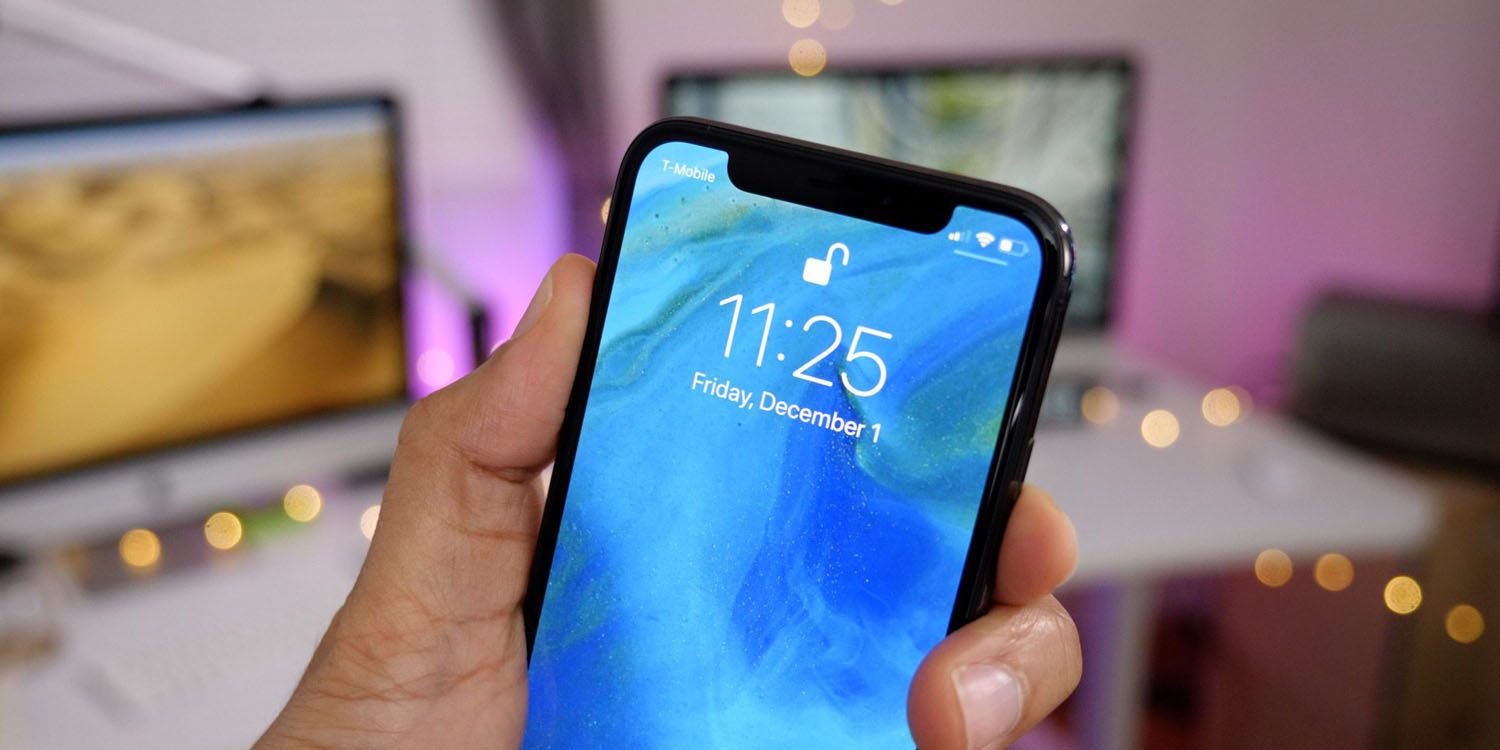
Apple releases new versions of its iOS Security Guide a few times per year, often in conjunction with major new features. The goal of the guide is to offer a thorough look at the security parameters implemented in the latest iOS versions. Today’s update to the document is the first since iOS 11 and iPhone X with Face ID were released.
Regarding Face ID, Apple’s updated security document outlines much of what we already know. The company reiterates that neither Face ID nor Touch ID are meant to act as passcode replacements, but rather underline the need for longer and more secure passcodes. Apple writes that Face ID is meant to provide easy access to your device “within thoughtful boundaries and time constraints:
“This makes using a longer, more complex passcode far more practical because you don’t need to enter it as frequently. Touch ID and Face ID don’t replace your passcode, but provide easy access to your device within thoughtful boundaries and time constraints.
This is important because a strong passcode forms the foundation of your iOS device’s cryptographic protection.”
Apple also reiterates the odds of a random person looking at your device and successfully unlocking it using Face ID, as well as its reduced accuracy with siblings, twins, and young children.
“The probability that a random person in the population could look at your iPhone X and unlock it using Face ID is approximately 1 in 1,000,000 (versus 1 in 50,000 for Touch ID). For additional protection, both Touch ID and Face ID allow only five unsuccessful match attempts before a passcode is required to obtain access to your device.
With Face ID, the probability of a false match is different for twins and siblings that look like you as well as among children under the age of 13, because their distinct facial features may not have fully developed.”
The document also offers color on the security of iOS 11.2’s new Apple Pay Cash feature. Apple’s security team explains that Apple Payments Inc. will store and use transaction data for fraud protection and other basic purposes in some cases:
“Apple Payments Inc. will store and may use your transaction data for troubleshooting, fraud prevention, and regulatory purposes once a transaction is completed. The rest of Apple doesn’t know who you sent money to, received money from, or where you made a purchase with your Apple Pay Cash card.”
The full iOS Security Guide can be viewed here and is worth a skim if you’re interested in the extent Apple goes to in protecting user security.
Source: 9to5mac









