 NEWS
NEWS
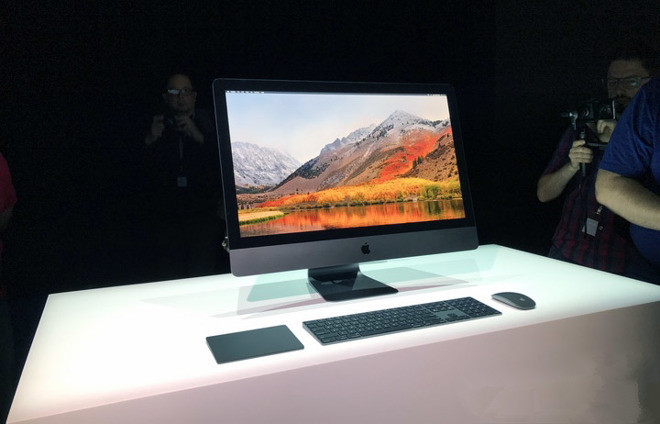
iMac Pro Debuts Custom Apple T2 Chip to Handle Secure Boot, Password Encryption
 12/13/2017
 4411
4411
Apple's iMac Pro desktop will also sport an a new custom chip dubbed the T2, serving as a secure enclave for encrypted keys, giving users the ability to lock down their Mac's boot process and also handling system functions like the camera, audio control, and managing the solid-state hard drive.
Details on the T2 chip were revealed on Tuesday by Cabel Sasser, cofounder of developer Panic. According to him, the T2 chip combines previously discrete functions, including the system management controller, image signal processor for FaceTime camera, audio control, and SSD control.
In addition, like Apple's A-series chips for iPhone and iPad, as well as the MacBook Pro's T1 before it, the T2 has a secure enclave for storing information like passwords. It also has a hardware encryption engine, according to Sasser.
"This new chip means storage encryption keys pass from the secure enclave to the hardware encryption engine in-chip — your key never leaves the chip," he wrote on Twitter. "And, they it allows for hardware verification of OS, kernel, boot loader, firmware, etc. (This can be disabled)"
To take advantage of the T2 chip, the iMac Pro's version of macOS High Sierra includes a new "Startup Security Utility" option. Here, users can turn on a firmware password to prevent a computer from starting up from a different hard disk, CD or DVD without the password.
macOS also gains new "Secure Boot" options, ranging from "Full Security" to "Medium Security" or none. When "Full Security" is enabled, the system ensures only the latest and most secure software can be run, requiring a network connection at software installation time.
Users can also allow or disallow booting from external media with the new T2 chip.
Source: appleinsider









