
NEWS

Apple’s Project Titan Self-driving Test Car Has A Lot Going On Up Top

10/19/2017

3452

When one self-driving technology entrepreneur highlights the efforts of another company working on autonomous vehicles, you pay attention: That’s what happened with Voyage co-founder MacCallister Higgins, who tweeted a short video of the top of Apple’s ‘Project Titan’ test Lexus SUV, outfitted with a suite of sensors and autonomous hardware.


This isn’t the first time we’ve seen the car and its roof array, but it’s probably the best up-close look at it we’ve had, and it’s also being seen through expert eyes instead of through those of nearby residents who happen upon one in the wild. Higgins says, for instance, that the large rooftop assembly probably actually contains “the majority of the compute stack,” as opposed to having that stuffed in the trunk like it is in many other vehicles.
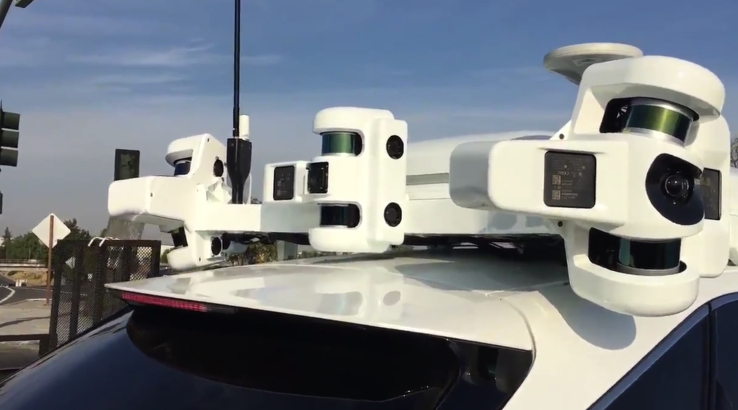

Apple’s Project Titan Self-driving Test Car Has A Lot Going On Up Top


Higgins also said that the front and back both have 6 LiDARS, and an observer noted that putting the radar array on the roof is also an interesting choice.


The benefit of this design might be that it’s relatively plug-and-play, requiring very little in the way of in-vehicle modifications, beyond bolting the roof rack to the vehicle. That would also make it easy to switch test cars theoretically in the future, and it could have an impact product-wise in terms of gearing towards modularity in design so that this can be adapted to many purposes and vehicles as an aftermarket add-on.


Source: techcrunch

Windows
Mac OS
iOS
Linux
3uTools
Win 64-bit For this device
V9.0 2025-11-11
Download
Win 32-bit For this device
V9.0 2025-11-11
Download
3uTools
Intel Chip How to Identify Chip Type
V9.0 2025-12-02
Download
Apple Silicon
V9.0 2025-12-02
Download
How to Identify Chip Type
1.  Click the Apple icon in the top-left corner of the screen and select About This Mac.
2.  Check the Processor or Chip field to determine if it is "Intel" or "Apple".
Please use the 3uTools PC client to install the iOS client:
1、 Install either the Windows or Mac version of 3uTools on your computer
2、 Open the PC client and connect your device to the computer via USB cable
3、 After the connection is successful, wait for the computer to automatically install the mobile app for the device, or locate “Install Mobile App” on the computer and manually click to install.
3uTools
deb file
V3.01 2025-11-20
Download
rpm file
V3.01 2025-11-20
Download
Windows
Windows
iOS
iOS
Android
Android
TV
TV
3uAirPlayer
Win 64-bit For this device
V6.0.2 2025-11-19
Download
Win 32-bit For this device
V6.0.2 2025-11-19
Download
iOS Device Mirroring (No App Required)
1、 Install 3uAirPlayer on the Windows PC
2、 Open Control Center and select Screen Mirroring
3、 From the list, choose your PC to start mirroring
4、 Or connect your iOS device to the PC via USB to begin mirroring
Scan to get "3uAirPlayer" App
3uAirPlayer TV V1.0.18
2025-11-28
TV System Requirements: Android 7.0 or later
Download the TV installation package, copy it to a USB drive, insert it into your TV or set-top box, then select the file from the home screen to install.




