
NEWS

Apple Moves Sixth-Generation iPod Nano to Obsolete Status

09/04/2017

3699

Apple this week has added another product to its obsolete category: the sixth-generation, Apple Watch-esque iPod nano. In being obsolete, the device is no longer supported by Apple customer service for repair or servicing.
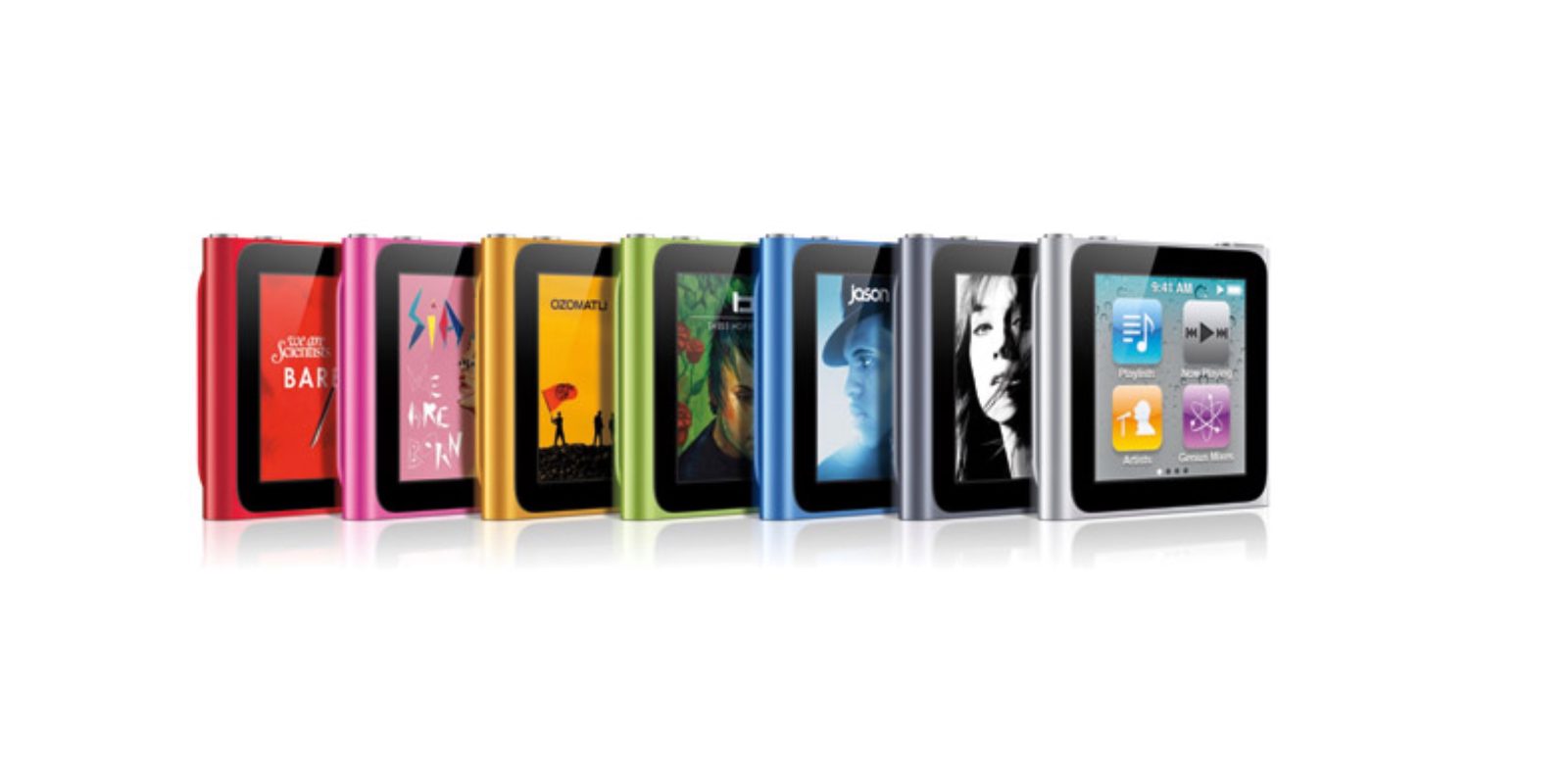

Apple Moves Sixth-Generation iPod Nano to Obsolete Status

This shouldn’t come as too big of a surprise., though Apple regularly adds older products to its “vintage and obsolete” product category and it discontinued the entire iPad nano and iPod shuffle brands earlier this year. Now that the sixth-generation iPod nano is formally obsolete (via MacRumors), Apple is not obligated to provide support except in California where state law requires extended coverage.


The sixth-generation iPod nano was originally released in September of 2010 and discontinued two years later. What set this iPod nano apart from its predecessors was its all-new, square design. The device essentially looked like an Apple Watch without the straps, though a variety of accessory makers produced watch straps for the device.


Apple earlier this year made a handful of Macs and iPhone models obsolete, including select MacBook Air and MacBook Pro models, while it also phased out other Macs last year. Prior to that, the company transitioned the iPhone 4, late 2010 13-inch MacBook Air, 3rd-generation AirPort Extreme and 2nd-generation Time Capsule to obsolete status.


Source: 9to5mac

Windows
Mac OS
iOS
Linux
3uTools
Win 64-bit For this device
V9.0 2025-11-11
Download
Win 32-bit For this device
V9.0 2025-11-11
Download
3uTools
Intel Chip How to Identify Chip Type
V9.0 2025-12-02
Download
Apple Silicon
V9.0 2025-12-02
Download
How to Identify Chip Type
1.  Click the Apple icon in the top-left corner of the screen and select About This Mac.
2.  Check the Processor or Chip field to determine if it is "Intel" or "Apple".
Please use the 3uTools PC client to install the iOS client:
1、 Install either the Windows or Mac version of 3uTools on your computer
2、 Open the PC client and connect your device to the computer via USB cable
3、 After the connection is successful, wait for the computer to automatically install the mobile app for the device, or locate “Install Mobile App” on the computer and manually click to install.
3uTools
deb file
V3.01 2025-11-20
Download
rpm file
V3.01 2025-11-20
Download
Windows
Windows
iOS
iOS
Android
Android
TV
TV
3uAirPlayer
Win 64-bit For this device
V6.0.2 2025-11-19
Download
Win 32-bit For this device
V6.0.2 2025-11-19
Download
iOS Device Mirroring (No App Required)
1、 Install 3uAirPlayer on the Windows PC
2、 Open Control Center and select Screen Mirroring
3、 From the list, choose your PC to start mirroring
4、 Or connect your iOS device to the PC via USB to begin mirroring
Scan to get "3uAirPlayer" App
3uAirPlayer TV V1.0.18
2025-11-28
TV System Requirements: Android 7.0 or later
Download the TV installation package, copy it to a USB drive, insert it into your TV or set-top box, then select the file from the home screen to install.




