 NEWS
NEWS
Apple Patent Describes Bringing Facial Recognition to Macs
 07/07/2017
 3847
3847
We’ve been hearing a lot about the 3D camera system in the iPhone 8 being capable of facial recognition to allow automatic login without Touch ID or passcode. A new patent application published today suggests that Apple also wants to bring this capability to future Macs.
But Apple has more in mind that just a simple unlock function …
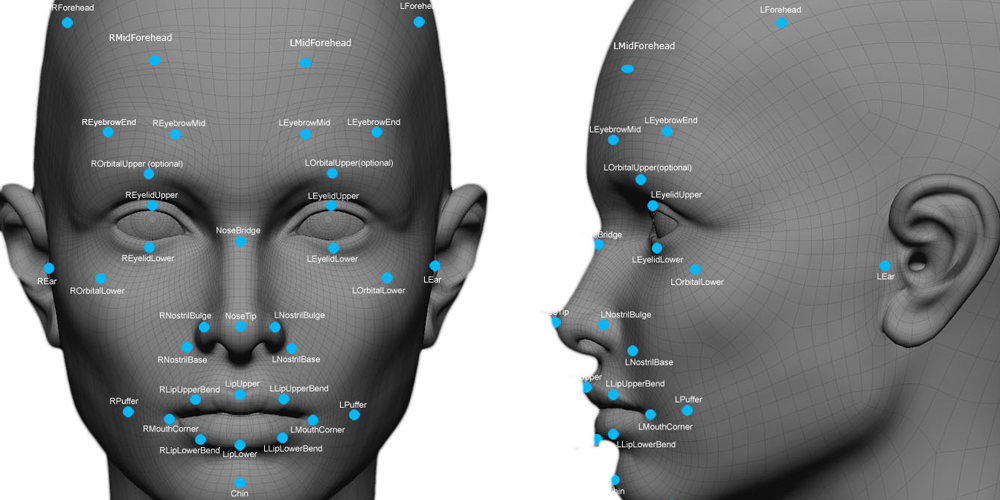
The patent describes how Macs in sleep mode could use their camera to look for faces. This would presumably be a feature added to Power Nap, where a sleeping Mac is still able to carry out certain background activities without using much power.
If your Mac spots a face, it then uses facial recognition to wake the Mac if the user is identified.
Essentially, the Mac can remain in sleep mode while doing the easy bit – just figuring out whether or not any face is in view – and then enter a higher powered mode to run the facial recognition part before fully waking the machine.
The patent describes a number of variations on the theme. For example, by monitoring how far a user is from the machine, it could enter a lighter or deeper sleep mode based on how likely you are to want to use it soon.
For example, the system may power up within a half second rather than six to eight seconds due to the reduced set of routines. In some embodiments, the computing device may be configured to determine when a user moves away from the device or leaves the proximity of the device. In response, the device may enter a power saving mode, such as a display sleep mode, a system sleep mode, activation of a screen saver, and so forth. Further, the system may exit the sleep mode partially in order to speed up the computer wake up time based on sensing the presence of a user.
As ever with Apple patents, you never know which ones it will actually use, but this one sounds to me like a winner.









