NEWS

1Password Wants to Help Developers Find Out if Their Users are Ready for Passkeys

07/18/2024

1487

1Password Wants to Help Developers Find Out if Their Users are Ready for Passkeys

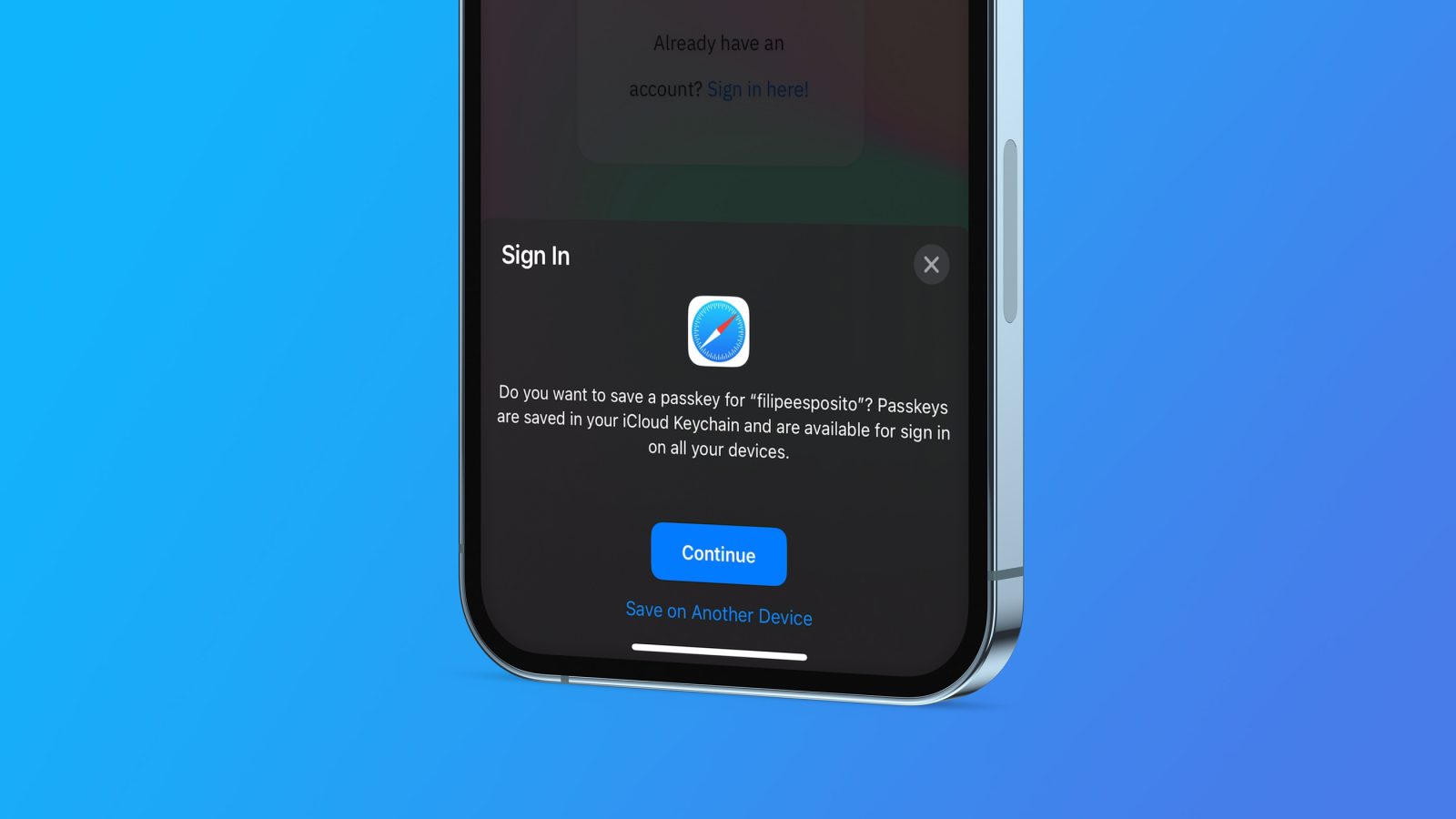
Passkey is a technology that replaces traditional passwords with more secure authentication methods, such as facial recognition or biometrics, eliminating the need to create and type a passcode. As passkeys become more popular, 1Password wants to help developers find out if their users are ready for this technology.

New 1Password tool provides insights into how many users are ready for passkeys

Through the Passage platform, 1Password has introduced a new “Passkey Ready” tool that helps web developers easily check whether their users are able to upgrade from conventional passwords to a passkey.

“By integrating Passkey Ready into your app or website, you can streamline your business’s transition to the passwordless future and begin to reap the benefits of passkeys, such as enhanced security, user experience, and conversions,” the company said in a blog post.

Developers can register on the Passage platform (owned by 1Password) and then implement a code on their website. With this code, Passage will use data such as device type and operating system version to tell the developer how many users visiting their website are ready to use passkey.

The platform from 1Password also provides comprehensive insights such as passkey readiness over time and by region. This tool is available for free – but developers can subscribe to Passage to get help with implementing passkey login on their website.

Source: 9to5mac

Windows
Mac OS
iOS
Linux
3uTools
Win 64-bit For this device
V9.0 2025-11-11
Download
Win 32-bit For this device
V9.0 2025-11-11
Download
3uTools
Intel Chip How to Identify Chip Type
V9.0 2025-12-02
Download
Apple Silicon
V9.0 2025-12-02
Download
How to Identify Chip Type
1.  Click the Apple icon in the top-left corner of the screen and select About This Mac.
2.  Check the Processor or Chip field to determine if it is "Intel" or "Apple".
Please use the 3uTools PC client to install the iOS client:
1、 Install either the Windows or Mac version of 3uTools on your computer
2、 Open the PC client and connect your device to the computer via USB cable
3、 After the connection is successful, wait for the computer to automatically install the mobile app for the device, or locate “Install Mobile App” on the computer and manually click to install.
3uTools
deb file
V3.01 2025-11-20
Download
rpm file
V3.01 2025-11-20
Download
Windows
Windows
iOS
iOS
Android
Android
TV
TV
3uAirPlayer
Win 64-bit For this device
V6.0.2 2025-11-19
Download
Win 32-bit For this device
V6.0.2 2025-11-19
Download
iOS Device Mirroring (No App Required)
1、 Install 3uAirPlayer on the Windows PC
2、 Open Control Center and select Screen Mirroring
3、 From the list, choose your PC to start mirroring
4、 Or connect your iOS device to the PC via USB to begin mirroring
Scan to get "3uAirPlayer" App
3uAirPlayer TV V1.0.18
2025-11-28
TV System Requirements: Android 7.0 or later
Download the TV installation package, copy it to a USB drive, insert it into your TV or set-top box, then select the file from the home screen to install.