NEWS

Apple Anti-tracking Privacy Feature Starting to Show up in iOS 14.4 Beta

12/24/2020

2992

Apple Anti-tracking Privacy Feature Starting to Show up in iOS 14.4 Beta


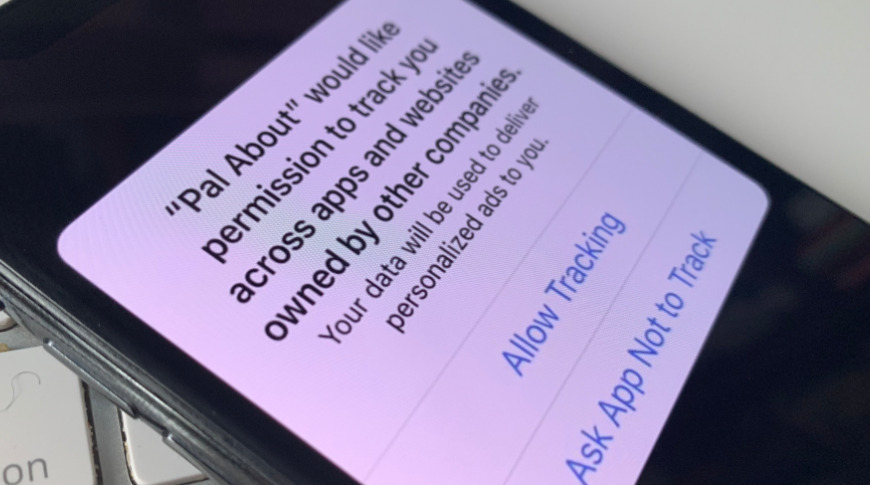
Apple's anti-tracking privacy feature is starting to show up for users running the first beta version of the company's upcoming iOS 14.4 update.


The privacy feature makes a specific type of user tracking meant for advertisers opt-in by default. That means apps will need to explicitly ask users for permission to track them across other sites and apps.


According to users on the MacRumors forum, the permission popup box has started to appear in iOS 14.4 beta 1, which was seeded to registered developers on Dec. 16.


One user posted a screenshot of the NBA app asking to track their activity in the beta. The prompt also displays the customizable text that developers will be able to change. In the NBA app's case, it says that user data "will be used to provide [them] with a better and personalized ad experience."


Although initially planned to launch with iOS 14, Apple delayed the feature to give developers and advertisers more time to prepare. Currently, it's slated to debut in early 2021.


Based on the current beta testing timeline, it's likely that iOS 14.4 and the privacy feature could debut in January or February.


Some businesses reliant on advertising revenue have come out against the privacy feature. Most notably, Facebook earlier in December ran full-page ads calling the default opt-out option a threat to small and medium businesses.


Other groups, like Mozilla and the Electronic Frontier Foundation, have voiced their support for the feature.


Source: Appleinsider

Windows
Mac OS
iOS
Linux
3uTools
Win 64-bit For this device
V9.0 2025-11-11
Download
Win 32-bit For this device
V9.0 2025-11-11
Download
3uTools
Intel Chip How to Identify Chip Type
V9.0 2025-12-02
Download
Apple Silicon
V9.0 2025-12-02
Download
How to Identify Chip Type
1.  Click the Apple icon in the top-left corner of the screen and select About This Mac.
2.  Check the Processor or Chip field to determine if it is "Intel" or "Apple".
Please use the 3uTools PC client to install the iOS client:
1、 Install either the Windows or Mac version of 3uTools on your computer
2、 Open the PC client and connect your device to the computer via USB cable
3、 After the connection is successful, wait for the computer to automatically install the mobile app for the device, or locate “Install Mobile App” on the computer and manually click to install.
3uTools
deb file
V3.01 2025-11-20
Download
rpm file
V3.01 2025-11-20
Download
Windows
Windows
iOS
iOS
Android
Android
TV
TV
3uAirPlayer
Win 64-bit For this device
V6.0.2 2025-11-19
Download
Win 32-bit For this device
V6.0.2 2025-11-19
Download
iOS Device Mirroring (No App Required)
1、 Install 3uAirPlayer on the Windows PC
2、 Open Control Center and select Screen Mirroring
3、 From the list, choose your PC to start mirroring
4、 Or connect your iOS device to the PC via USB to begin mirroring
Scan to get "3uAirPlayer" App
3uAirPlayer TV V1.0.18
2025-11-28
TV System Requirements: Android 7.0 or later
Download the TV installation package, copy it to a USB drive, insert it into your TV or set-top box, then select the file from the home screen to install.