 NEWS
NEWS
iPadOS 14 Features You Need to Know
 07/31/2020
 3681
3681
Apple's iPadOS 14 update includes many of the same features that are found in iOS 14 (minus some of the Home Screen changes), but there are also quite a few notable iPad-only features.
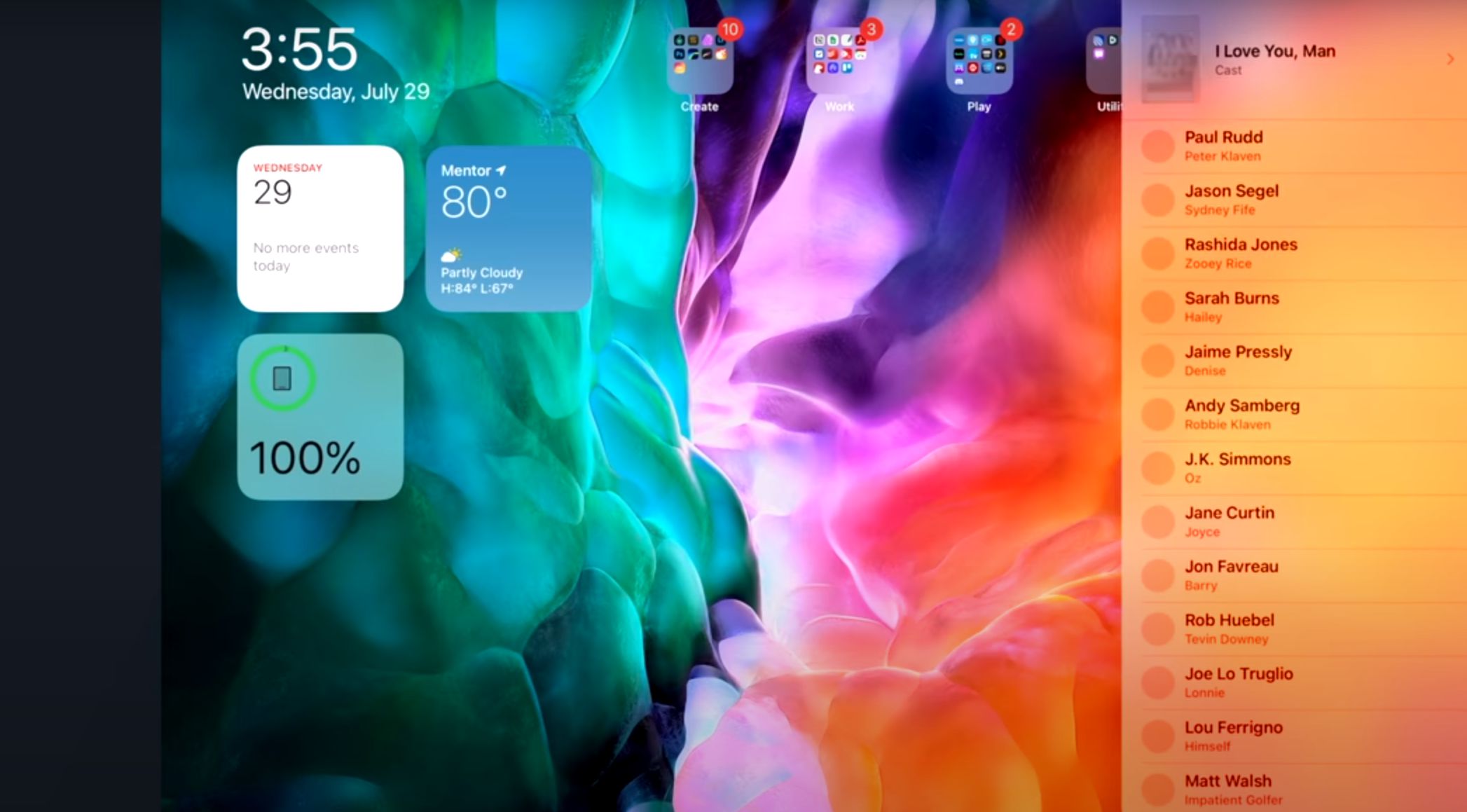
In our most recent video, we highlight some of the best new features in iPadOS 14, some of which are also available on iPhone and some of which are unique to the larger tablet form factor.
App Sidebars and Toolbars - iPadOS didn't get quite the same design overhaul that iOS did, but there are some tweaks worth noting. Apps like Music, Photos, Calendar, Notes, Files and more have been redesigned with sidebars that offer a more consistent and streamlined navigation experience, providing direct access to more information and tools. Apple has also introduced new toolbars that consolidate buttons into a single bar at the top of the app.
Updated Pull-down Menus - Along with redesigned app sidebars and toolbars, pull-down menus in built-in apps have been streamlined, providing access to app tools from a single button.
Search - The search interface is more compact and takes up less space on the iPad, plus there have been some refinements that let users see instant search suggestions, launch apps and websites, start in-app searches, and more. It's similar to search in iOS 13, but more powerful and better organized.
Scribble - Scribble, which is perhaps the best new iPadOS feature, lets Apple Pencil users handwrite in any text field, with the handwritten text converted to typed text. There are all kinds of useful tools included like scratch to delete and circling a word to select it.
Notes - Scribble brings new features to the Notes app. You can use Smart Selection to select and copy handwritten notes, plus you can copy handwritten notes and paste them as standard typed text. Shape recognition lets you draw an imperfect shape and have it converted to a perfect one, and data detectors, like those that make an address tappable, work with handwritten text.
Compact FaceTime/Phone UI - Just like on the iPhone, incoming FaceTime and Phone calls (from the iPhone) on the iPad are shown in a small banner that's easily dismissed so getting a FaceTime call no longer interrupts what you're doing on your tablet.
Compact Siri - Like FaceTime calls, the Siri interface is smaller too. Siri doesn't take over the entire iPad display when you use it, and instead shows up as a small animated icon at the bottom of the screen with results provided in a banner style. Siri can be swiped away, but when the Siri interface is up, you can't use the display behind it.
Safari - There are major improvements to Safari in iOS and iPadOS 14. Privacy tracking lets you know which websites have cross-site trackers running, there's a built-in translator so you don't need to use an extension, you can see tab previews, and Favicons are shown in tabs by default so you can see what's what at a glance.
Apple Music Lyrics - When you listen to Apple Music with iPadOS 14 and activate the feature that lets you follow along with the lyrics, the lyrics are now displayed full screen.
Emoji Popover Menu - With the new emoji popover option on iPadOS 14 you can quickly enter an emoji when using a hardware keyboard with your iPad. The nifty iOS 14 feature that lets you search for an emoji is, unfortunately, not available on the iPad.
Make sure to watch our video up above to see all of these features in action, and for more on what's new in iPadOS 14, check out our iPadOS 14 and iOS 14 roundups, along with our Guides and How Tos.
Like iOS 14, iPadOS 14 is available to developers and public beta testers at this time, so anyone can download it and try it out. The update will see an official public release this fall.
Source: Macrumors










