 NEWS
NEWS
Apple Stops Signing iOS 13.4 Code Following Release of iOS 13.4.1
 04/16/2020
 2839
2839
Apple on Wednesday stopped signing code for iOS 13.4, effectively blocking downgrades to the previous operating system version following the release of iOS 13.4.1.
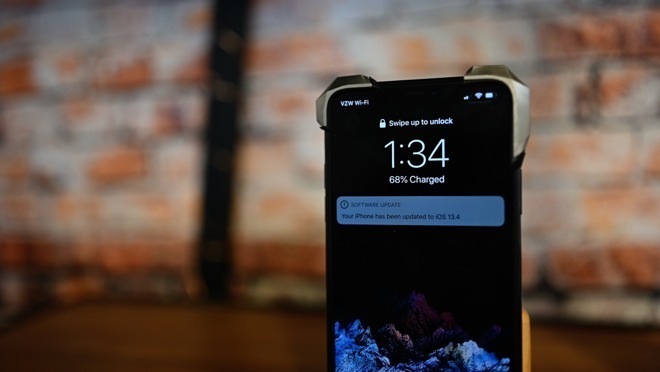
The halt of iOS 13.4 code signing comes a week after Apple issued iOS 13.4.1 to patch a number of bugs.
With Apple no longer authenticating iOS 13.4 code, device users are unable to download or install the now out-of-date operating system.
The current iOS release fixes a FaceTime bug that in some cases prevented users from connecting to another device running iOS 9 or macOS El Capitan.
Another issue addressed in iOS 13.4.1 was a bug in the Settings app where users were unable to successfully enable Bluetooth from the quick actions menu, The iPadOS version of the update fixed a problem where the flashlight did not activate on new iPad Pro models when tapping the Flashlight button in Control Center or on the Lock screen.
Apple routinely stops signing legacy code after the release of a new iOS build in part to protect customers from nefarious actors attempting to take advantage of newly discovered vulnerabilities. In addition to security, preventing users from downloading older code allows Apple to keep more iOS devices on the latest, feature-rich software.
The previous iOS 13.4 was a major update that delivered iCloud folder sharing, Mail tweaks, Memoji stickers and, for the first time, cursor support for iPad through connected peripherals like the Magic Keyboard for iPad Pro.
Earlier today, Apple pushed out second developer beta versions of the upcoming iOS 13.4.5, an update expected to incorporate new features like social media sharing for Apple Music and performance enhancements.
Source: Appleinsider










