
TUTORIALS

Apple iOS 12.4 Beta 7 Is Available on 3utools

07/18/2019

7651

Apple released its seventh beta for iOS 12.4, the update that adds support for Apple Card to developers and public beta testers, one week after seeding the sixth iOS 12.4 beta, and two months after releasing iOS 12.3, a major update that introduced a revamped TV app. 


If you're not registered in the Apple Developer program, you may upgrade it with 3uTools. The installation, or flash, will take around 10 minutes in total if you follow steps below. Installing a system may cause errors due to the individual nuance of iDevices, it is always smart to back up your iDevice in advance.


Step 1 Connect your iDevice to PC with an original USB cable and launch 3uTools. 


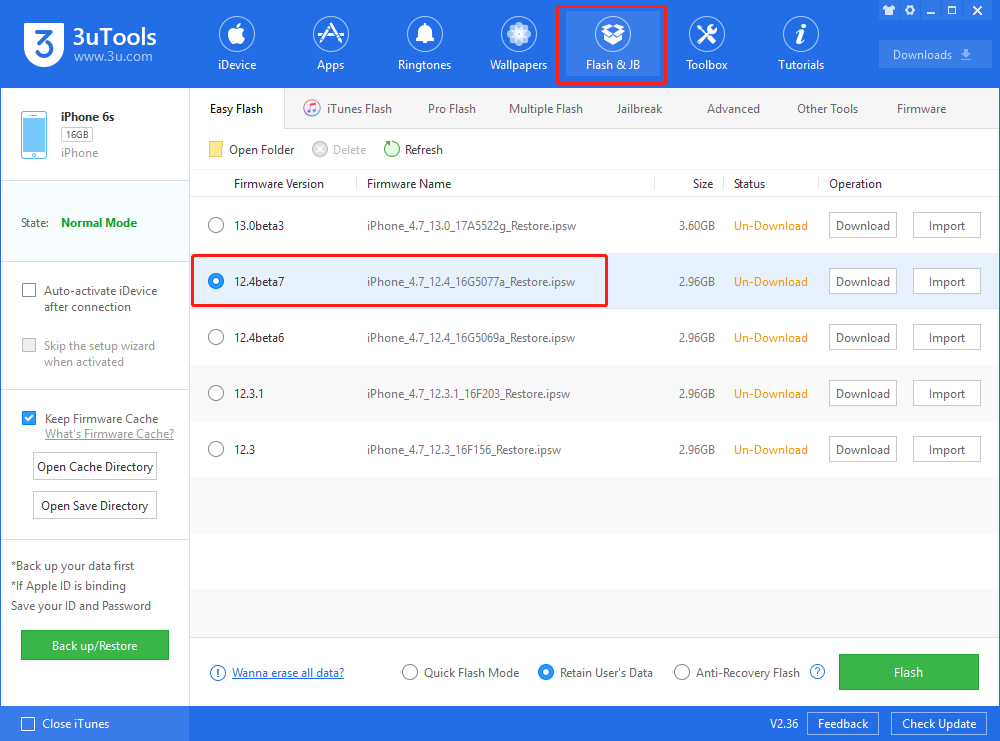
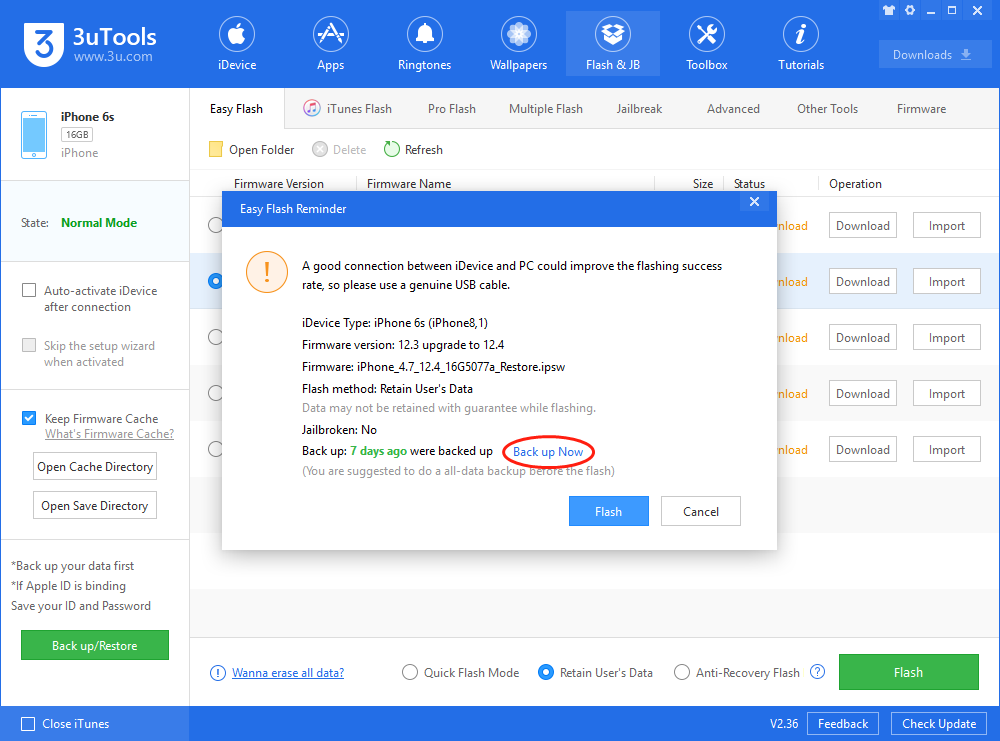
Step 2 Go to Flash & JB → Easy Flash, select firmware iOS 12.4 beta 7. If you want to update with data, please check the box "Retain User's Data While Flashing". There will be a pop reminder after you click "Flash", please read it with caution.

Apple iOS 12.4 Beta 7 Is Available on 3utools


You are recommended to back up your iDevice regularly in case of data loss.

Apple iOS 12.4 Beta 7 Is Available on 3utools


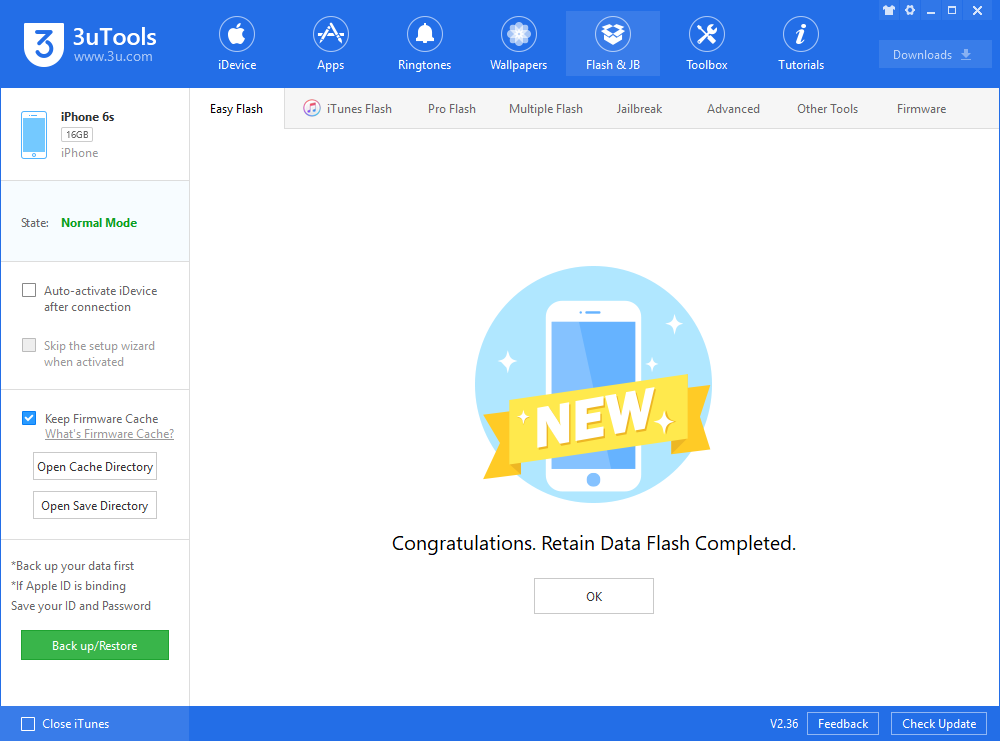
Step 3 Keep the stabilization of network and USB connection while flashing, wait patiently for around 5 to 10 minutes. Your iDevice will be updated to iOS 12.4 Beta 7 after reboot.

Apple iOS 12.4 Beta 7 Is Available on 3utools

Windows
Mac OS
iOS
Linux
3uTools
Win 64-bit For this device
V9.0 2025-11-11
Download
Win 32-bit For this device
V9.0 2025-11-11
Download
3uTools
Intel Chip How to Identify Chip Type
V9.0 2025-12-02
Download
Apple Chip
V9.0 2025-12-02
Download
How to Identify Chip Type
1.  Click the Apple icon in the top-left corner of the screen and select About This Mac.
2.  Check the Processor or Chip field to determine if it is "Intel" or "Apple".
Please use the 3uTools PC client to install the iOS client:
1、 Install either the Windows or Mac version of 3uTools on your computer
2、 Open the PC client and connect your device to the computer via USB cable
3、 After the connection is successful, wait for the computer to automatically install the mobile app for the device, or locate “Install Mobile App” on the computer and manually click to install.
3uTools
deb file
V3.01 2025-11-20
Download
rpm file
V3.01 2025-11-20
Download
Windows
Windows
iOS
iOS
Android
Android
TV
TV
3uAirPlayer
Win 64-bit For this device
V6.0.2 2025-11-19
Download
Win 32-bit For this device
V6.0.2 2025-11-19
Download
iOS Device Mirroring (No App Required)
1、 Install 3uAirPlayer on the Windows PC
2、 Open Control Center and select Screen Mirroring
3、 From the list, choose your PC to start mirroring
4、 Or connect your iOS device to the PC via USB to begin mirroring
Scan to get "3uAirPlayer" App
3uAirPlayer TV V1.0.18
2025-11-28
TV System Requirements: Android 7.0 or later
Download the TV installation package, copy it to a USB drive, insert it into your TV or set-top box, then select the file from the home screen to install.





