TUTORIALS

This Tweak Gives Your iPhone a Redesigned Activity Indicator

05/16/2018

5129

You might have noticed that your iPhone displays a spinner-like animation in the Status Bar whenever you access the internet or perform functions in specific apps. This spinner, which is commonly referred to as the activity indicator, lets you know that your device is actively doing something.


For the most part, the activity indicator doesn’t get much attention, but a new free jailbreak tweak dubbed KITTLoader by iOS developer LonestarX gives it an entirely new look and feel.


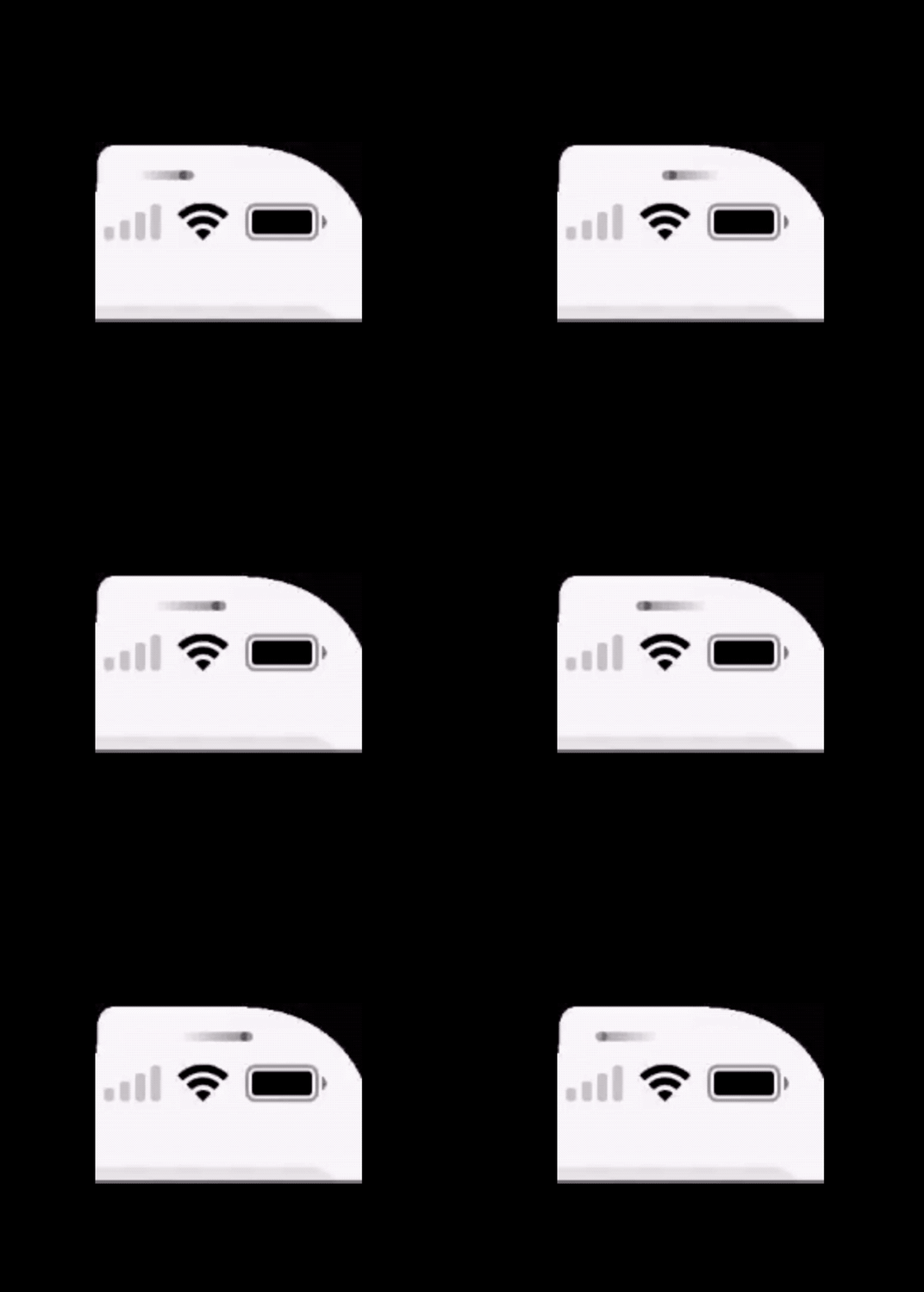
KITTLoader was created in response to a request thread on /r/jailbreak and replaces the traditional spinner with what looks like a ping-pong ball bouncing back and forth. The animated GIF below illustrates the animation in action:


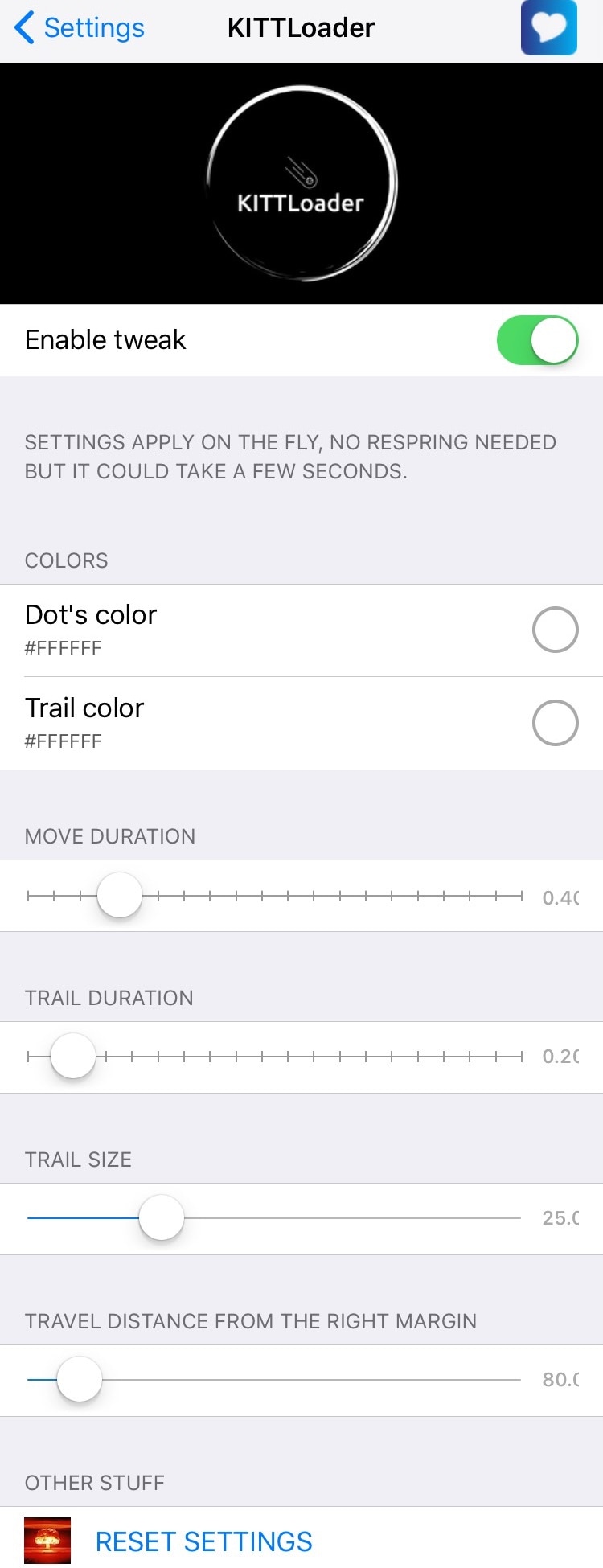
Once installed, KITTLoader adds a preference pane to the Settings app where you can configure a host of options:

This Tweak Gives Your iPhone a Redesigned Activity Indicator


The developer even includes a handy “Reset Settings” button at the bottom of the preference pane for restoring the settings to factory defaults whenever you feel like starting over.


For the most part, KITTLoader is merely an aesthetic tweak that can make your activity indicator more fun and quirky at first glance, but it seems to have been positively accepted by the jailbreak community. That said, I too like how it looks and would recommend that you try it out if you are able.

This Tweak Gives Your iPhone a Redesigned Activity Indicator


If you would like to try KITTLoader, then you can download it for free from Cydia’s Bigboss repository. The tweak appears to work with all jailbroken devices running iOS 8, 9, 10, and 11.


Source: idownloadblog
Windows
Mac OS
iOS
Linux
3uTools
Win 64-bit For this device
V9.07 2026-07-17
Download
Win 32-bit For this device
V9.07 2026-07-17
Download
3uTools
Intel Chip How to Identify Chip Type
V9.05 2026-07-25
Download
Apple Silicon
V9.05 2026-07-25
Download
How to Identify Chip Type
1.  Click the Apple icon in the top-left corner of the screen and select About This Mac.
2.  Check the Processor or Chip field to determine if it is "Intel" or "Apple".
Please use the 3uTools PC client to install the iOS client:
1、 Install either the Windows or Mac version of 3uTools on your computer
2、 Open the PC client and connect your device to the computer via USB cable
3、 After the connection is successful, wait for the computer to automatically install the mobile app for the device, or locate “Install Mobile App” on the computer and manually click to install.
3uTools
deb file
V9.01 2026-05-28
Download
rpm file
V9.01 2026-05-28
Download
Windows
Windows
iOS
iOS
Android
Android
TV
TV
3uAirPlayer
Win 64-bit For this device
V6.0.6 2026-06-26
Download
Win 32-bit For this device
V6.0.6 2026-06-26
Download
iOS Device Mirroring (No App Required)
1、 Install 3uAirPlayer on the Windows PC
2、 Open Control Center and select Screen Mirroring
3、 From the list, choose your PC to start mirroring
4、 Or connect your iOS device to the PC via USB to begin mirroring
Scan to get "3uAirPlayer" App
3uAirPlayerTV
 
TV System Requirements: Android 7.0 or later
Download the TV installation package, copy it to a USB drive, insert it into your TV or set-top box, then select the file from the home screen to install.