
TUTORIALS

Customize your iPhone X Status Bar Font with Swae

05/11/2018

7093

Jailbreak tweaks explicitly designed for the iPhone X are few and far in between, but now you can add a new release called Swae by iOS developer NeinZedd9 to that list.
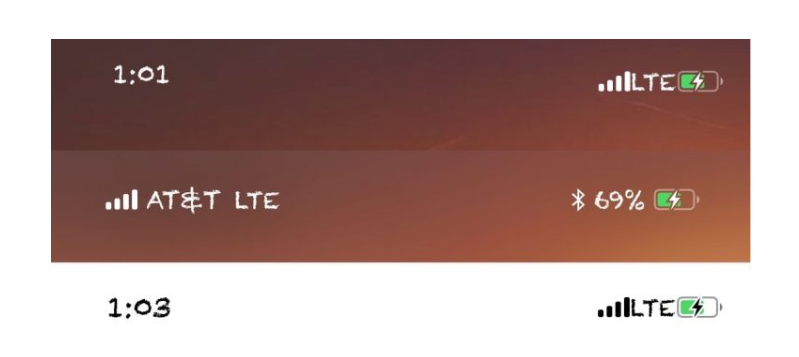
Customize your iPhone X Status Bar Font with Swae


Swae is a cosmetic-oriented tweak that lets you customize the font of the text displayed your iPhone X’s Status Bar. As shown above, it impacts elements such as the time and cellular signal information, among other things.


Customizing the font in iOS has been a favorite past-time for jailbreakers for many years, so the concept behind Swae isn’t particularly new. On the other hand, it keeps things simple by only modifying the Status Bar’s font, and nothing else.


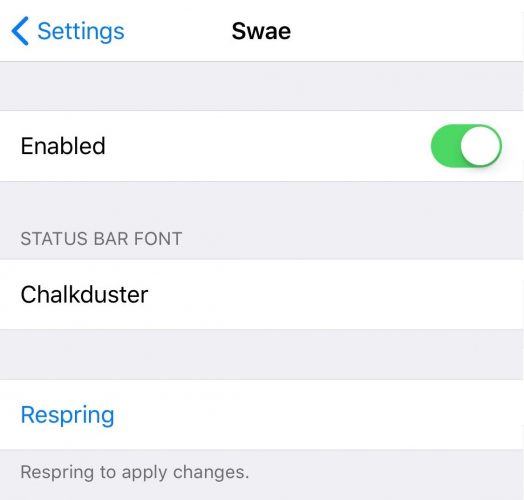
After installation, you will find a new preference pane in the Settings app for customizing Swae:

Customize your iPhone X Status Bar Font with Swae


Here, you can toggle the tweak on or off on demand and choose the font you want to use. The developer also includes an integrated respring button for saving any changes you make to the selected font.


Wondering how many fonts Swae supports? The short answer is: too many for us to list. Fortunately, all the compatible fonts are listed on NeinZeed9’s GitHub page for reference.


If you’re into customizing iOS’ aesthetics and have a jailbroken iPhone X, then you might want to give Swae a try. The tweak only supports iOS 11, and relies on the iPhone X’s notch; that said, it’s not made to work with traditional rectangular-displayed iPhones and iPads.


Source: idownloadblog

Windows
Mac OS
iOS
Linux
3uTools
Win 64-bit For this device
V9.0 2025-11-11
Download
Win 32-bit For this device
V9.0 2025-11-11
Download
3uTools
Intel Chip How to Identify Chip Type
V9.0 2025-12-02
Download
Apple Silicon
V9.0 2025-12-02
Download
How to Identify Chip Type
1.  Click the Apple icon in the top-left corner of the screen and select About This Mac.
2.  Check the Processor or Chip field to determine if it is "Intel" or "Apple".
Please use the 3uTools PC client to install the iOS client:
1、 Install either the Windows or Mac version of 3uTools on your computer
2、 Open the PC client and connect your device to the computer via USB cable
3、 After the connection is successful, wait for the computer to automatically install the mobile app for the device, or locate “Install Mobile App” on the computer and manually click to install.
3uTools
deb file
V3.01 2025-11-20
Download
rpm file
V3.01 2025-11-20
Download
Windows
Windows
iOS
iOS
Android
Android
TV
TV
3uAirPlayer
Win 64-bit For this device
V6.0.2 2025-11-19
Download
Win 32-bit For this device
V6.0.2 2025-11-19
Download
iOS Device Mirroring (No App Required)
1、 Install 3uAirPlayer on the Windows PC
2、 Open Control Center and select Screen Mirroring
3、 From the list, choose your PC to start mirroring
4、 Or connect your iOS device to the PC via USB to begin mirroring
Scan to get "3uAirPlayer" App
3uAirPlayer TV V1.0.18
2025-11-28
TV System Requirements: Android 7.0 or later
Download the TV installation package, copy it to a USB drive, insert it into your TV or set-top box, then select the file from the home screen to install.




